Settings and User Administration
This section covers the administrative pages currently validated in live capture for user management, self-profile review, and configuration access.
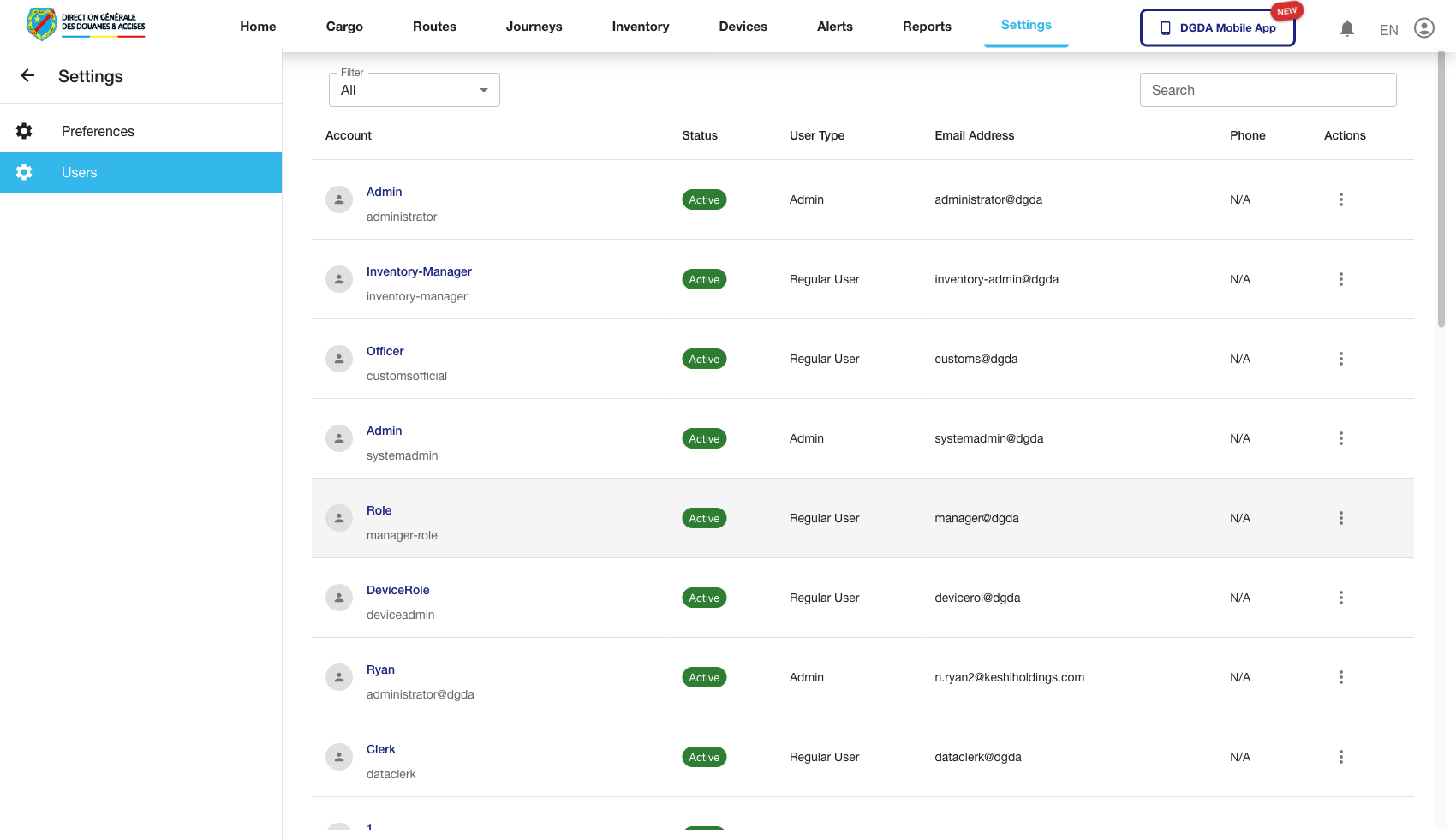
1. Review the Users List
Purpose: Confirm that user administration is reachable and the current account registry loads.
Route / context: /settings/users
Steps:
- Open Settings from the top navigation.
- Select Users.
- Review the list of accounts.
- Search for a specific user when required.
- Use this page as the starting point for deeper user administration.
Expected result: The user list loads with search and row-level administration options.
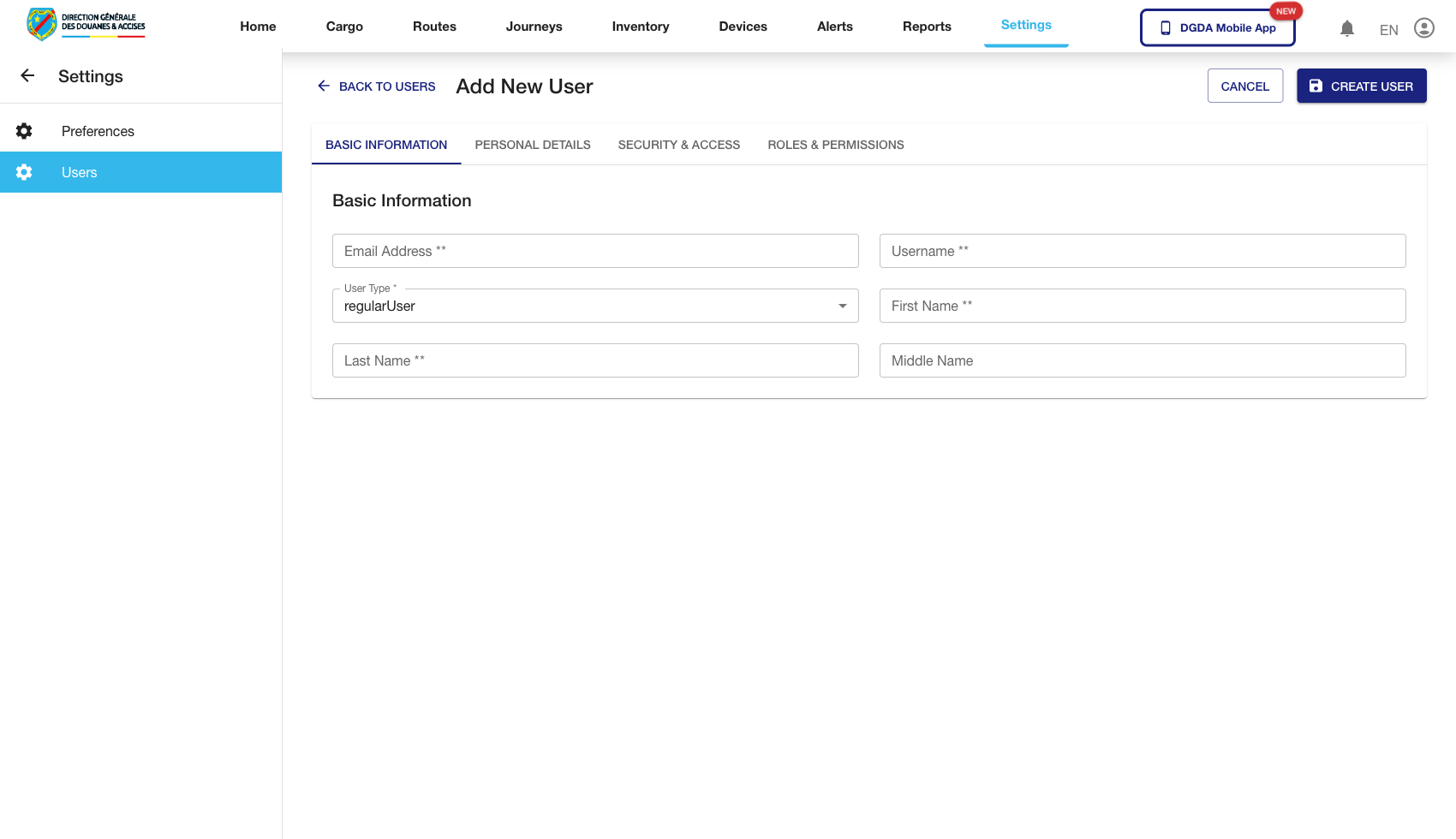
2. Add a User
Purpose: Create a new user account through the portal administration flow.
Route / context: /settings/users/add-user
Steps:
- Start from the Users administration area.
- Open Add User.
- Complete the required user fields.
- Save the new account.
- Confirm the user becomes available in the administration list.
Expected result: A new account is created successfully and appears in the user registry.
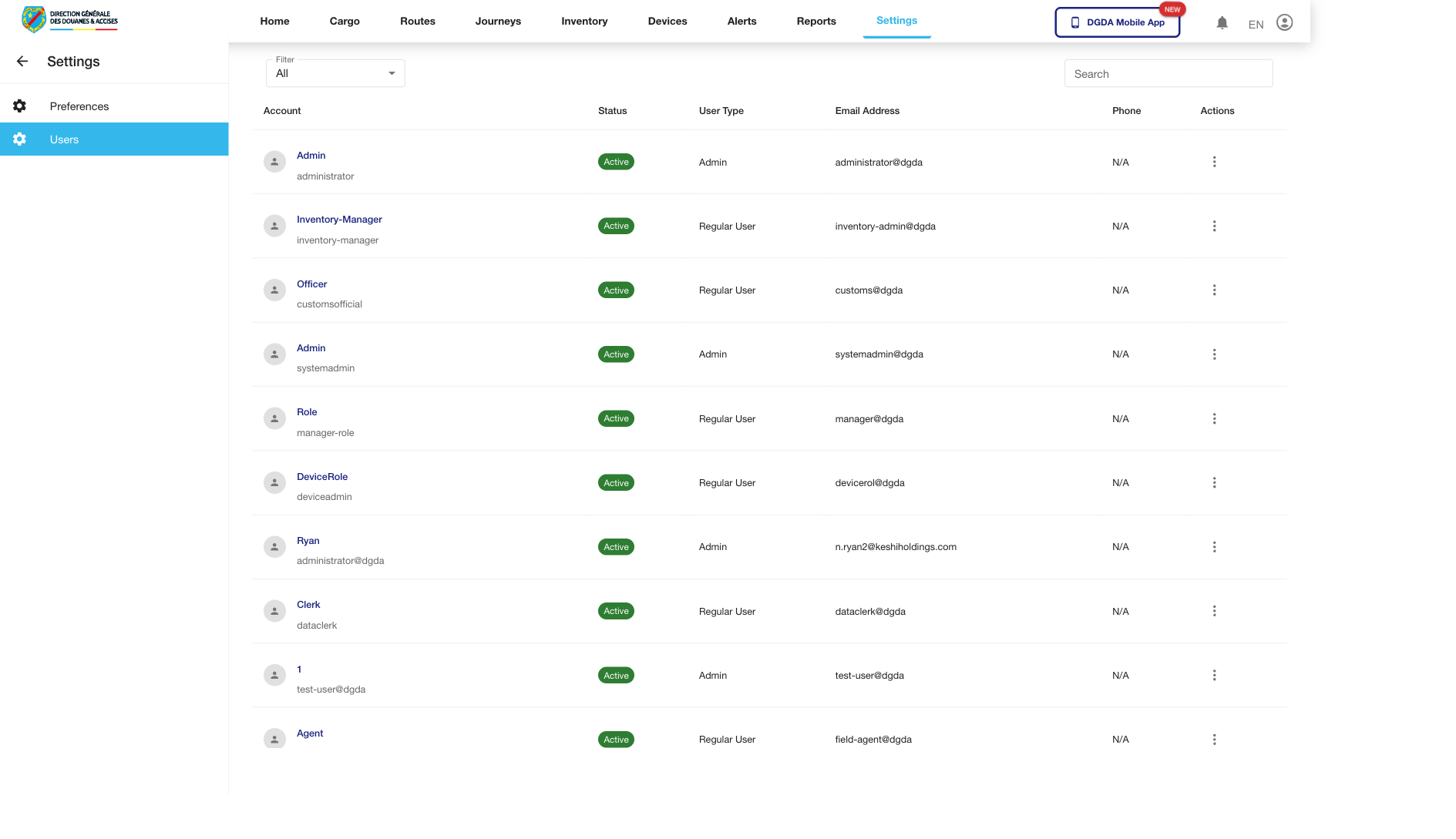
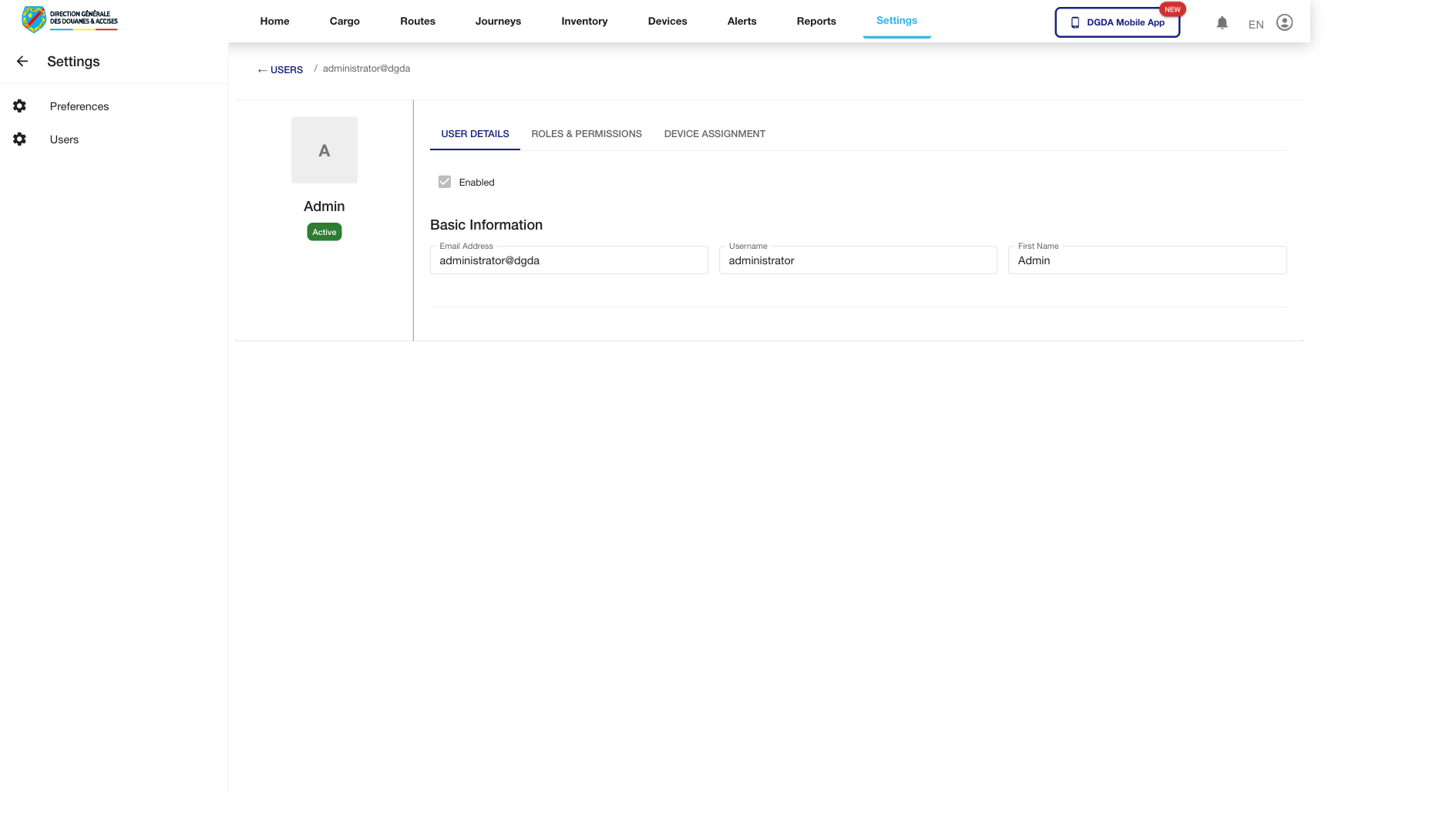
3. Open a User Detail Record
Purpose: Move from the user list into a specific user detail context.
Route / context: /settings/userdetail/:id
Steps:
- Open the Users page.
- Identify the target user row.
- Click the row or row-level action used to open the user detail.
- Confirm the detail page loads correctly.
Expected result: The selected user opens in a detailed administrative view.
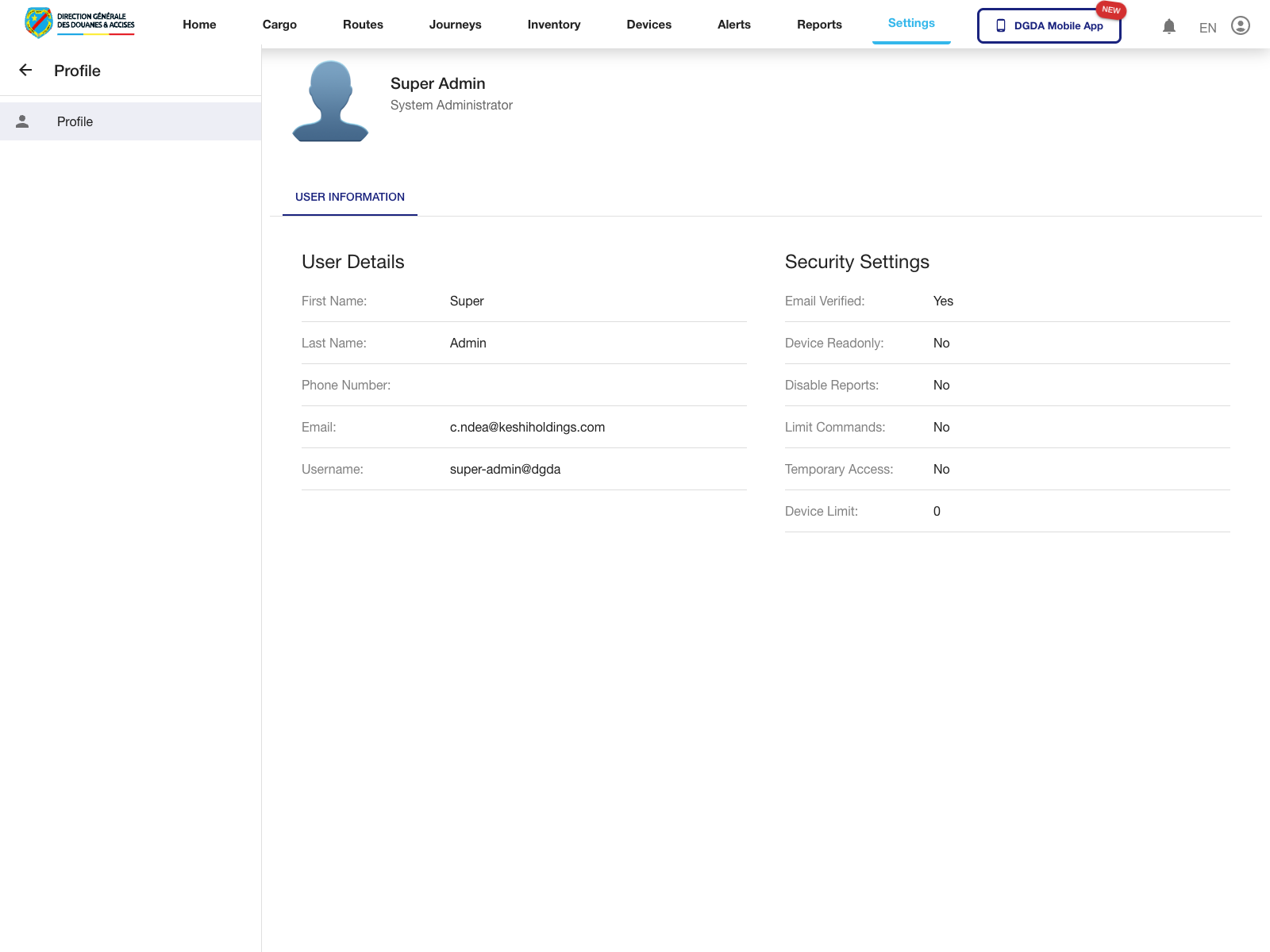
4. Review Your Own Profile
Purpose: Open the self-profile page for the currently signed-in account.
Route / context: account menu -> /settings/user
Steps:
- Open the account menu from the application header.
- Select Profile.
- Wait for the profile page to load.
- Review the account information shown on the page.
Expected result: The portal opens the signed-in user's own profile page.
5. Review Preferences
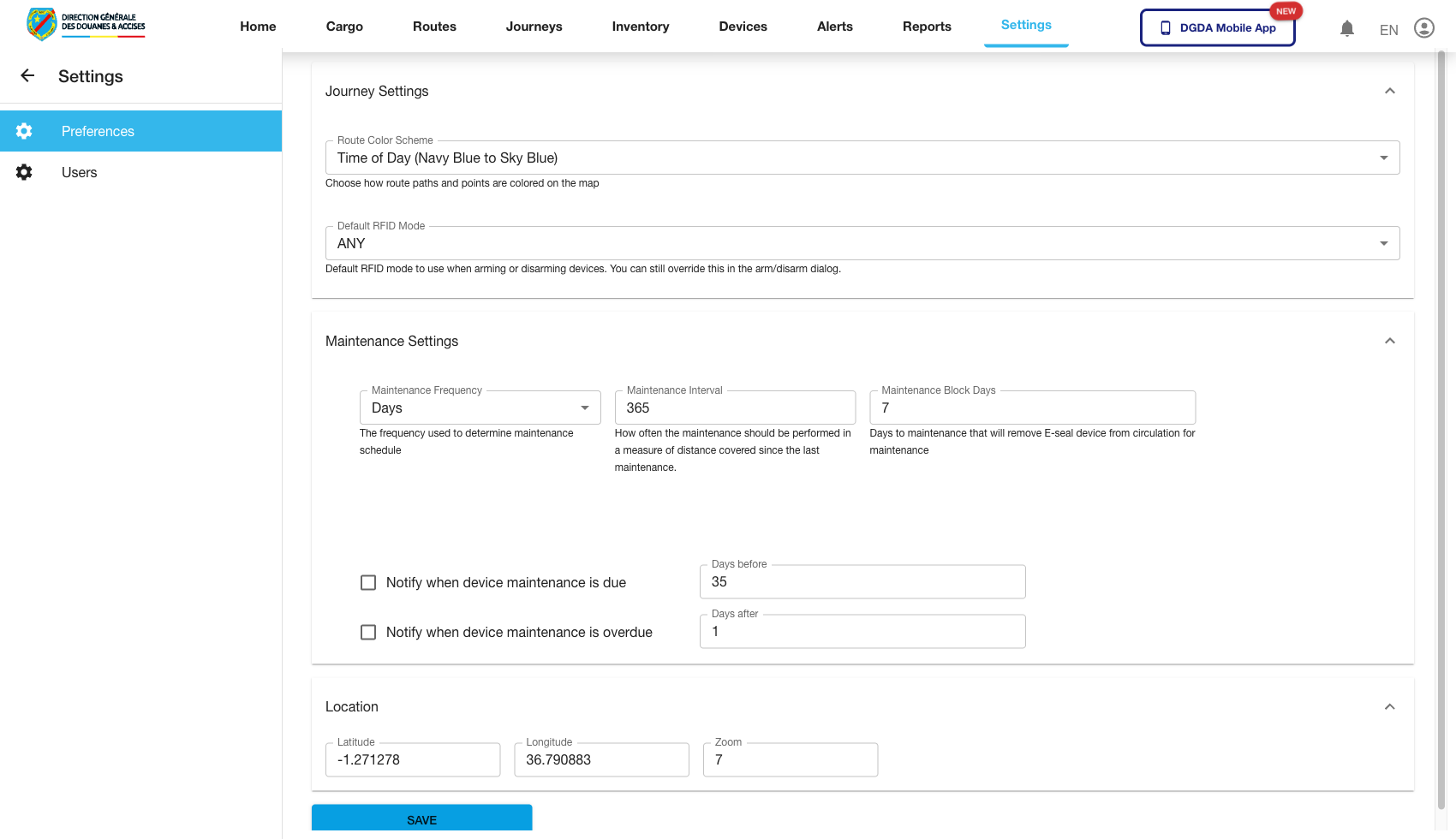
Purpose: Inspect settings that influence portal behavior or configuration.
Route / context: /settings/preferences
Steps:
- Open Preferences from the Settings module.
- Review the available configuration values.
- Confirm the page loads without runtime error.
Expected result: Preference values are visible in a stable configuration screen.
6. Review the Device Settings Dashboard
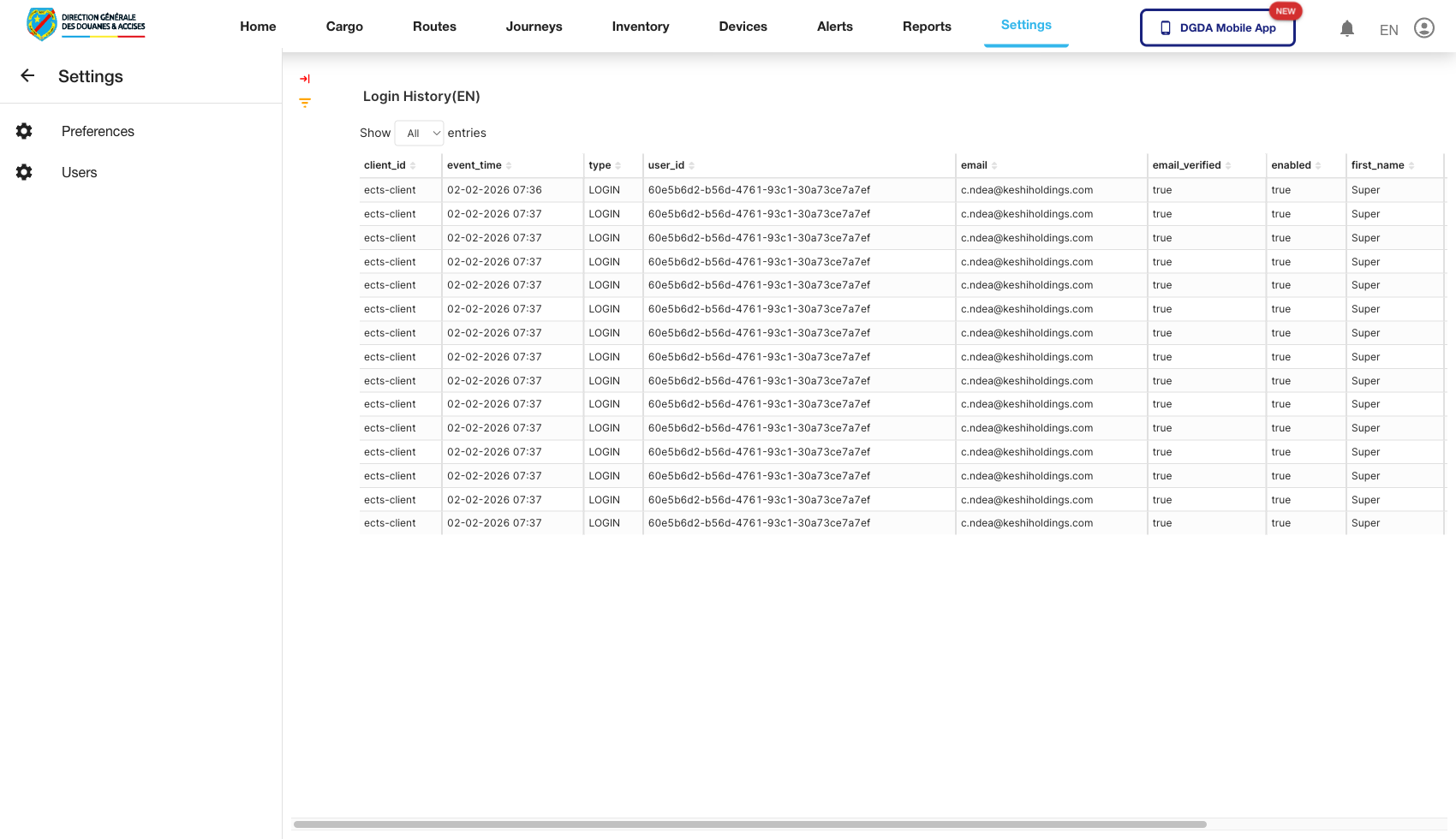
Purpose: Access the settings-side device administration dashboard.
Route / context: /settings/devices
Steps:
- Stay within Settings.
- Open Devices.
- Review the configuration or summary information presented there.
Expected result: The settings-side device dashboard loads and provides administrative context related to devices.
7. Administrative Notes
- The self-profile page is reached from the account menu, not from the main settings left navigation.
- Sign-out and pre-authentication password recovery are documented in Access and Navigation.
- Further user lifecycle actions beyond the validated add and detail flows should be captured separately before they are treated as standard operating procedures.