Journeys
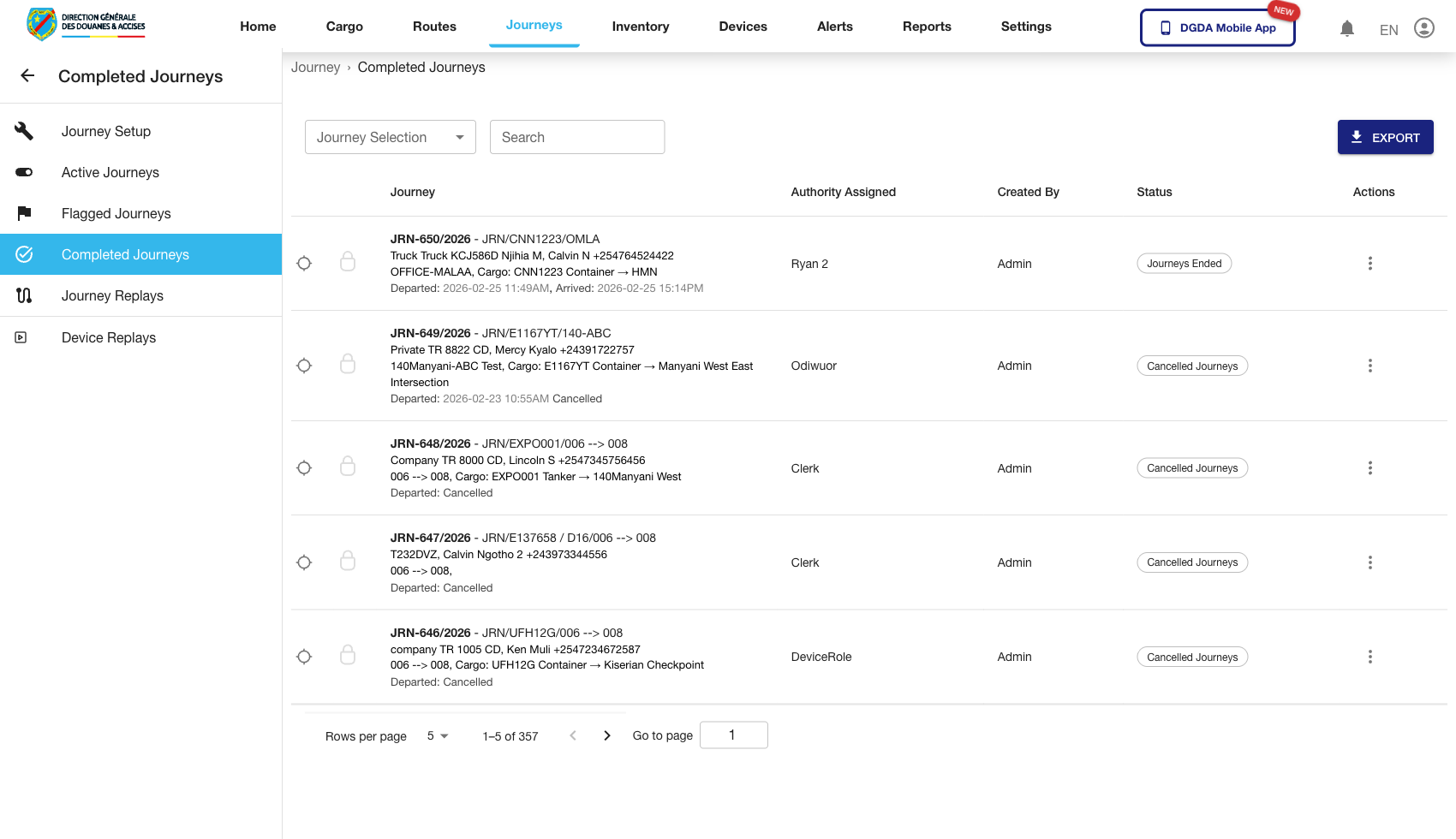
This section covers the main journey views and the validated drill-down and action-entry flows captured from the live portal.
1. Review Active Journeys
Purpose: Monitor journeys that are still in progress.
Route / context: /journey/active
Steps:
- Open Journeys from the top navigation.
- Select Active Journeys.
- Review the list of in-progress journeys.
- Use filters or search to find a specific record.
- Open a row action when deeper inspection is needed.
Expected result: The active journey view shows live operational journeys ready for monitoring or investigation.
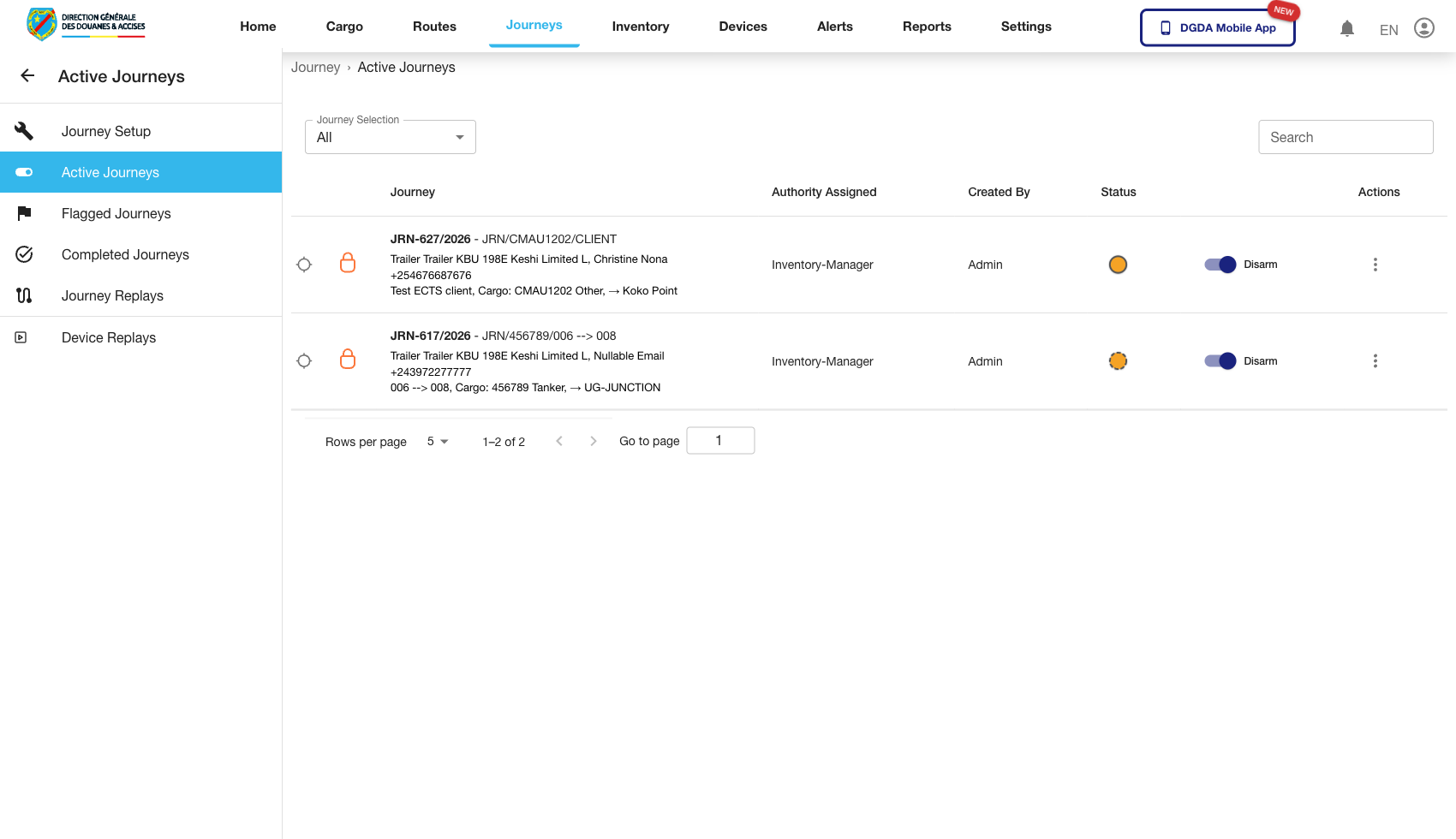
2. Review Flagged Journeys
Purpose: Isolate journeys that have been flagged for additional attention.
Route / context: /journey/flagged
Steps:
- Stay within the Journeys module.
- Open Flagged Journeys from the left navigation.
- Review the list of flagged records.
- Use this view when operational follow-up needs to focus on exceptions rather than the full active queue.
Expected result: The flagged-journey queue loads as a dedicated monitoring view.
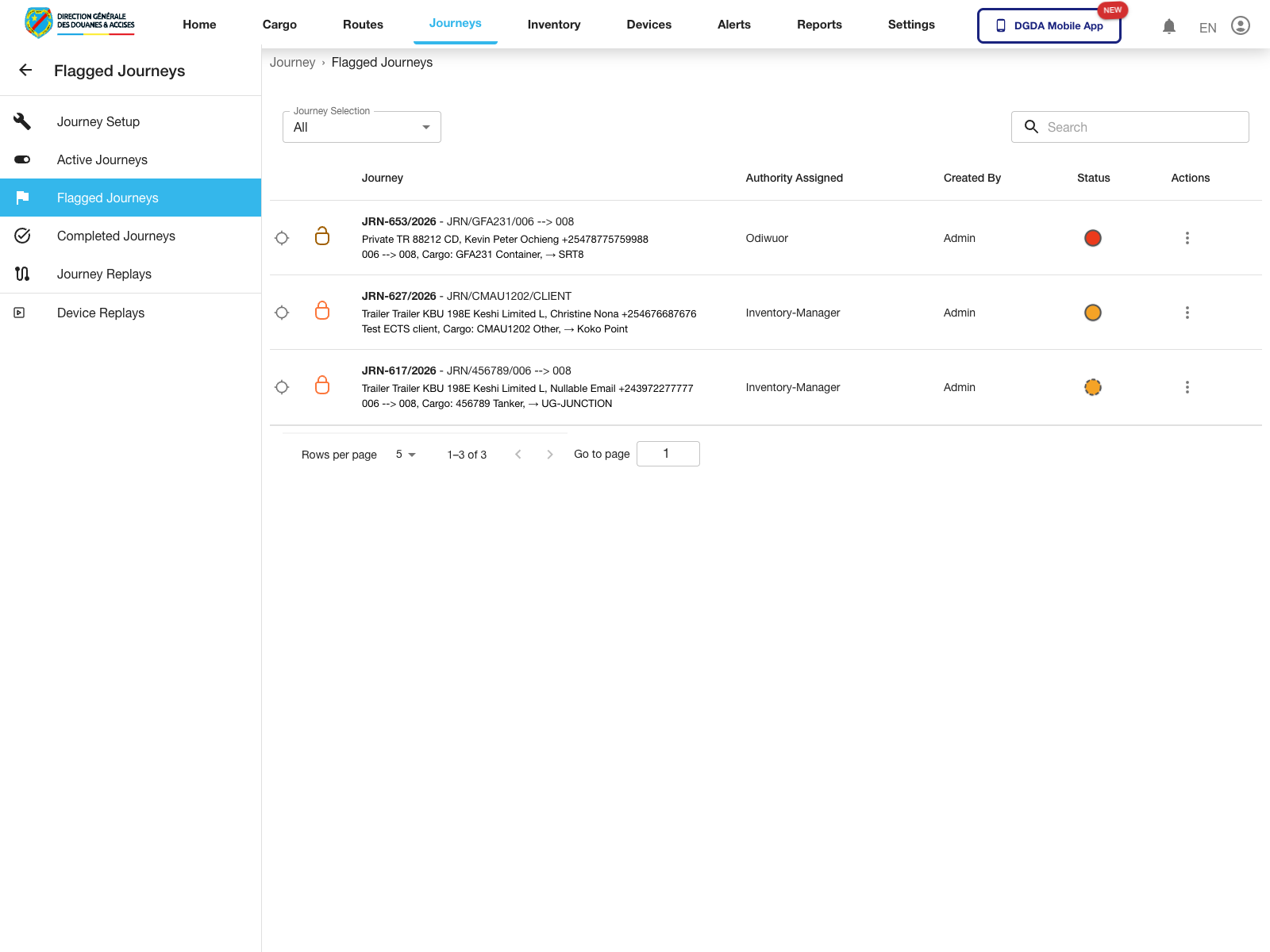
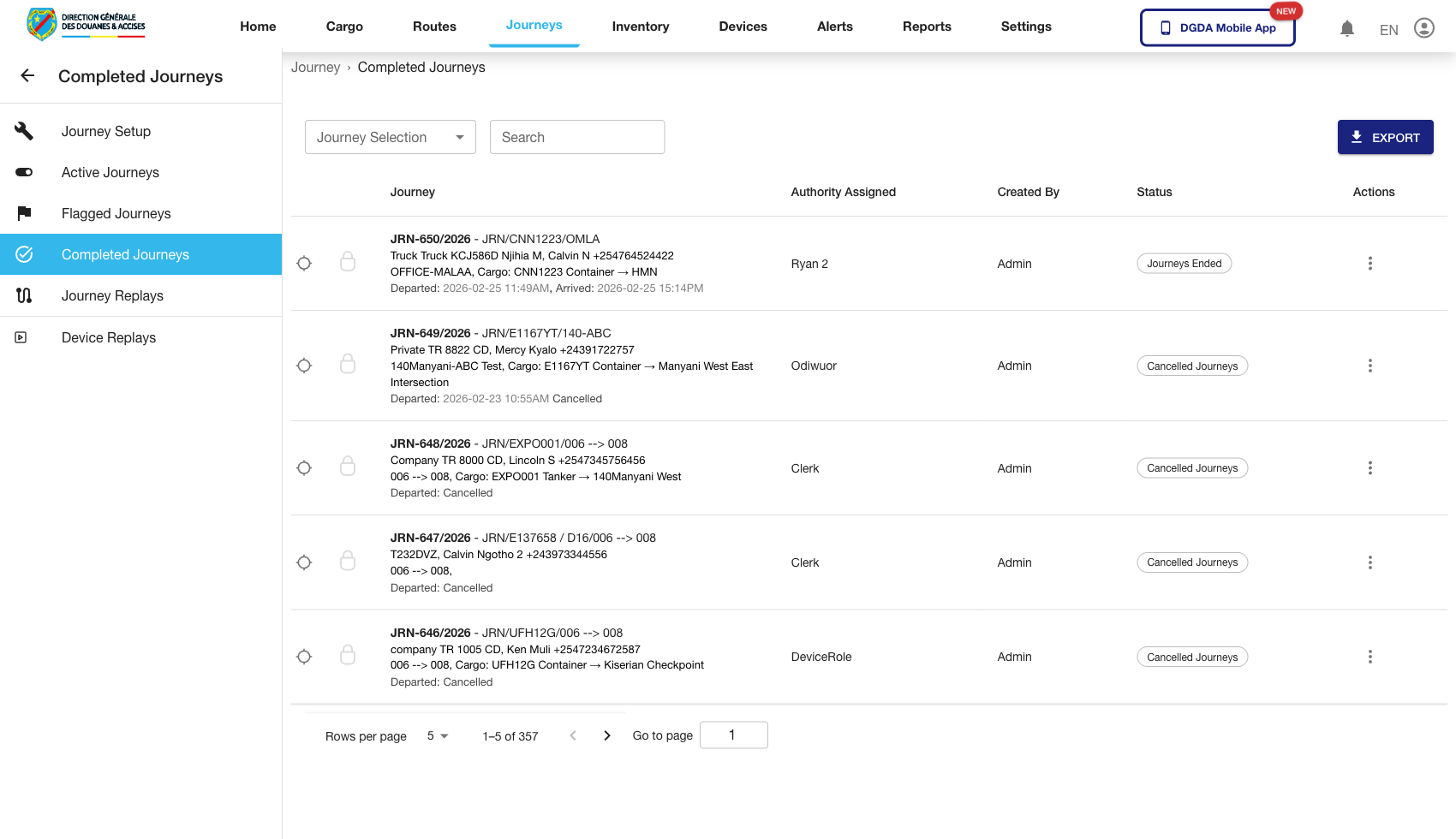
3. Review Completed Journeys
Purpose: Confirm the final state of journeys that have already concluded.
Route / context: /journey/completed
Steps:
- Stay within the Journeys module.
- Open Completed Journeys.
- Review the completed records.
- Search by identifier, authority, or date when investigating a specific historical movement.
Expected result: The completed journey view isolates historical records from active operational traffic.
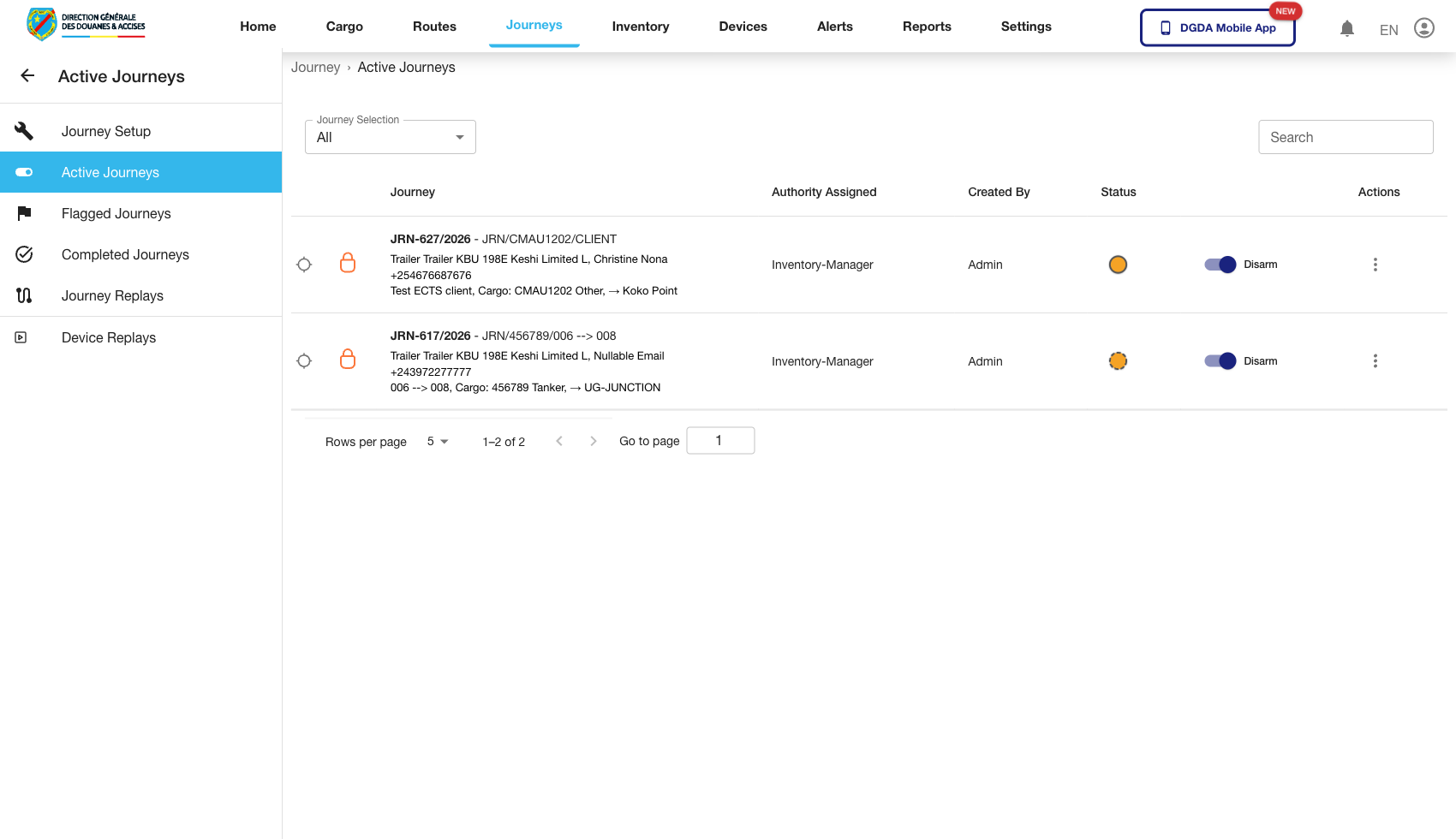
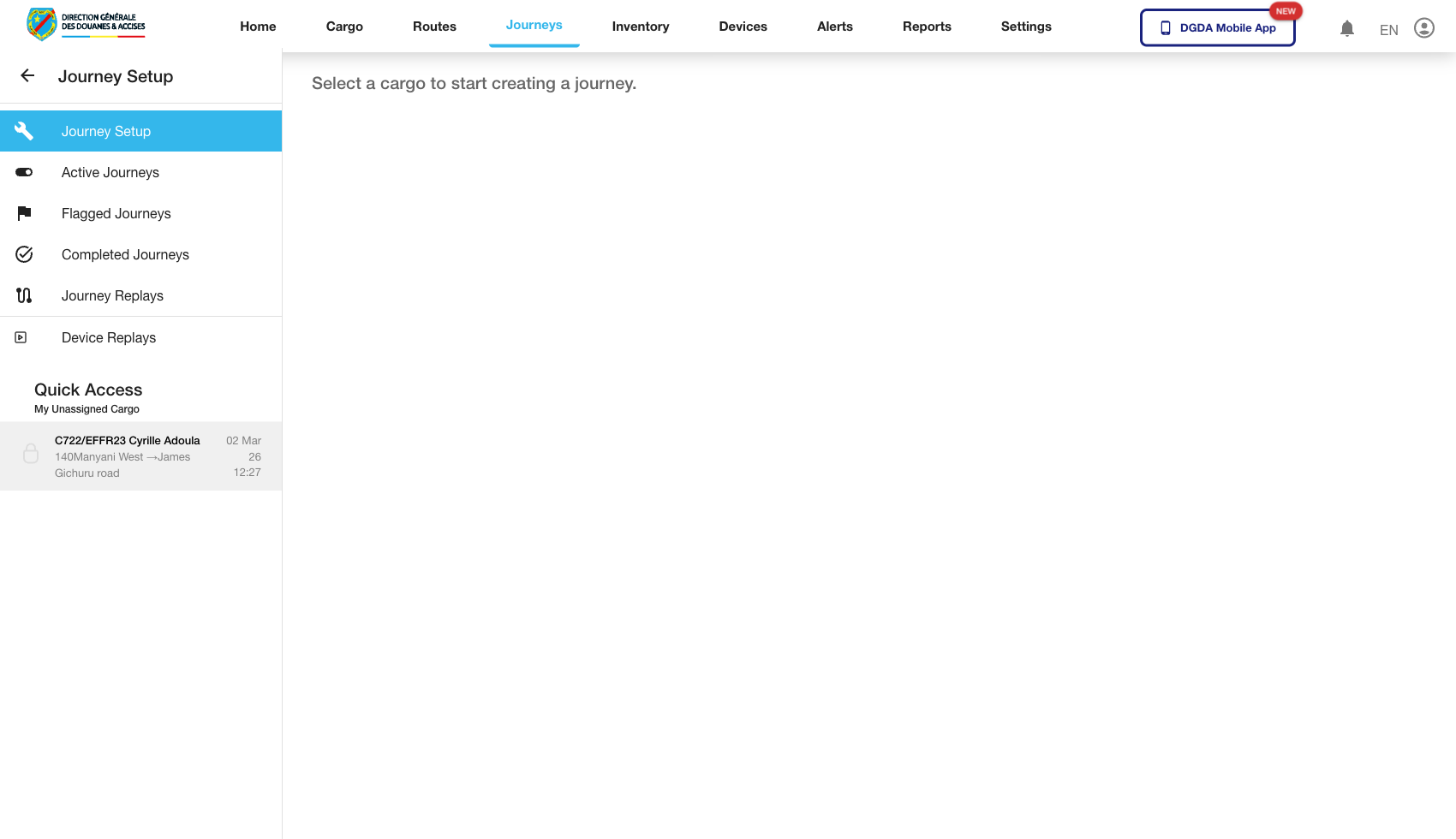
4. Inspect an Active Journey from the List
Purpose: Use the list-level row action to open deeper journey context.
Route / context: /journey/active
Steps:
- Open Active Journeys.
- Identify the target row.
- Click the row action or detail control.
- Follow the resulting transition and confirm the destination page loads correctly.
Expected result: The system opens the next journey context without throwing a navigation or runtime error.
5. Inspect a Completed Journey from the List
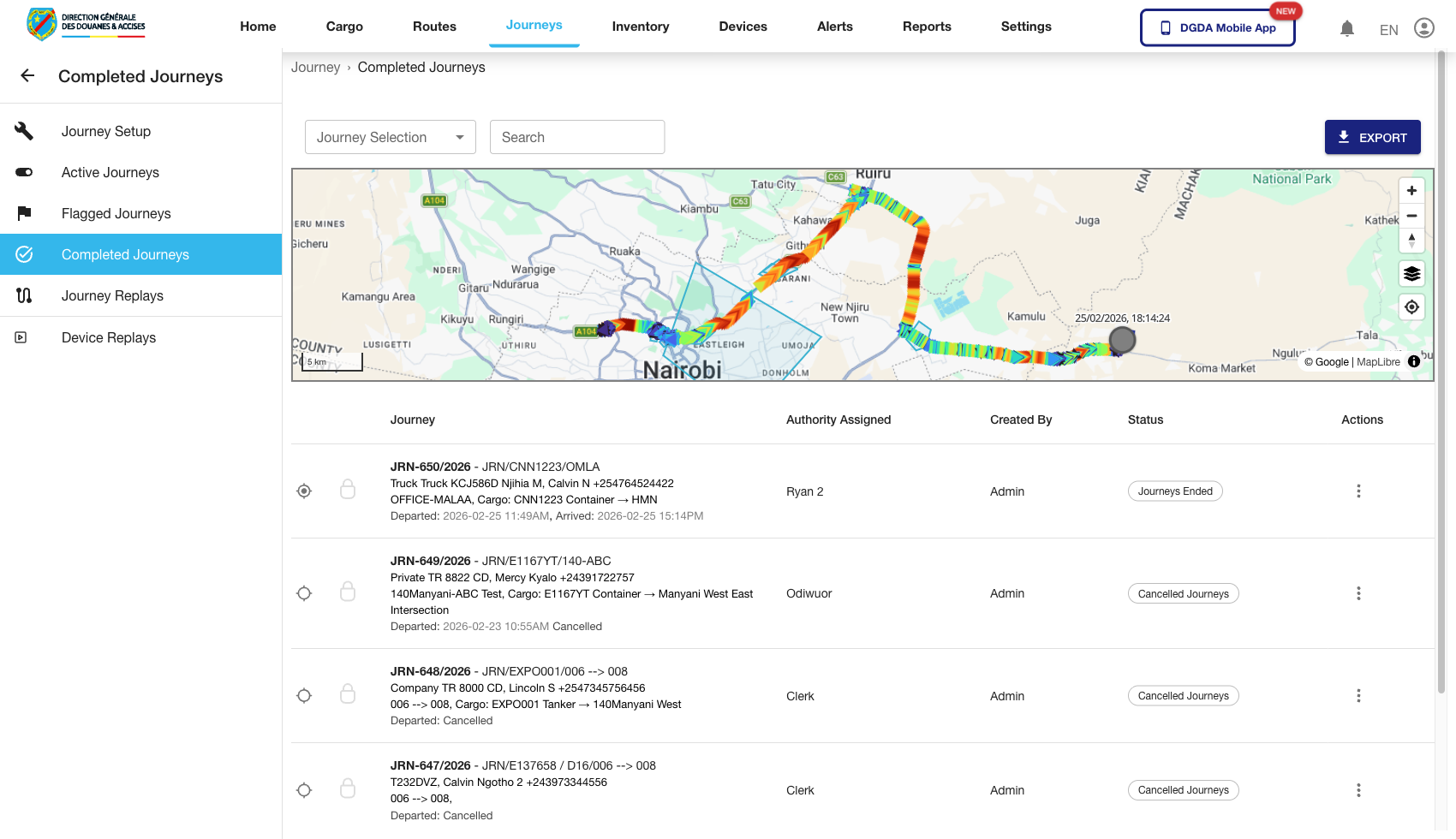
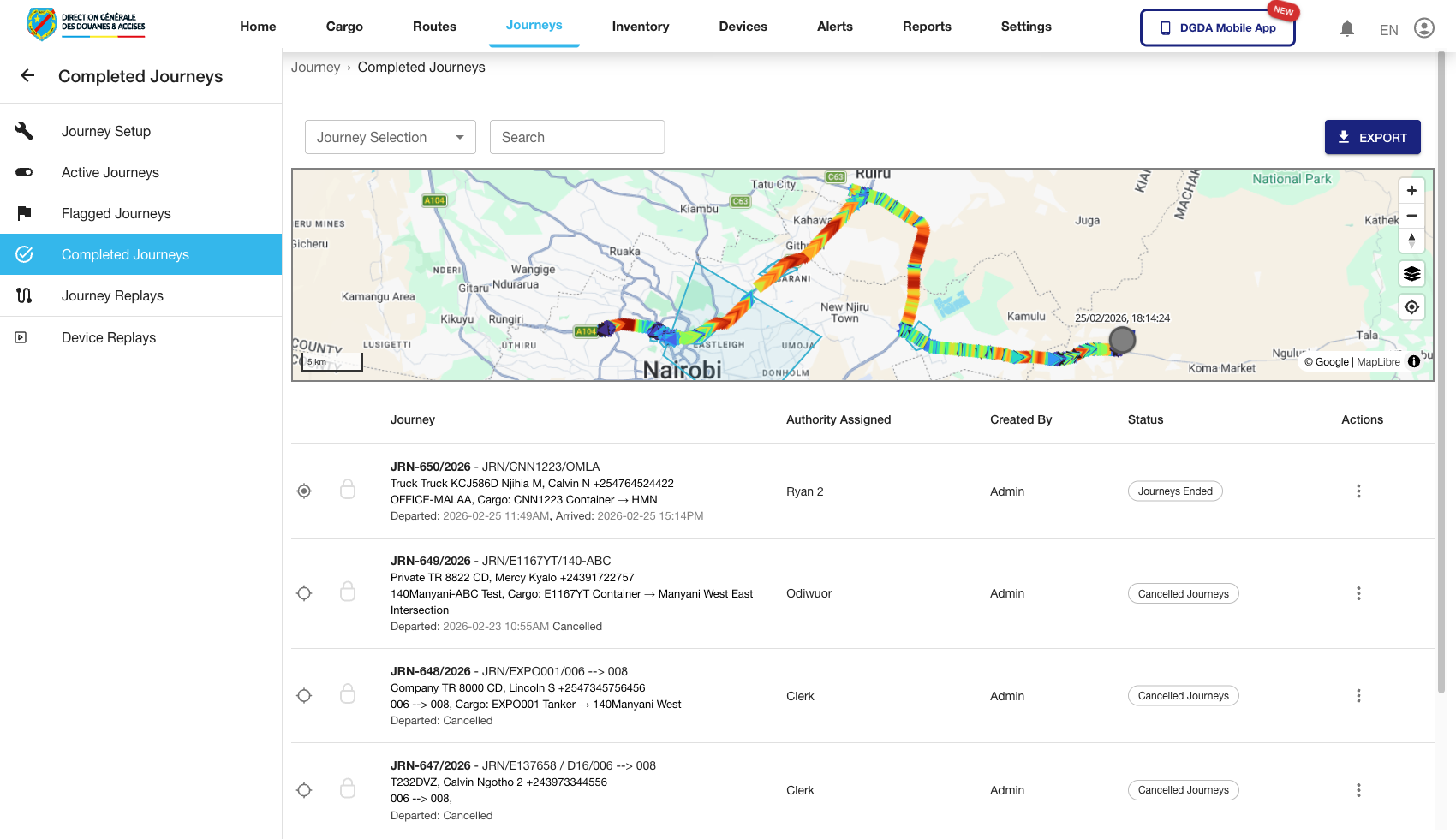
Purpose: Drill into a completed journey using the row action path validated during live capture.
Route / context: /journey/completed
Steps:
- Open Completed Journeys.
- Locate the relevant historical row.
- Click the row or row action entry point.
- Confirm the selection state appears.
- Continue through the row action menu to the intended detail path.
Expected result: The completed-journey interaction moves from list selection to a usable detail path without UI failure.
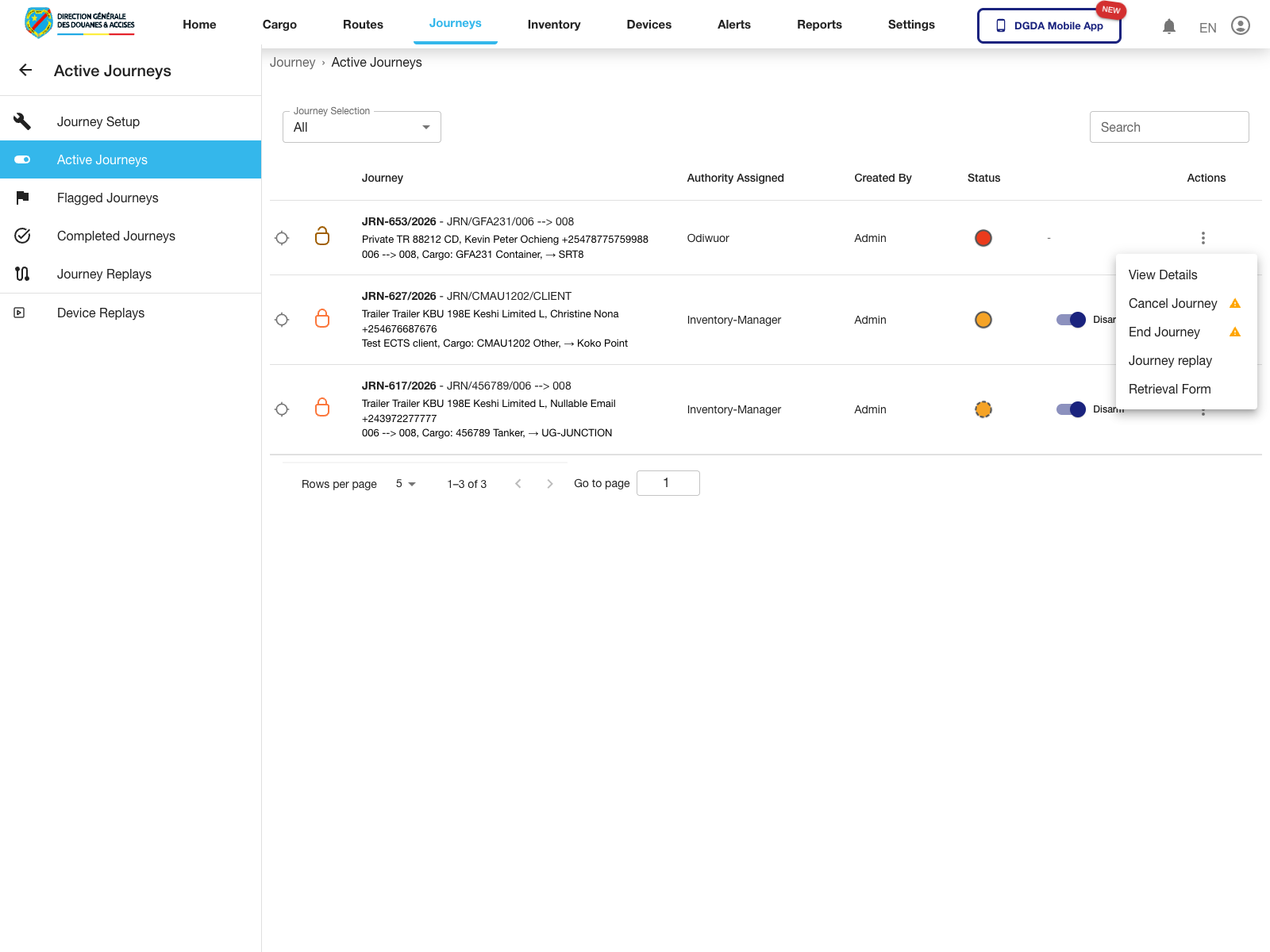
6. Open Active Journey Actions
Purpose: Inspect the row-level actions available for an active journey.
Route / context: /journey/active
Steps:
- Open Active Journeys.
- Locate the journey row you need.
- Click the row action button.
- Review the available operations before continuing.
Expected result: The active-journey menu opens for the selected row.
Observed live actions: View Details, Cancel Journey, End Journey, Journey replay, and Retrieval Form.
7. Start a Journey Replay
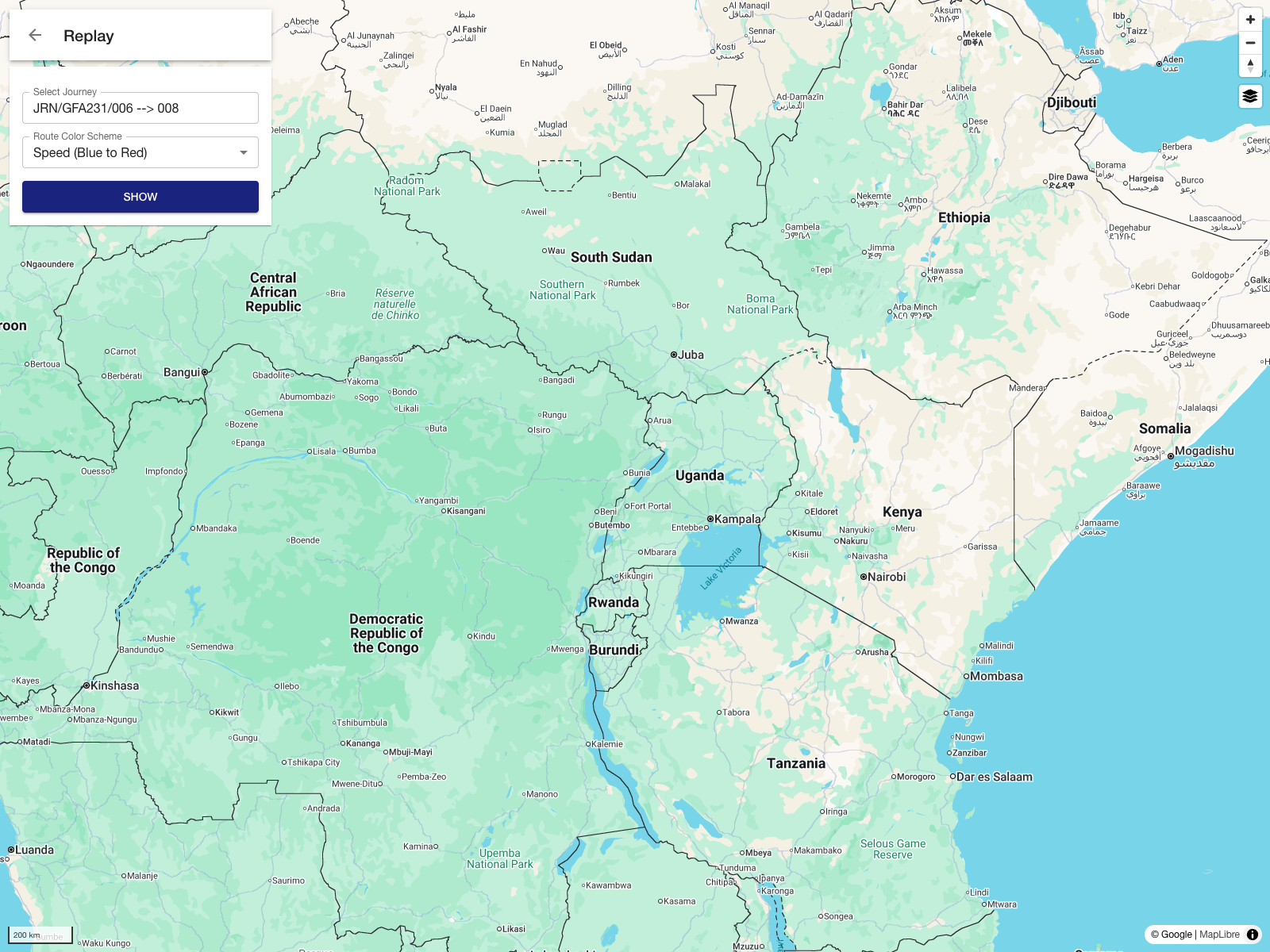
Purpose: Open the replay workspace from a live journey.
Route / context: /journey/active -> row actions -> Journey replay
Steps:
- Open the active journey row action menu.
- Select Journey replay.
- Wait for the replay page to load.
- Review the selected journey and route color scheme before running the replay.
Expected result: The portal opens the replay workspace for the selected journey.
8. Review the Journey Replay Workspace Directly
Purpose: Open the replay workspace from the left navigation instead of from a row action.
Route / context: /journey-replay
Steps:
- Open Journeys.
- Select Journey Replays in the left navigation.
- Choose a journey in the replay selector.
- Pick the route color scheme.
- Use Show to load the replay view.
Expected result: The replay workspace is available as a dedicated page as well as a row-action workflow.
9. Start a Journey Cancellation
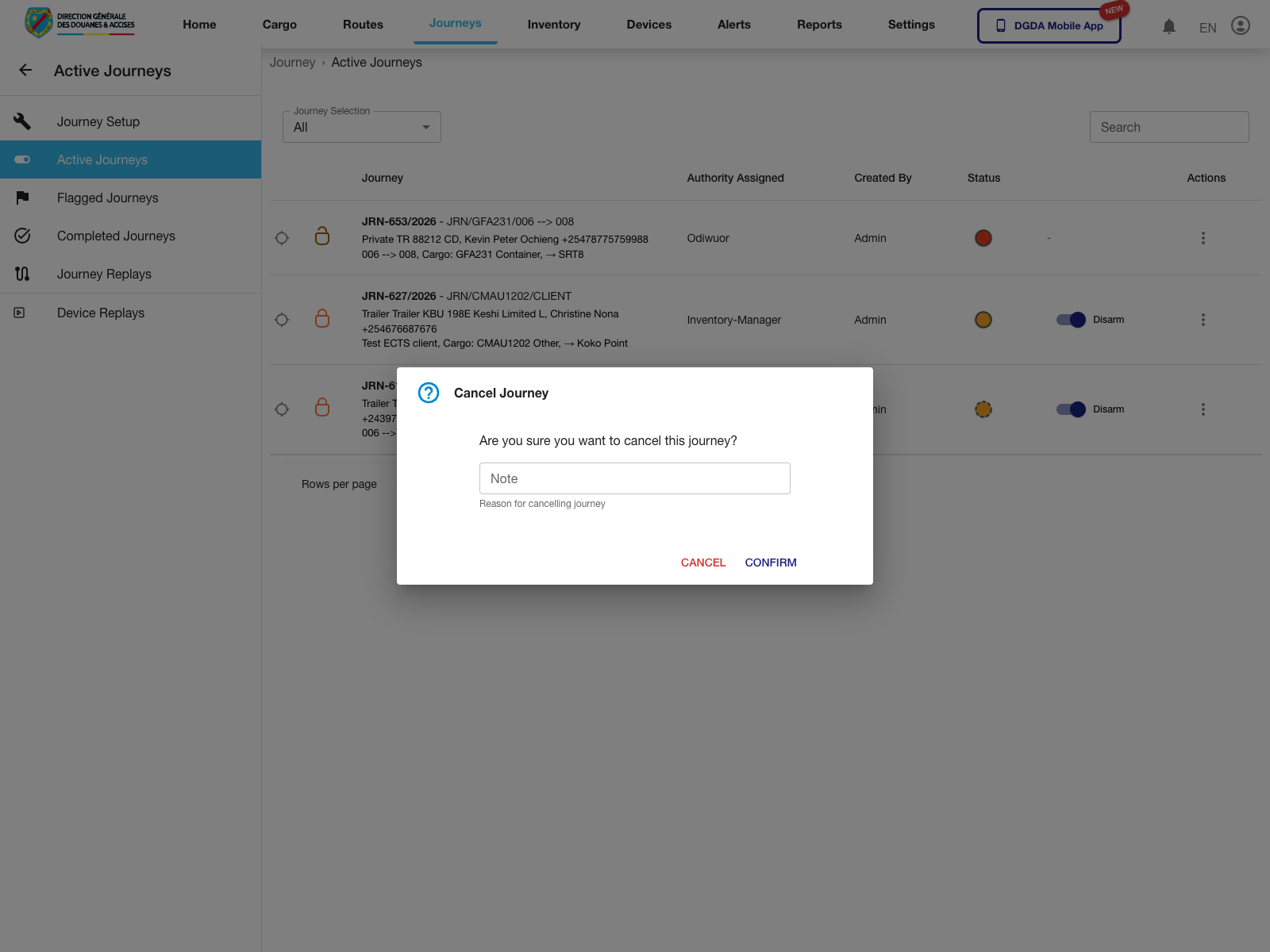
Purpose: Begin the cancel workflow for an active journey without committing the cancellation.
Route / context: /journey/active -> row actions -> Cancel Journey
Steps:
- Open the row action menu for the active journey.
- Select Cancel Journey.
- Review the cancellation dialog.
- Enter the reason for cancellation when required.
- Use Confirm to proceed or Cancel to stop.
Expected result: The cancel-journey confirmation dialog opens and asks for operator confirmation before the change is applied.
10. Create a Journey
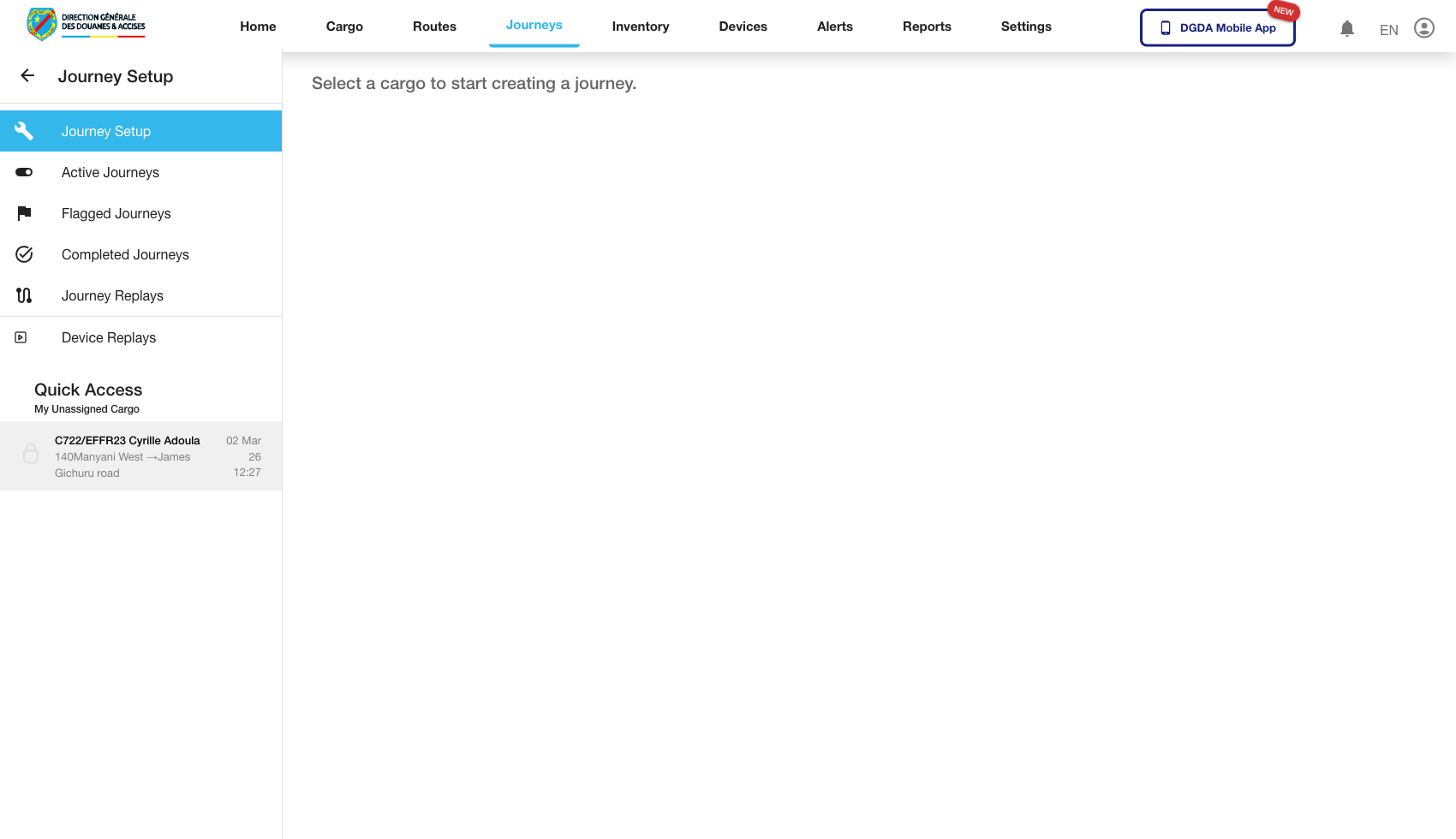
Purpose: Set up a new journey record.
Route / context: /journey/create-journey
Steps:
- Open Create Journey from the Journeys module.
- Enter the required journey details.
- Link the necessary operational context, such as route or cargo, where applicable.
- Save or submit the record.
- Confirm the journey is created successfully.
Expected result: The platform accepts the new journey and returns a valid creation outcome.
11. Remaining Validated Gaps
The following journey actions are visible in the live UI but still need dedicated capture before they should be documented as full completion procedures:
- end journey to completion
- retrieval form workflow
- completed-journey replay from a historical row