Maintenance
The maintenance area is exposed from the Inventory module and supports the operational tracking of centers, schedules, records, repairs, and board-level workload status.
Live validation date: March 12, 2026
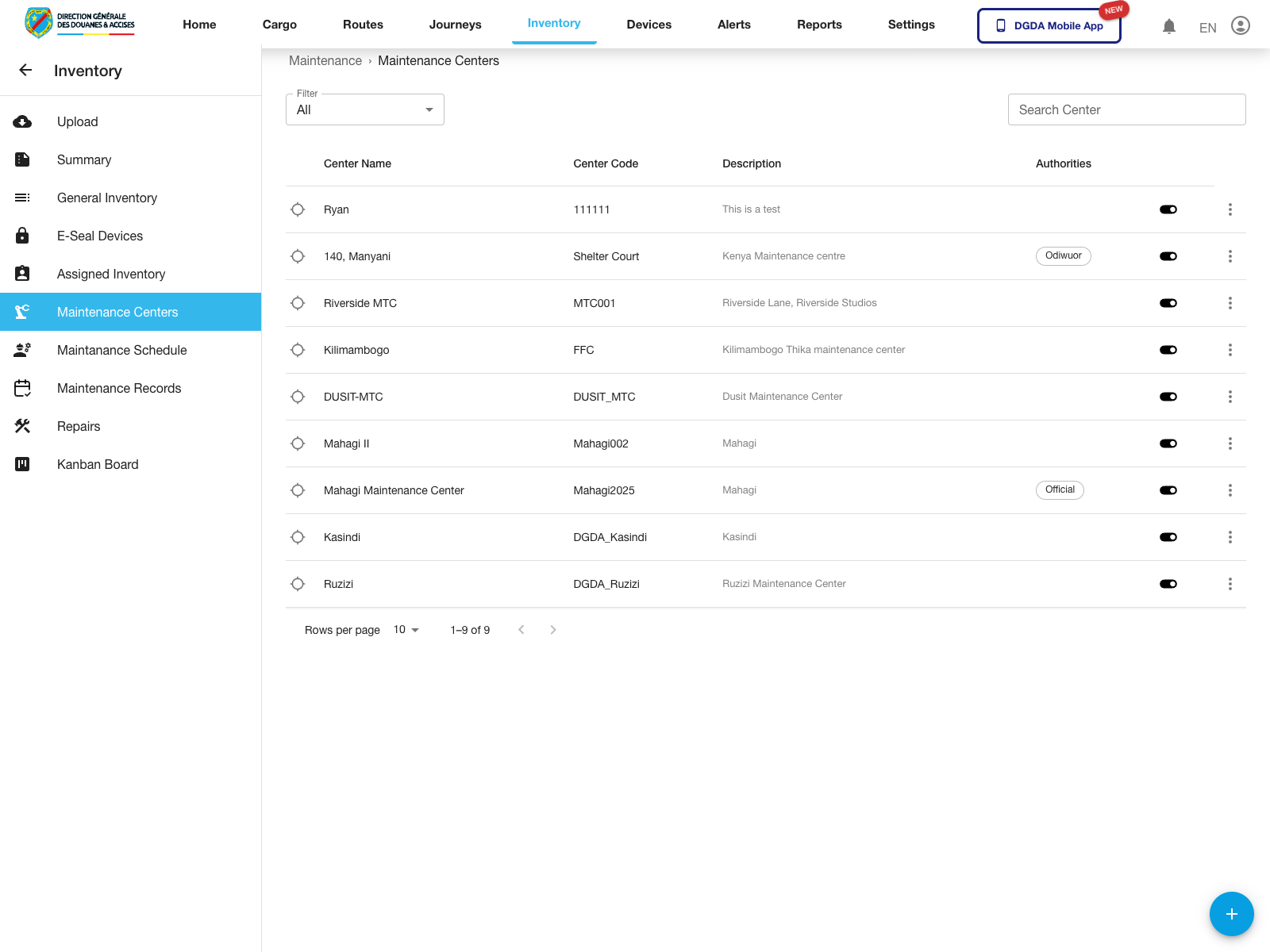
1. Review Maintenance Centers
Purpose: Confirm the set of maintenance centers available for scheduling and repair operations.
Route / context: /inventories/maintenance-centers
Steps:
- Open Inventory from the top navigation.
- Select Maintenance Centers from the left navigation.
- Review the center list.
- Use search or filters if you need to isolate one center.
Expected result: The maintenance-center register loads with searchable center records.
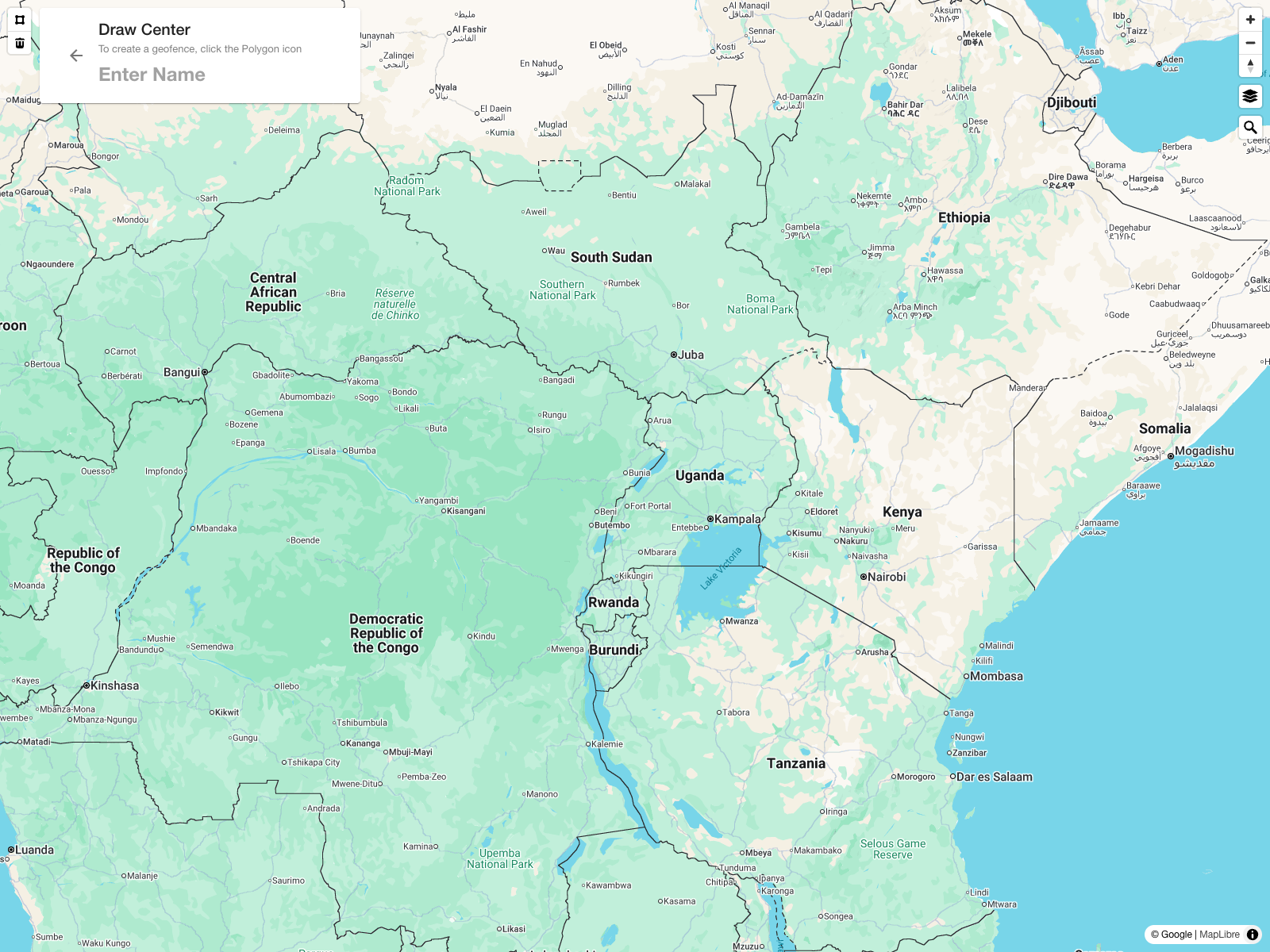
2. Start a New Maintenance Center
Purpose: Open the center-creation workspace and prepare a new maintenance geofence.
Route / context: /centers
Steps:
- Start from Maintenance Centers.
- Select the floating add button at the lower-right corner of the list.
- Confirm the
Draw Centerworkspace opens. - Review the center name field.
- Use the polygon tool to start drawing the center geofence on the map.
Expected result: The new-center workspace opens with map-drawing tools and the center name input.
Validation note: The live validation confirmed the form-entry workspace only. No save action was executed because that would create production data.
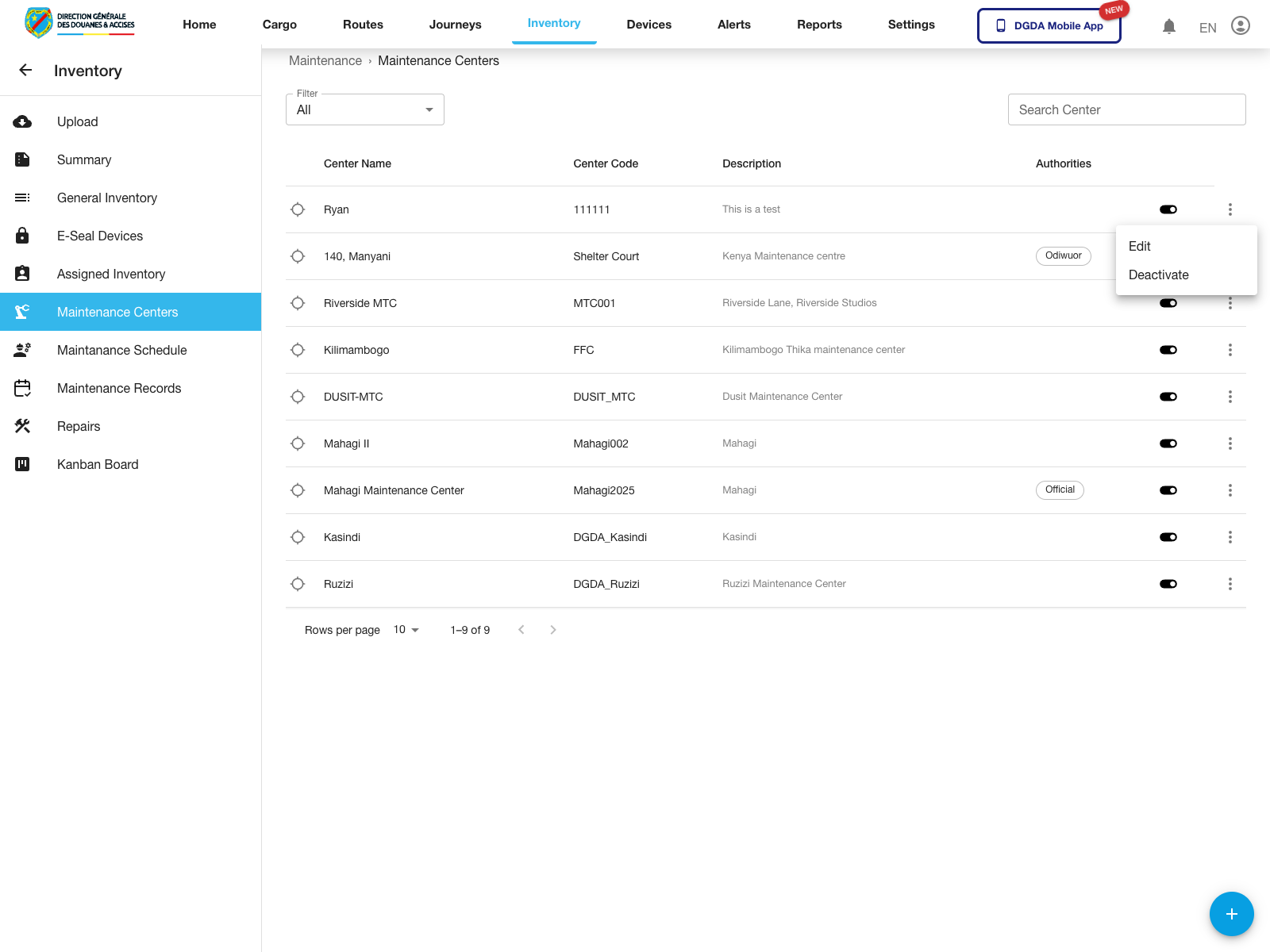
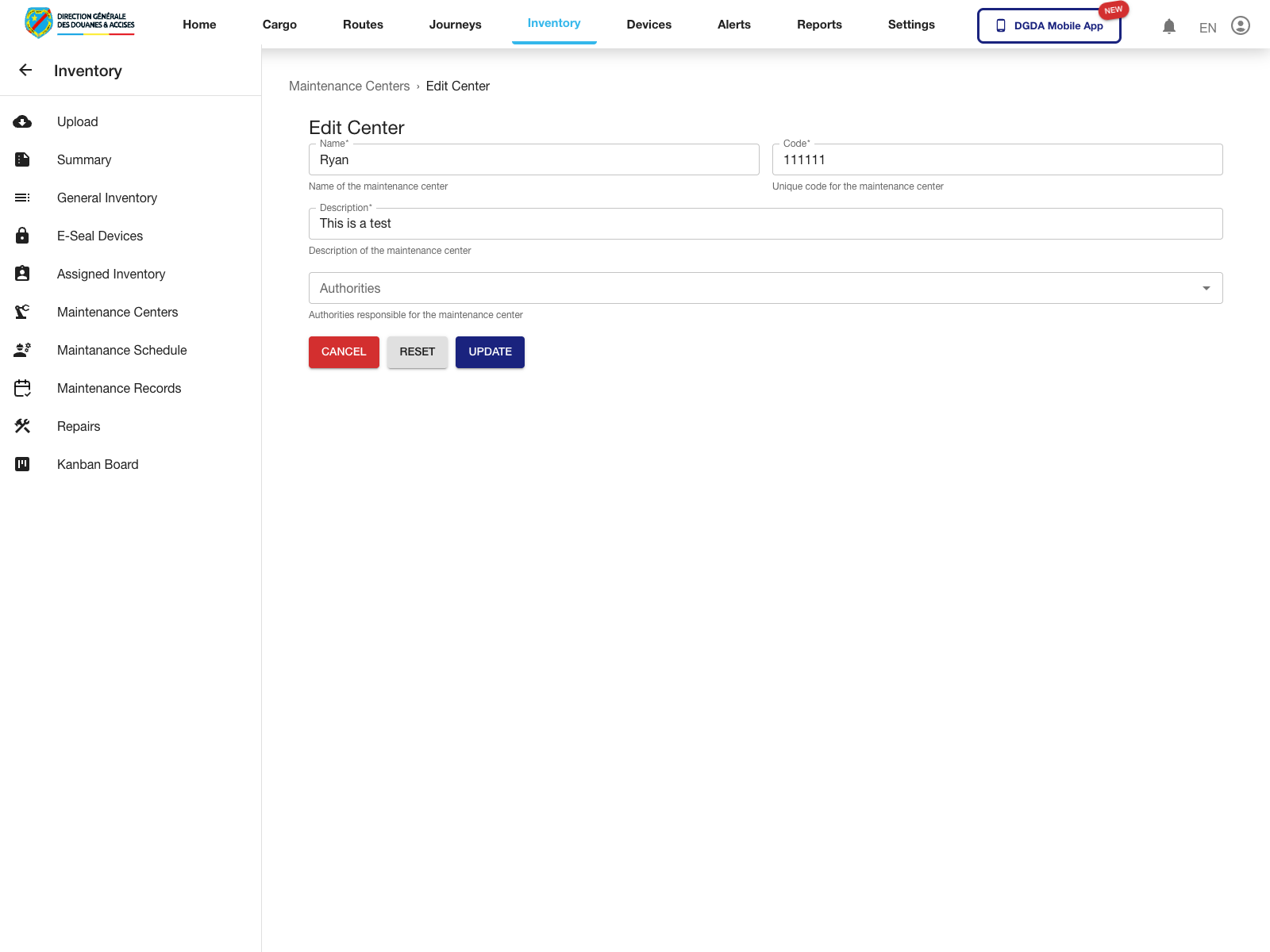
3. Open Center Actions and Edit a Maintenance Center
Purpose: Confirm that existing centers expose row actions and open the edit page.
Route / context: /inventories/edit-maintenance-center/:id
Steps:
- Start from Maintenance Centers.
- Open the row more menu for the target center.
- Review the available actions.
- Select Edit.
- Confirm the edit page opens for the chosen center.
Expected result: The row menu exposes Edit and state-change actions, and the edit page opens successfully.
Validation note: The live validation confirmed the edit entry screen only. No update was submitted to avoid altering production data.
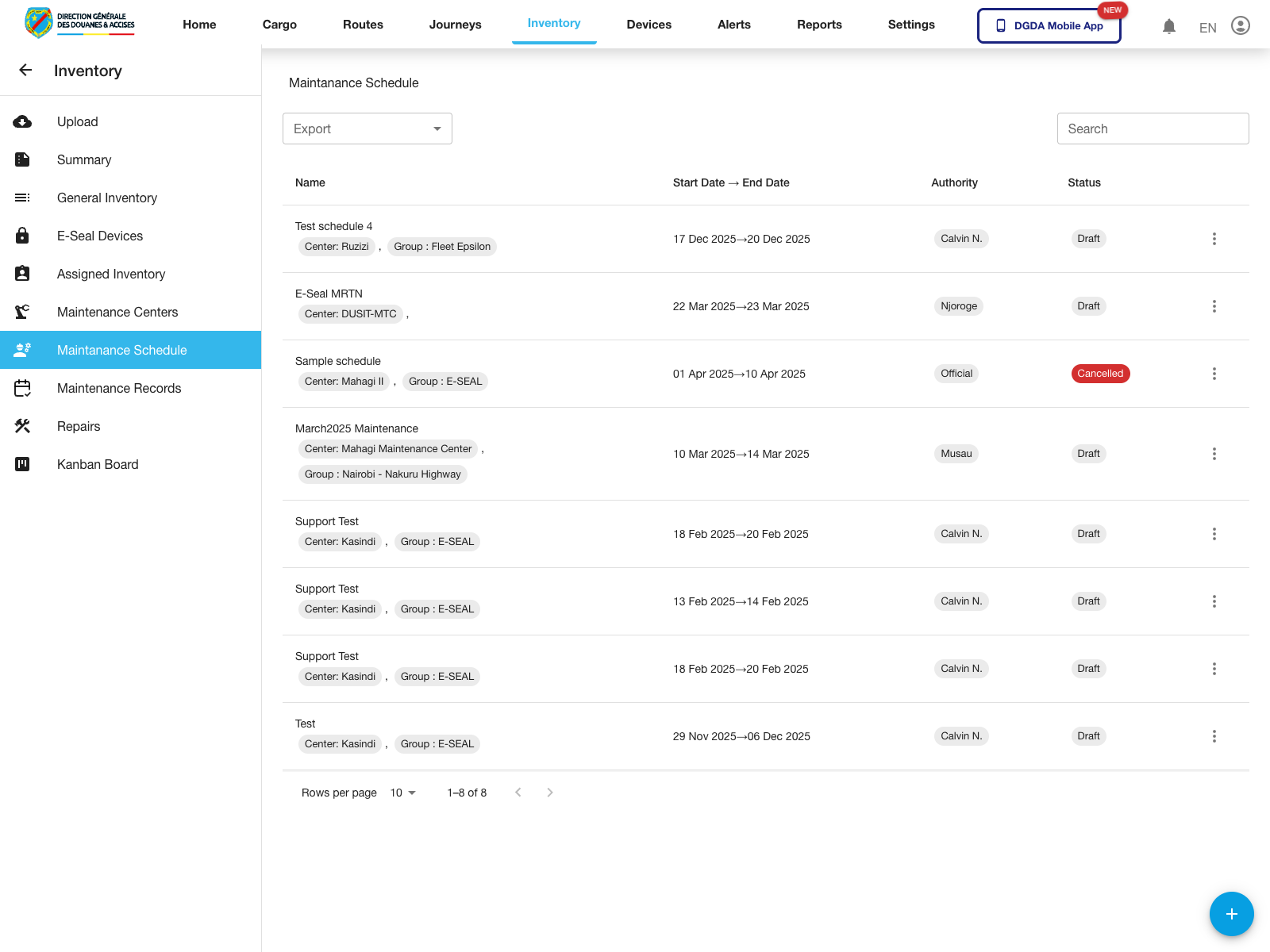
4. Review Maintenance Schedule and Row Actions
Purpose: Inspect planned maintenance work and the row-level options available for each schedule.
Route / context: /inventories/maintenance-schedule
Steps:
- Open Maintanance Schedule from the left navigation.
- Review the schedule entries, center, date range, requester, and status.
- Open a row action menu for one schedule.
- Review the available management actions before proceeding.
Expected result: The maintenance schedule page loads and exposes row-level schedule actions.
Observed live actions: View, Edit, and Delete.
5. Start a New Maintenance Schedule
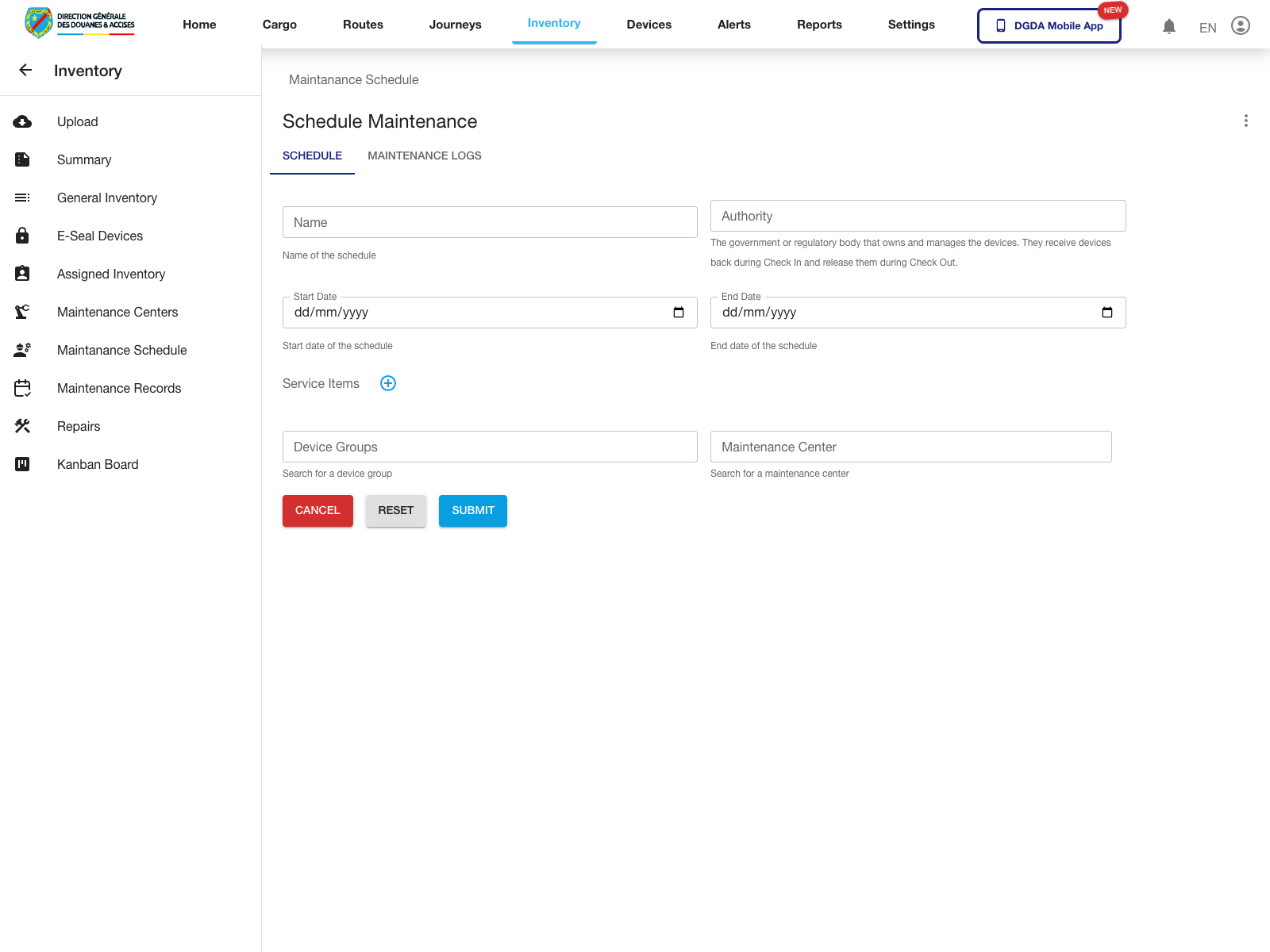
Purpose: Open the schedule-creation form and review the required fields before a schedule is submitted.
Route / context: /inventories/maintenance-schedule/view
Steps:
- Start from Maintanance Schedule.
- Select the floating add button.
- Confirm the schedule form opens.
- Review the main fields: schedule name, authority, start date, end date, service items, device groups, and maintenance center.
- Use this form to prepare a maintenance plan before it is saved.
Expected result: The schedule-creation page opens with the main planning fields visible.
Validation note: The live validation confirmed the form-entry screen only. No save action was executed because that would create production data.
6. Edit an Existing Maintenance Schedule
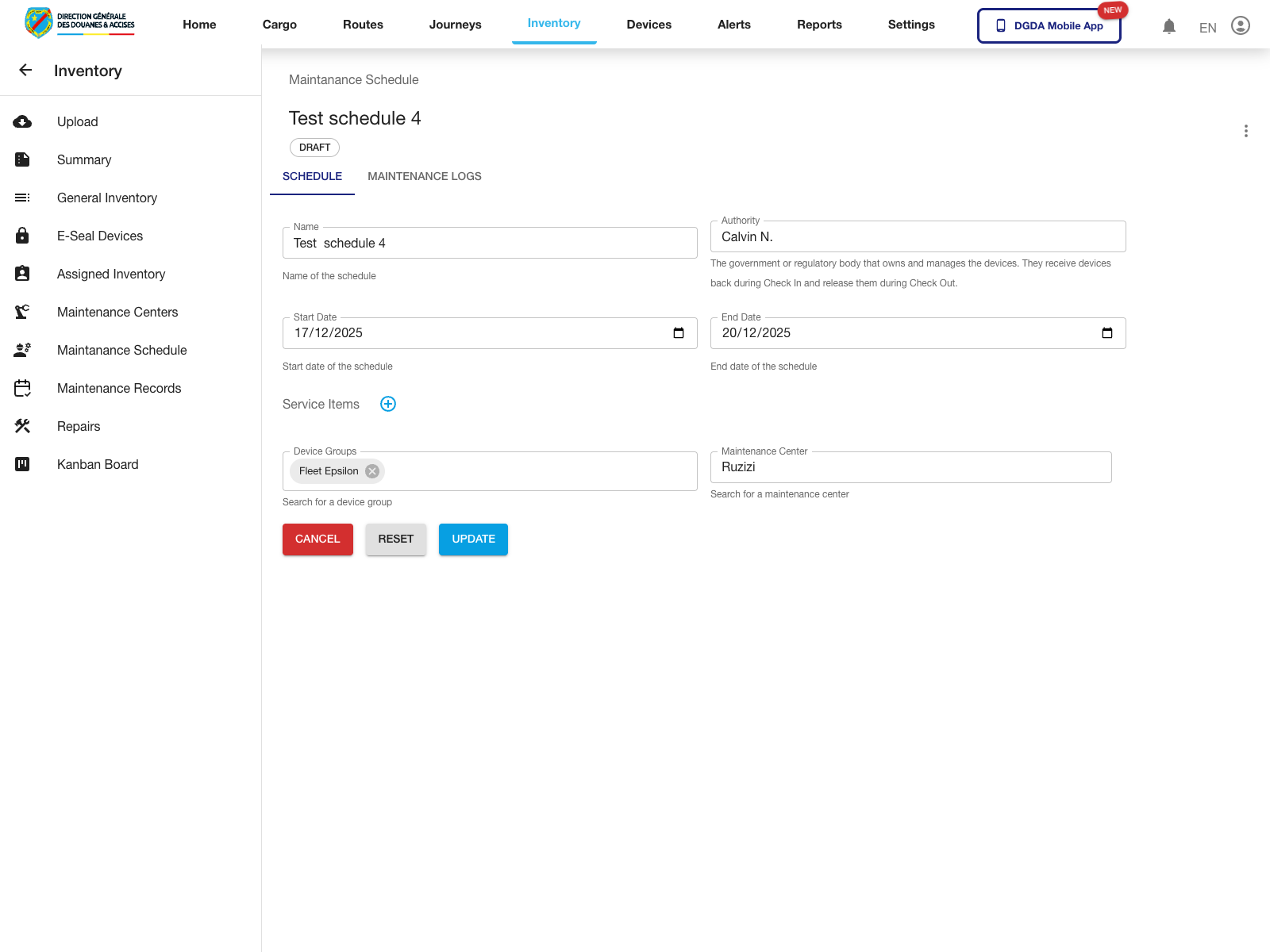
Purpose: Confirm that a draft schedule can be opened in edit mode and its planning fields reviewed.
Route / context: /inventories/maintenance-schedule/view/:id
Steps:
- Start from Maintanance Schedule.
- Open the target row more menu.
- Select Edit.
- Confirm the schedule page opens in edit mode.
- Review the
ScheduleandMaintenance Logstabs and the available action buttons.
Expected result: The edit page opens with the current schedule values and update controls.
Validation note: The live validation confirmed the edit screen and controls only. No update was submitted to avoid changing production data.
7. Review Maintenance Records
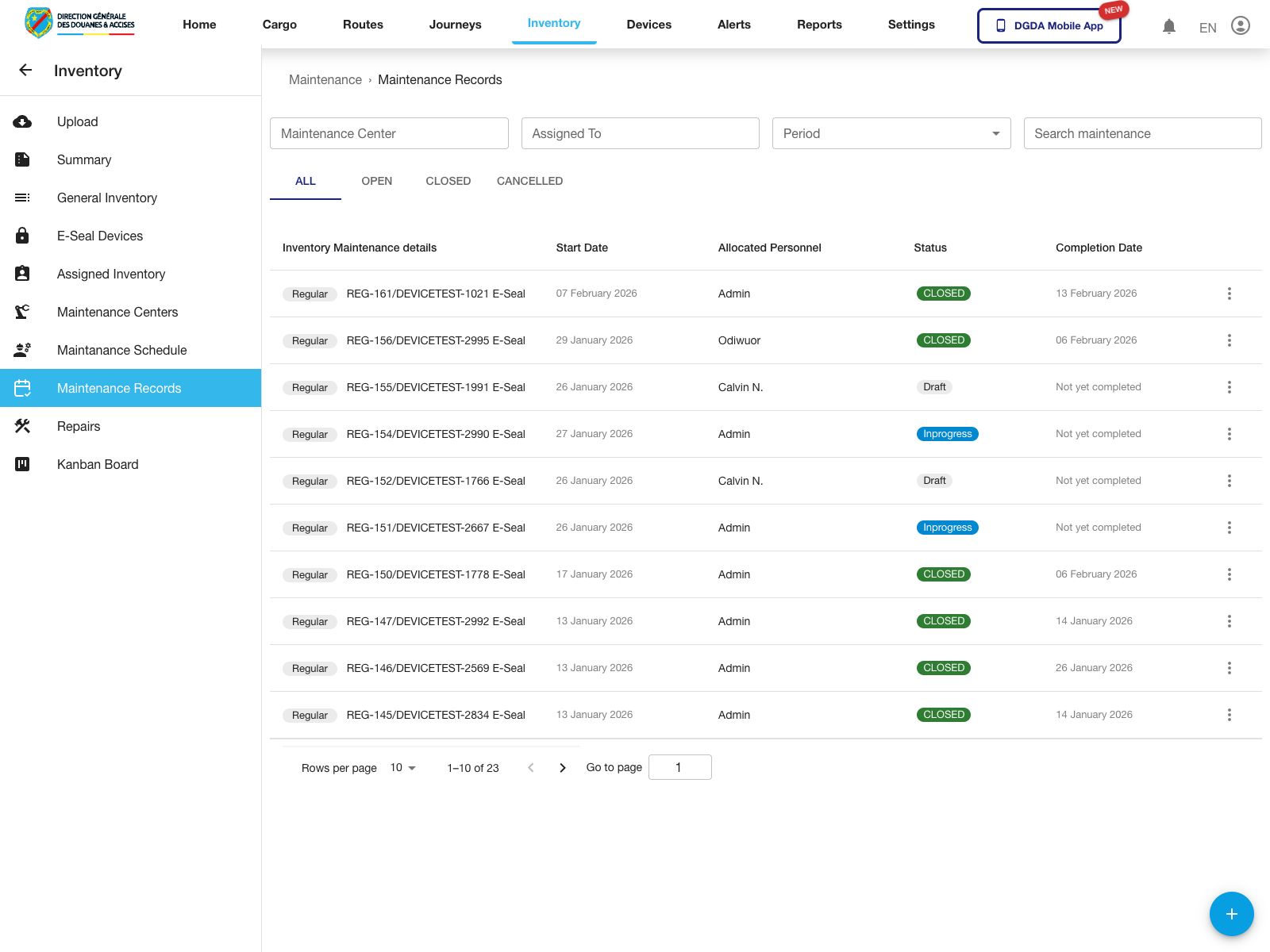
Purpose: Monitor completed and in-progress maintenance records independently of the schedule screen.
Route / context: /inventories/maintenance-records
Steps:
- Open Maintenance Records.
- Review the maintenance record list.
- Use status and date context to distinguish draft, in-progress, and closed work.
Expected result: The maintenance-record register loads with operational history and current record state.
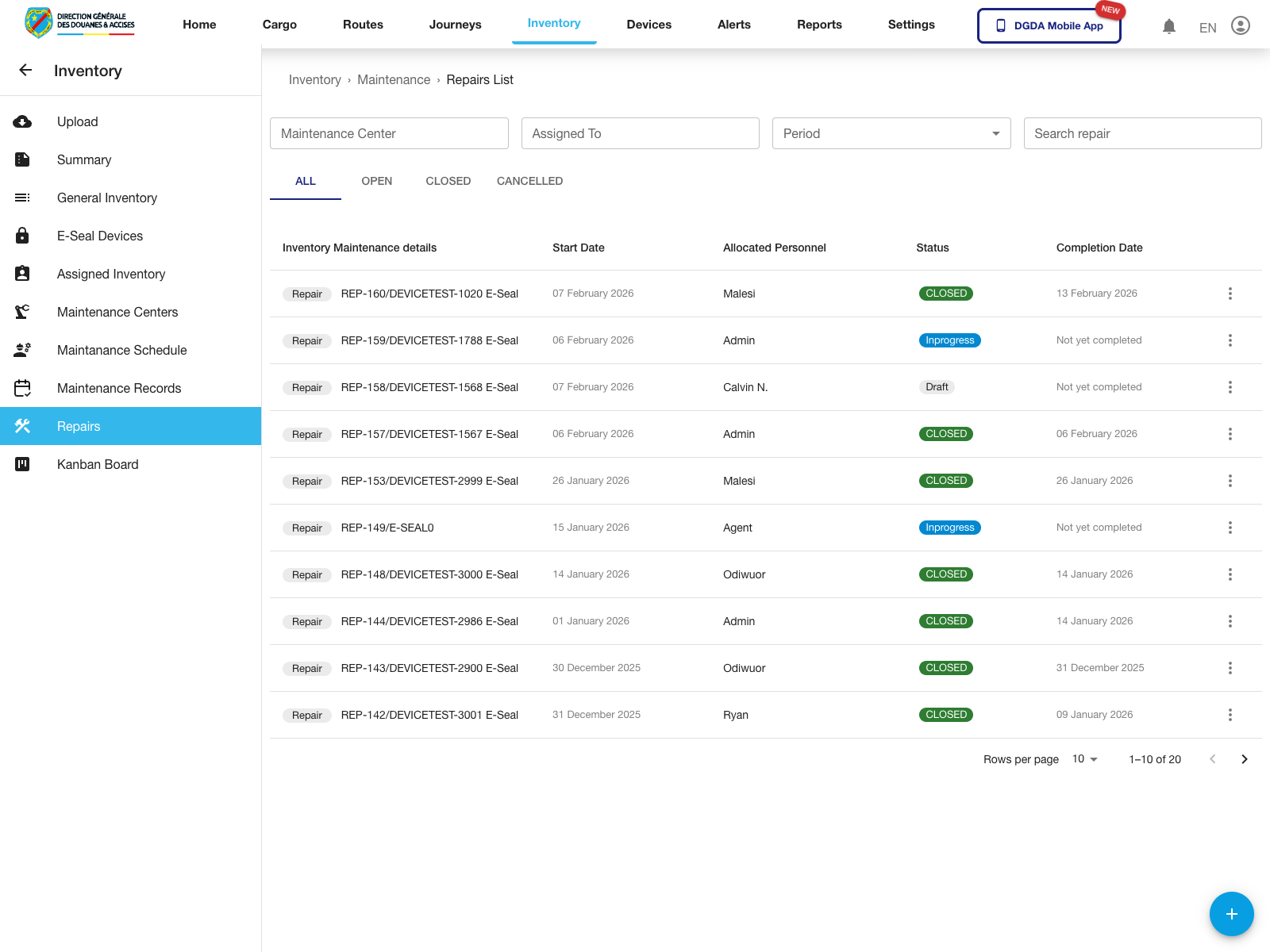
8. Review Repairs
Purpose: Inspect repair-specific maintenance work items.
Route / context: /inventories/repairs
Steps:
- Open Repairs from the left navigation.
- Review the repair entries and their current state.
- Use this screen when the focus is corrective maintenance rather than the broader maintenance schedule.
Expected result: The repairs register loads with identifiable repair records and current statuses.
9. Review the Maintenance Kanban Board
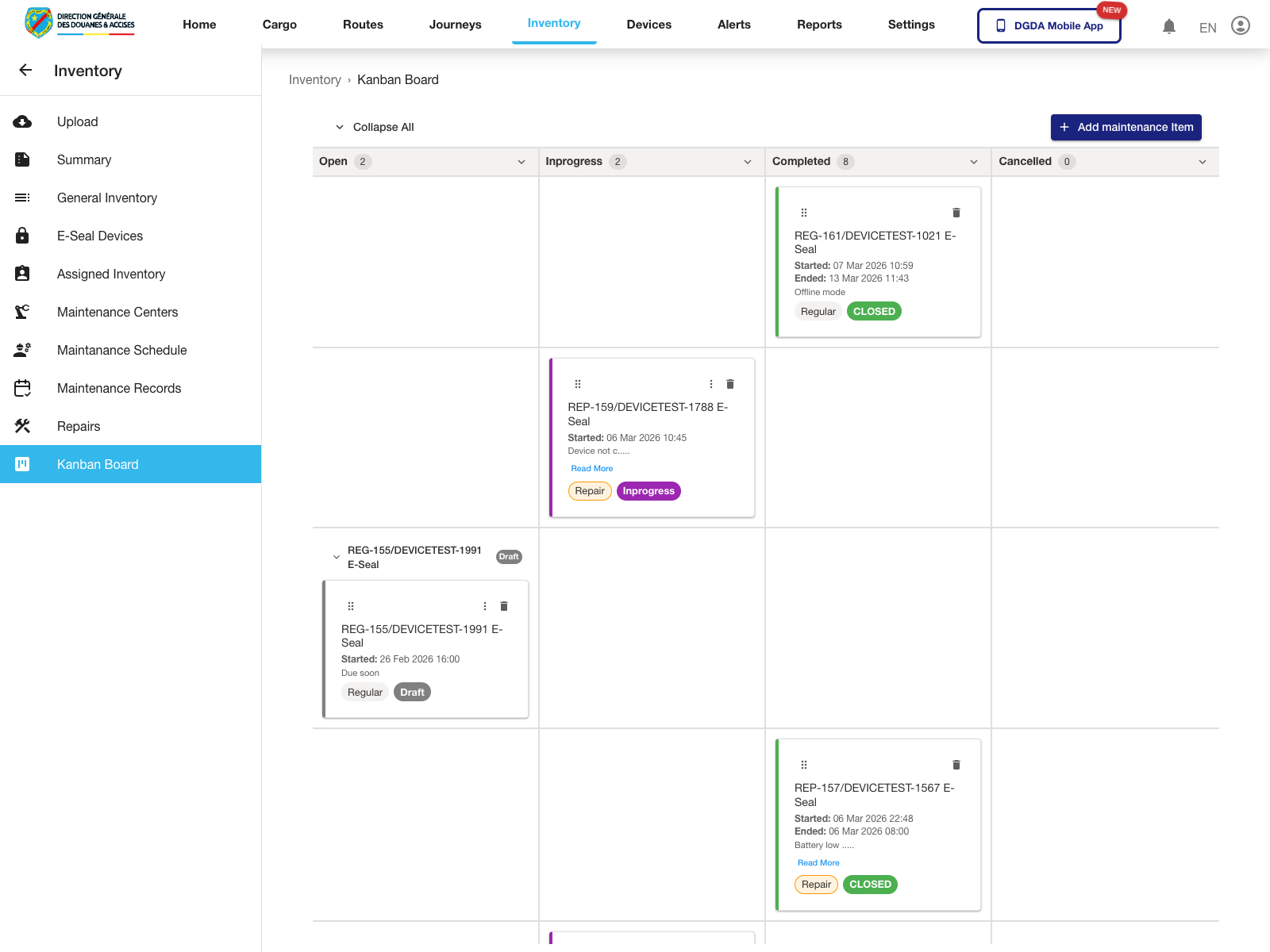
Purpose: Monitor maintenance workload by state using a board-style view.
Route / context: /inventories/maintenance-kanban
Steps:
- Open Kanban Board.
- Review the workload distribution across the visible status columns.
- Use this view when coordinating work by stage rather than by flat list.
Expected result: The maintenance board renders and groups work items by workflow state.
10. Remaining Validated Gaps
The maintenance area is now validated through the create and edit entry forms for centers and schedules, but these flows still need dedicated completion capture before they should be documented as successful end-to-end submissions:
- save a newly created maintenance center to completion
- submit an edited maintenance center to completion
- save a newly created maintenance schedule to completion
- submit an updated maintenance schedule to completion
- open maintenance-record detail screens
- open repair detail screens