Portal Screenshot Reference (Detailed)
This reference expands every screenshot in the portal guide into a practical operator note. For numbered in-image callouts and trainer-ready visual overlays, use Portal Annotated Training Guide.
Use each subsection in this order: 1. Confirm you are on the correct route/context. 2. Check the key UI controls and data state described. 3. Run the validation checklist. 4. If any check fails, follow the troubleshooting note.
1. Landing and Authentication
1.1 Landing Page (45-landing-page.png)
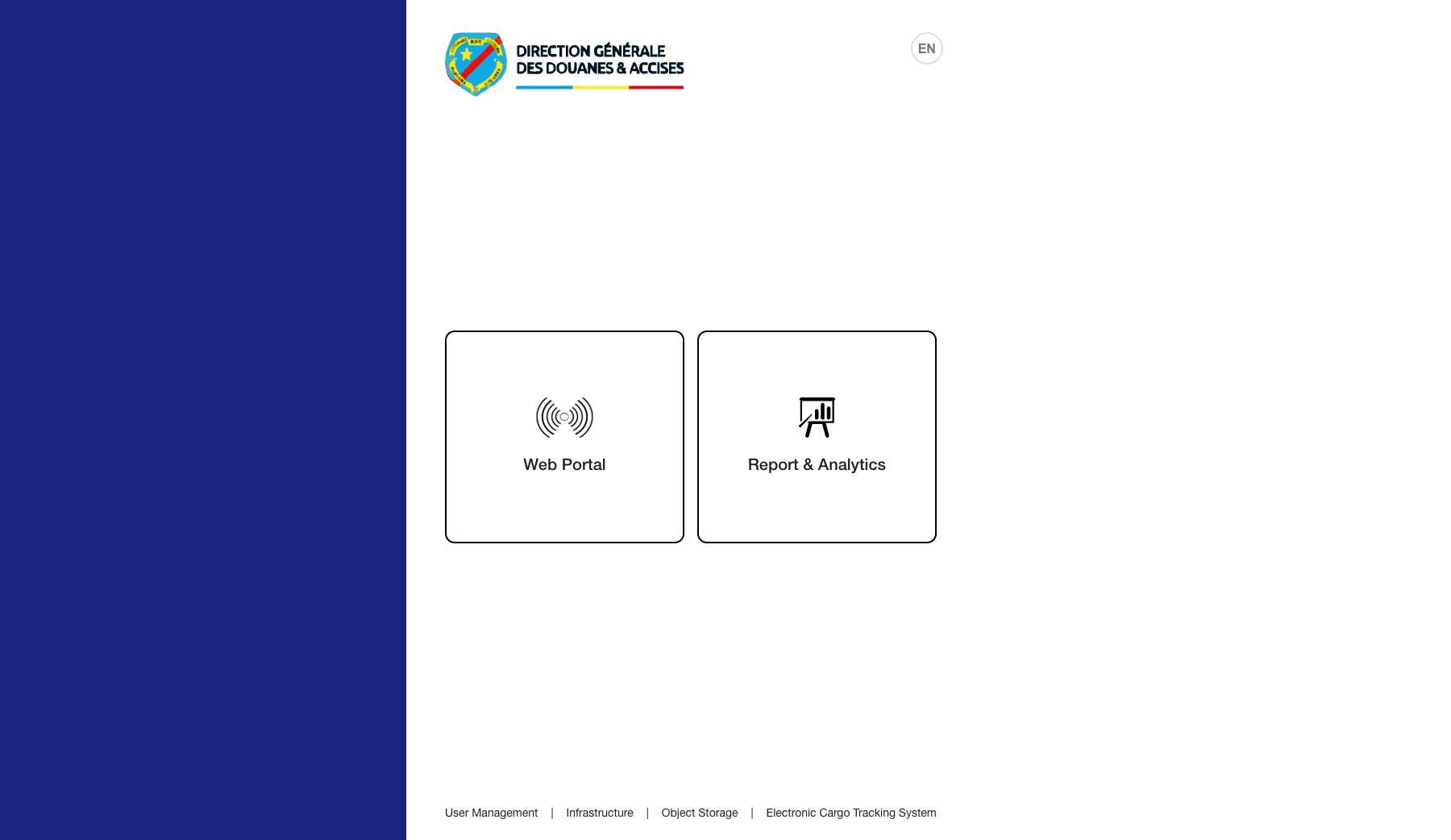 Route / Context: Public landing page before authentication entry.
Navigation Path: Open
Route / Context: Public landing page before authentication entry.
Navigation Path: Open https://ects.keshiholdings.com/login.
Purpose: Confirm the public entry page is reachable and branded correctly.
Expected UI State: Marketing hero/banner area loads, Web Portal entry control is visible, no blank sections.
Validation Checklist: Page loads without browser security warning, CTA is clickable, static assets are not broken.
Troubleshooting: If page is unreachable or partially rendered, verify DNS, TLS certificate chain, and reverse-proxy static-file serving.
1.2 Keycloak Sign-In (10-keycloak-login.png)
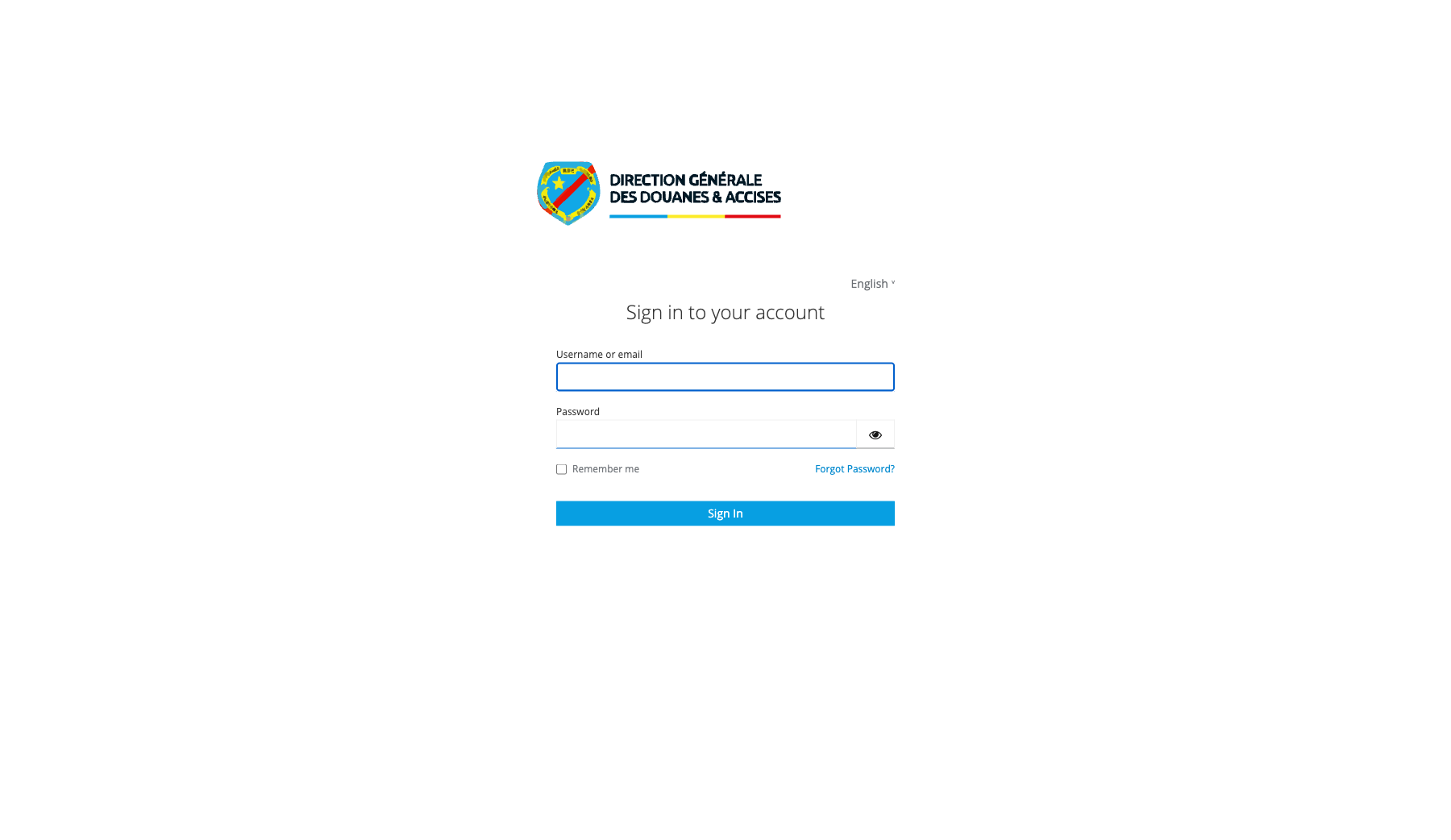 Route / Context: External/embedded Keycloak login screen.
Navigation Path: From Landing page click
Route / Context: External/embedded Keycloak login screen.
Navigation Path: From Landing page click Web Portal.
Purpose: Validate identity-provider login flow availability.
Expected UI State: Username and password fields, sign-in button, and realm-specific branding text appear.
Validation Checklist: Form accepts input, submit button responds, invalid credentials return controlled error state.
Troubleshooting: If redirect loops or form never loads, check SSO callback URL, cookie policy, and Keycloak service health.
1.3 Home Map (11-home-map.png)
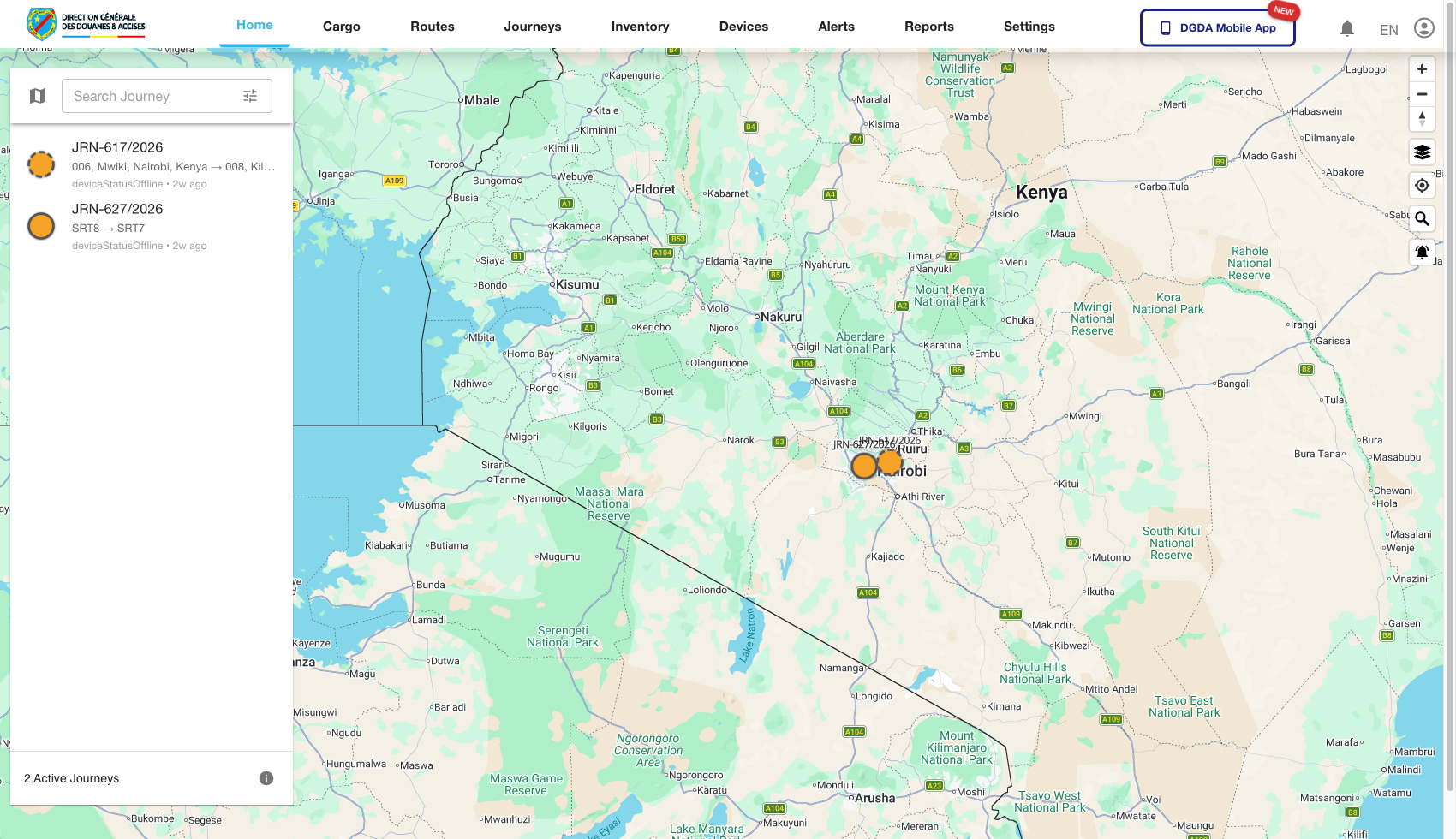 Route / Context: Authenticated default page (
/).
Navigation Path: Successful login redirect.
Purpose: Confirm session creation and baseline dashboard rendering.
Expected UI State: Top module navigation is visible, map canvas renders, main cards/widgets show populated or empty-safe states.
Validation Checklist: No console/runtime error banner, map controls respond, module navigation is clickable.
Troubleshooting: If map area is blank, verify map tile/network endpoints and environment keys used by frontend.
2. Cargo Module
2.1 Unassigned Cargo (12-cargo-unassigned.png)
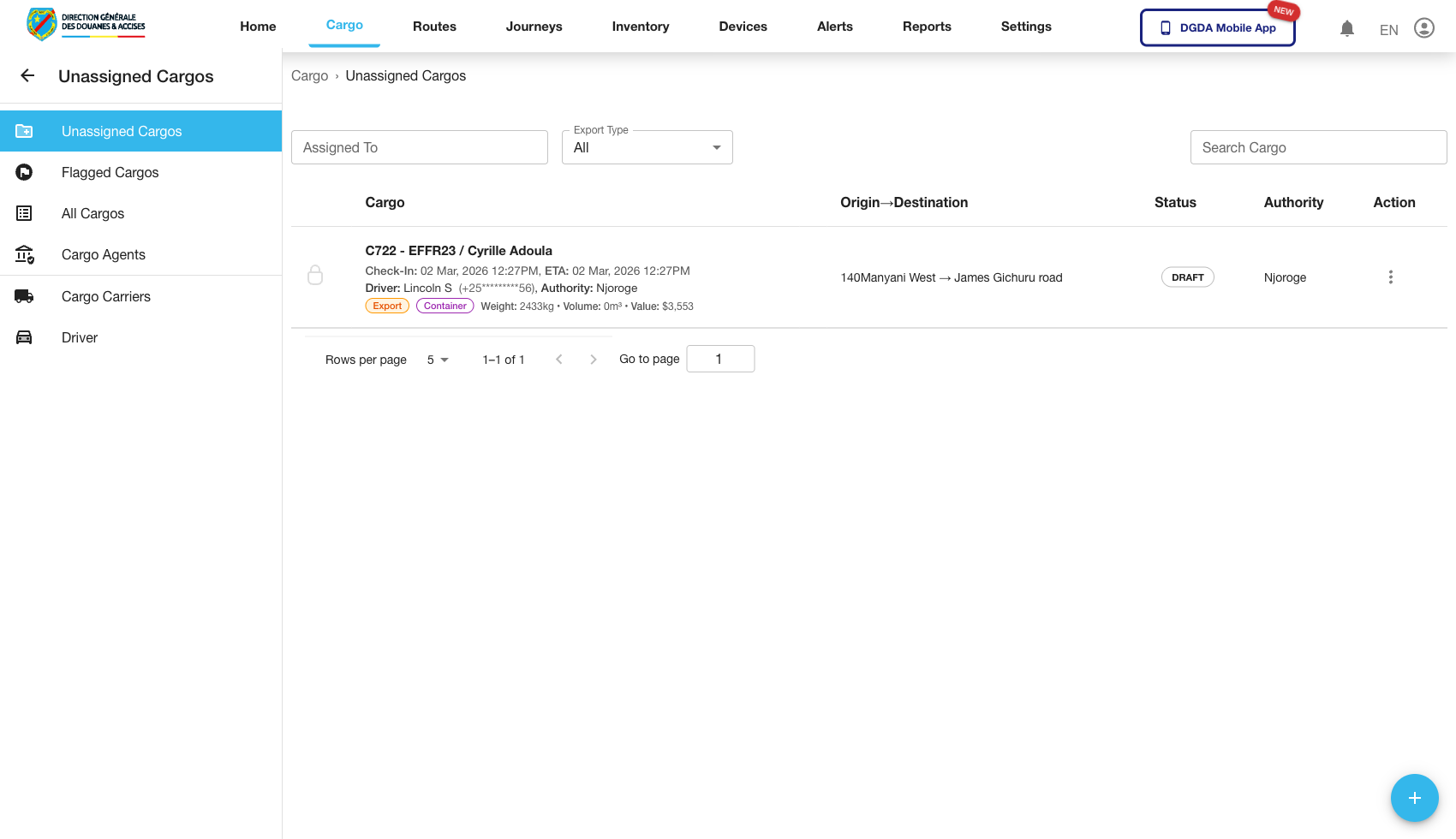 Route / Context:
 /cargo/unassigned-cargo.
Navigation Path: Top nav Cargo then sub-tab Unassigned Cargo.
Purpose: Work queue for cargo not yet linked to a journey.
Expected UI State: Data table, filter/search controls, row actions for assignment or detail review.
Validation Checklist: Rows load, filters update table state, pagination controls move through records.
Troubleshooting: If table remains empty unexpectedly, validate API permissions and active date/filter constraints.
2.2 All Cargos (13-cargo-all-cargos.png)
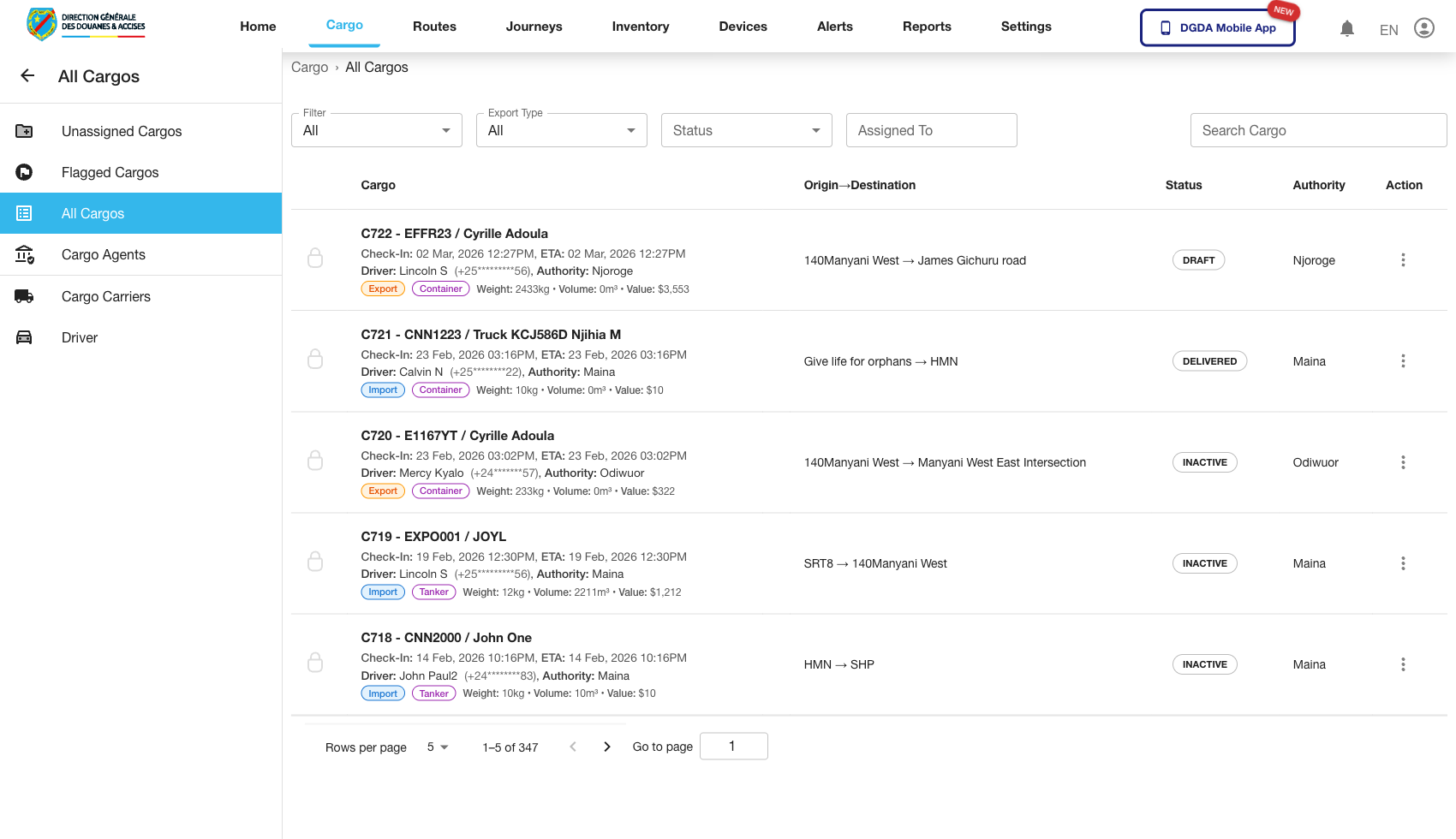 Route / Context:
 /cargo/all-cargos.
Navigation Path: Cargo module then All Cargos sub-tab.
Purpose: Master cargo register across statuses.
Expected UI State: Comprehensive table with mixed statuses and searchable identifiers.
Validation Checklist: Search returns expected rows, status badges render, row details open without route error.
Troubleshooting: If only partial records show, verify backend query defaults and tenant scoping.
2.3 Assigned Cargo (14-cargo-assigned.png)
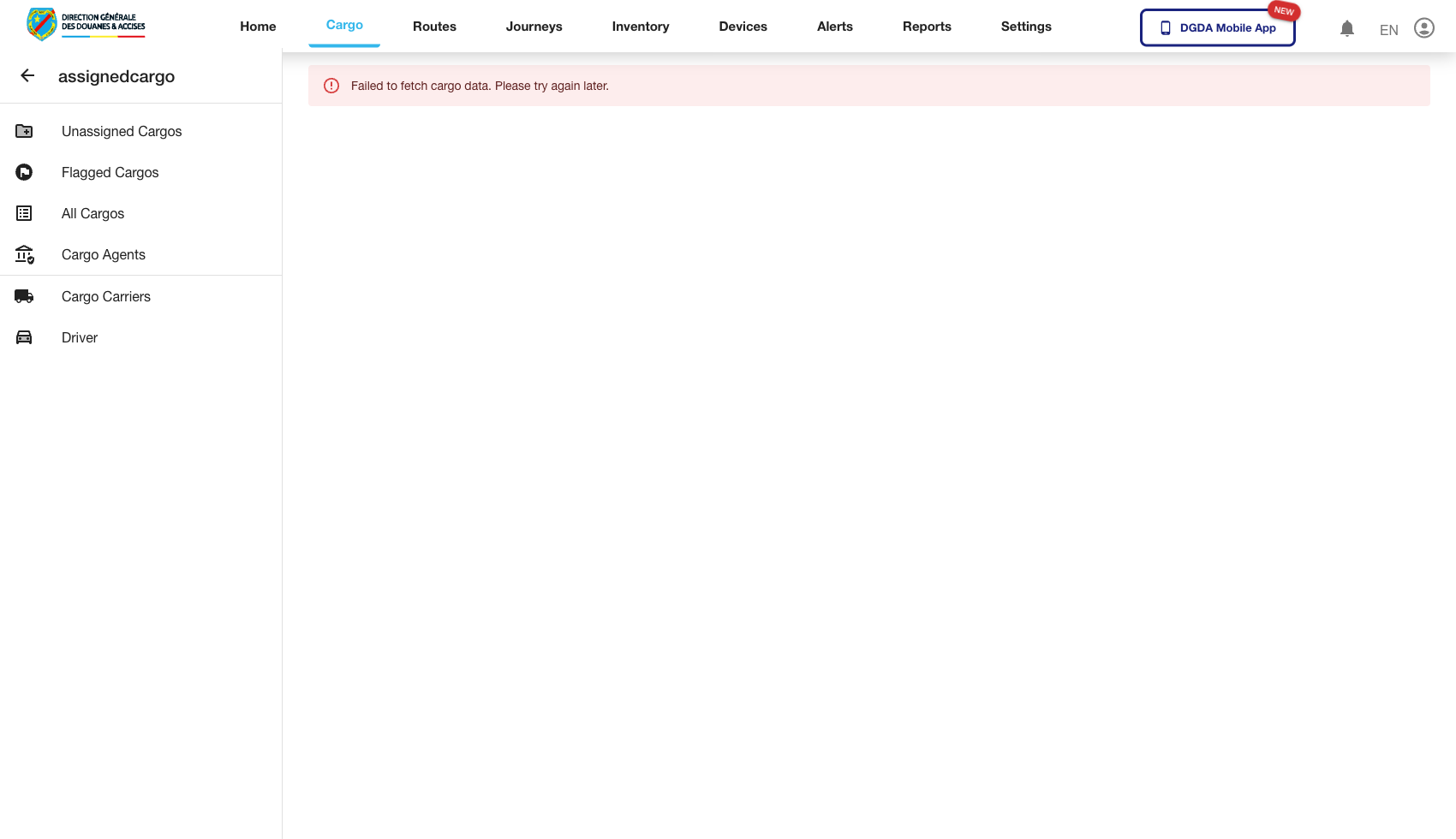 Route / Context:
 /cargo/assigned-cargo.
Navigation Path: Cargo module then Assigned Cargo.
Purpose: Monitor cargo already mapped to journeys.
Expected UI State: Table focuses on assigned state with journey-linked metadata.
Validation Checklist: Assigned rows are present, linked journey fields render, row operations are role-appropriate.
Troubleshooting: If assignment columns are blank, inspect assignment join/mapping API responses.
2.4 Agents List (15-cargo-agents.png)
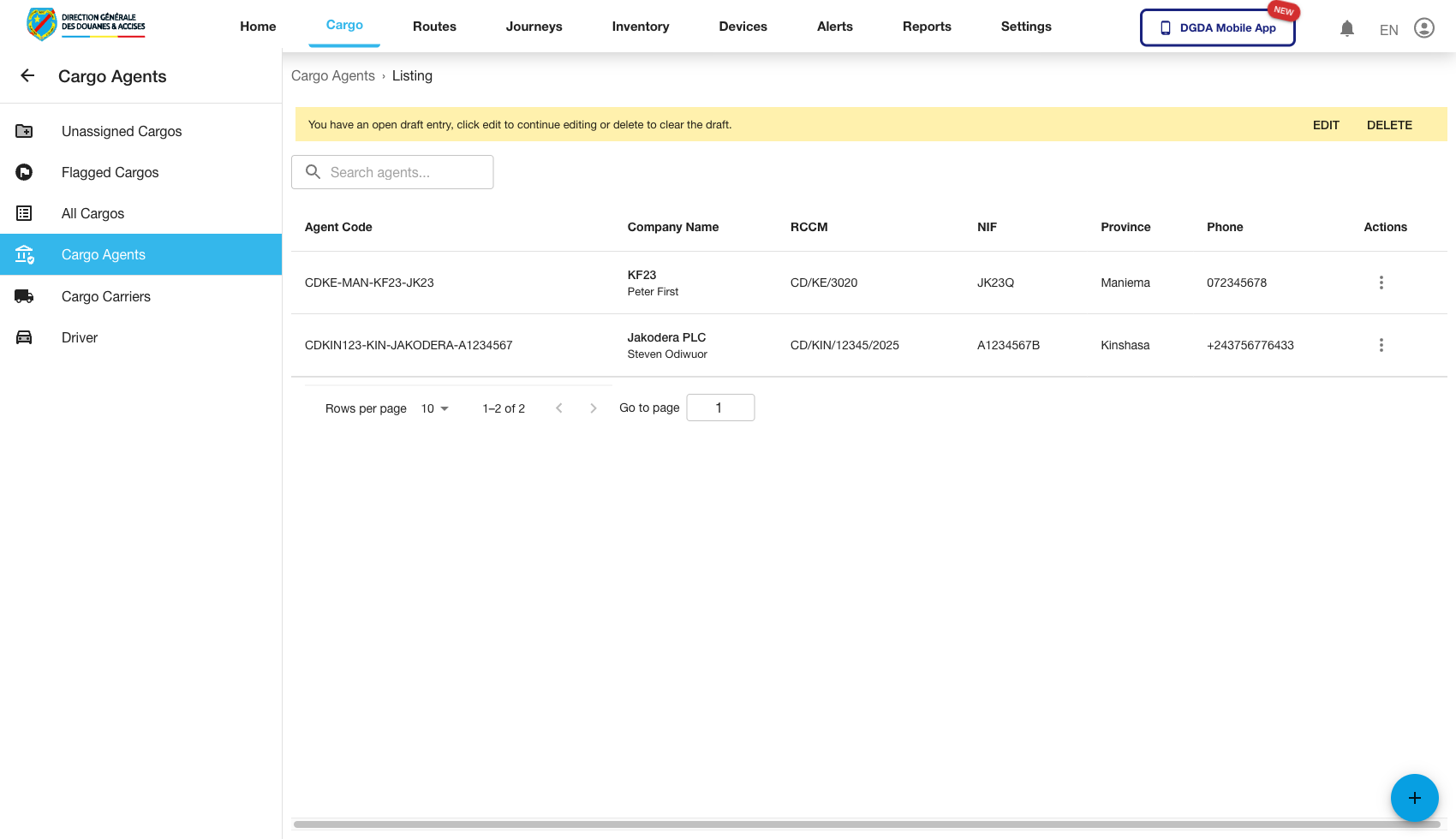 Route / Context:
 /cargo/agents-list.
Navigation Path: Cargo then Agents.
Purpose: Maintain cargo-agent roster.
Expected UI State: Agents table includes identity/contact and management actions.
Validation Checklist: Create/edit actions open forms, row data aligns with known agent records.
Troubleshooting: If actions are missing, verify role permissions for agent management.
2.5 Vehicles List (16-cargo-vehicles.png)
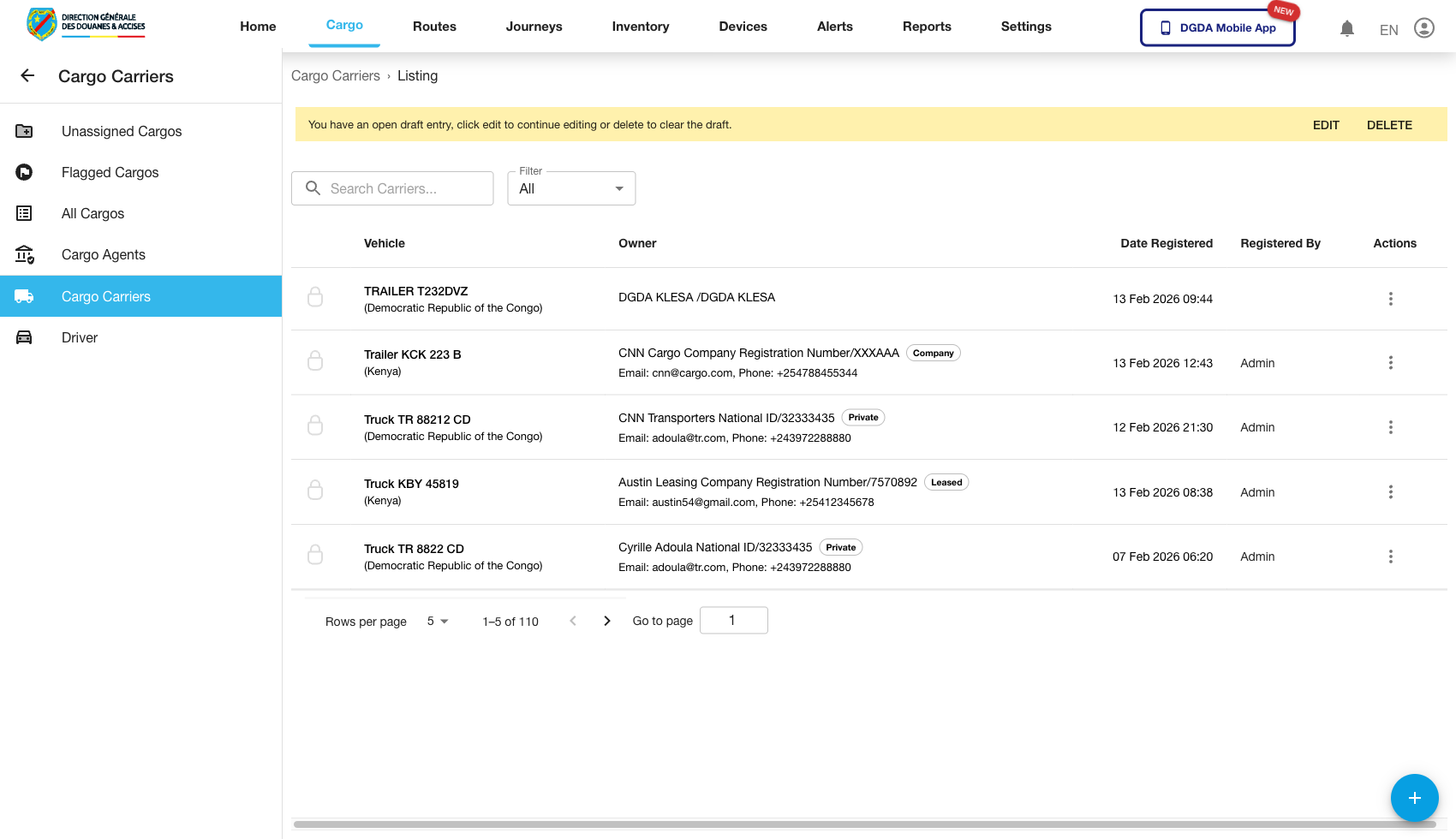 Route / Context:
 /cargo/vehicles-list.
Navigation Path: Cargo then Vehicles.
Purpose: Manage carrier/vehicle inventory used in transport assignments.
Expected UI State: Vehicle table with identifiers and status/ownership fields.
Validation Checklist: Vehicle search works, edit/view actions open, new records appear after creation.
Troubleshooting: If duplicate or stale records persist, check cache invalidation and list refresh behavior.
2.6 Drivers List (17-cargo-drivers.png)
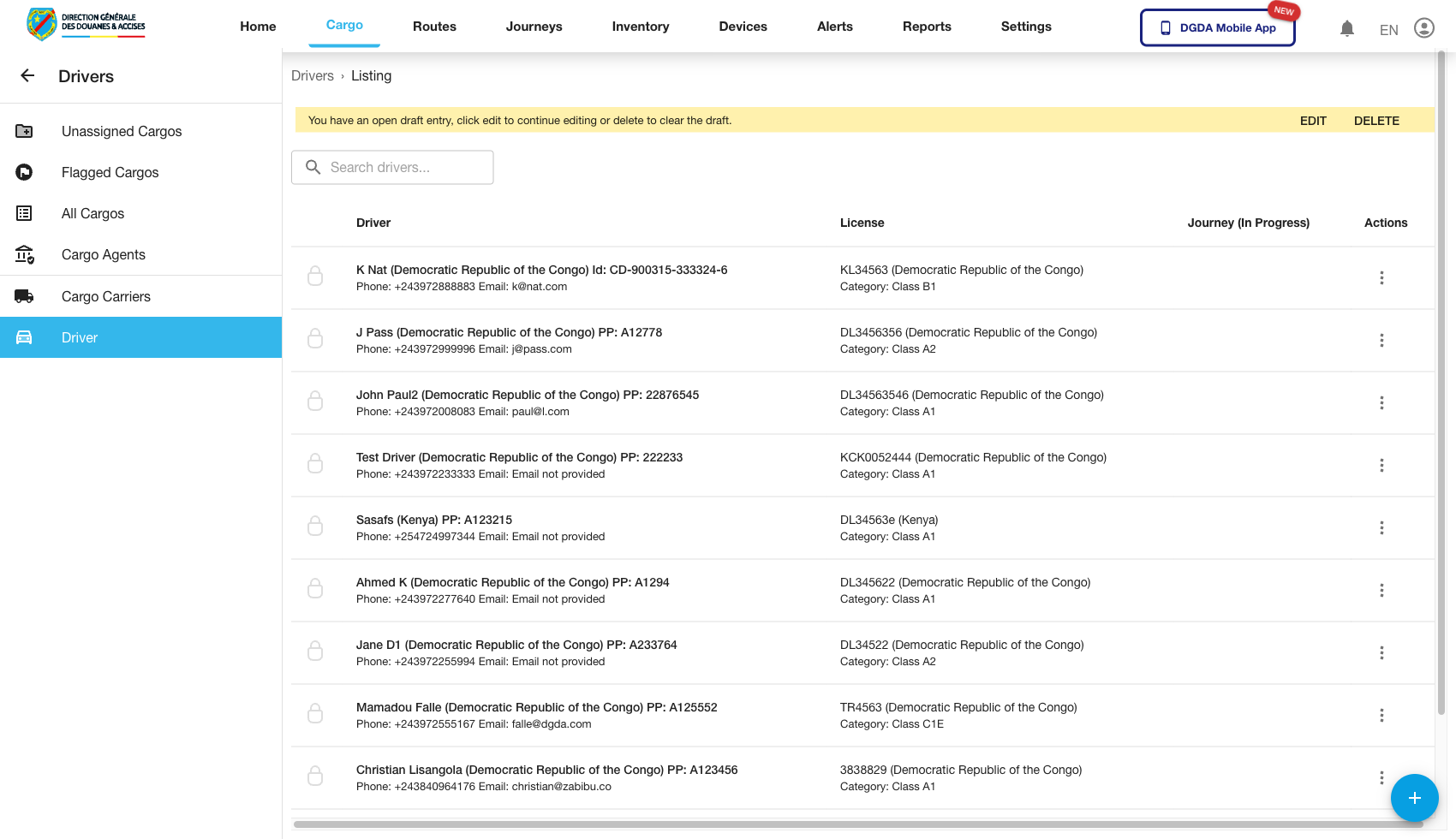 Route / Context:
 /cargo/drivers-list.
Navigation Path: Cargo then Drivers.
Purpose: Driver registry and operational assignment readiness.
Expected UI State: Driver names/IDs, contact attributes, state columns, row actions.
Validation Checklist: Filtering by driver identifier works, row detail/edit flow loads.
Troubleshooting: If driver state is inconsistent, verify upstream HR/driver data sync sources.
2.7 Create Cargo (37-cargo-create-cargo.png)
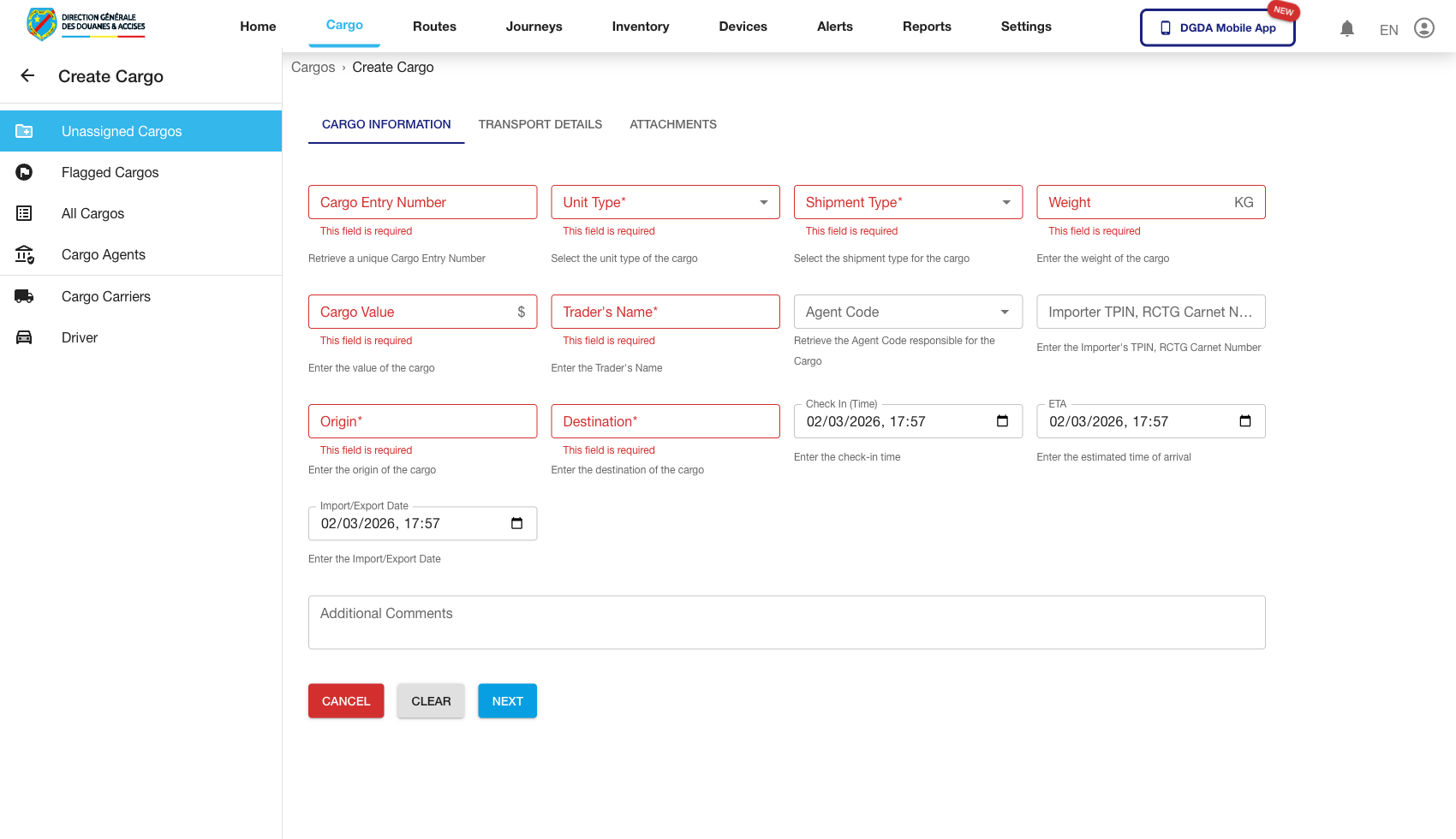 Route / Context:
 /cargo/create-cargo.
Navigation Path: Cargo then Create Cargo.
Purpose: Create a new cargo record and map key business fields.
Expected UI State: Multi-field form with required indicators, save/submit controls, select dropdowns for route/journey context.
Validation Checklist: Required field validation triggers correctly, successful save returns expected confirmation/state transition.
Troubleshooting: If submit silently fails, inspect frontend validation errors and API response payload in network logs.
3. Journey Module
3.1 Active Journeys (18-journey-active.png)
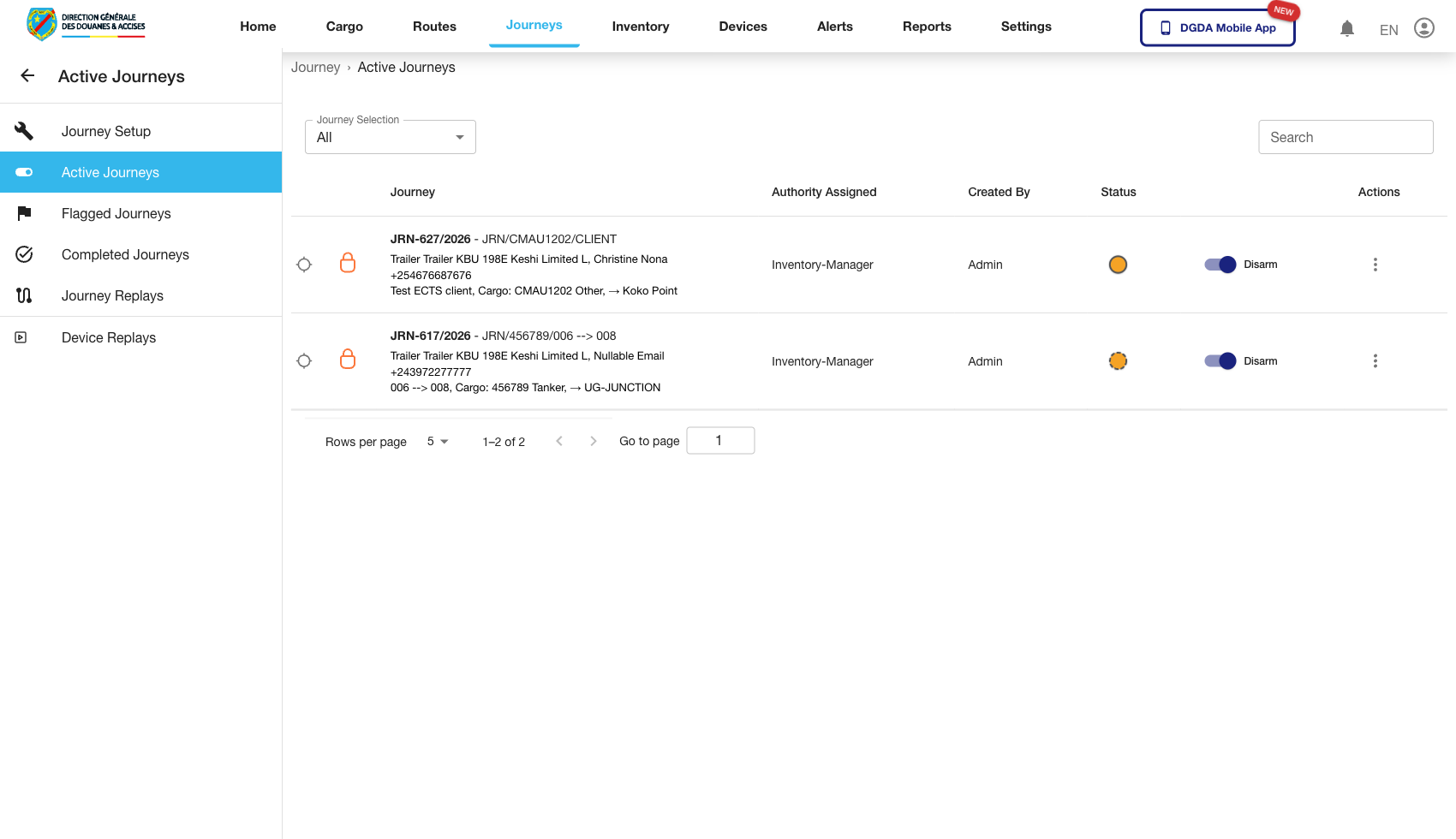 Route / Context:
 /journey/active.
Navigation Path: Top nav Journeys then Active.
Purpose: Real-time operational tracking of in-progress journeys.
Expected UI State: Active journey rows with status/timing columns and row-level action controls.
Validation Checklist: Rows update after refresh, action controls are clickable, no route errors on open.
Troubleshooting: If statuses appear frozen, verify polling/refresh logic and backend journey state updates.
3.2 Completed Journeys (19-journey-completed.png)
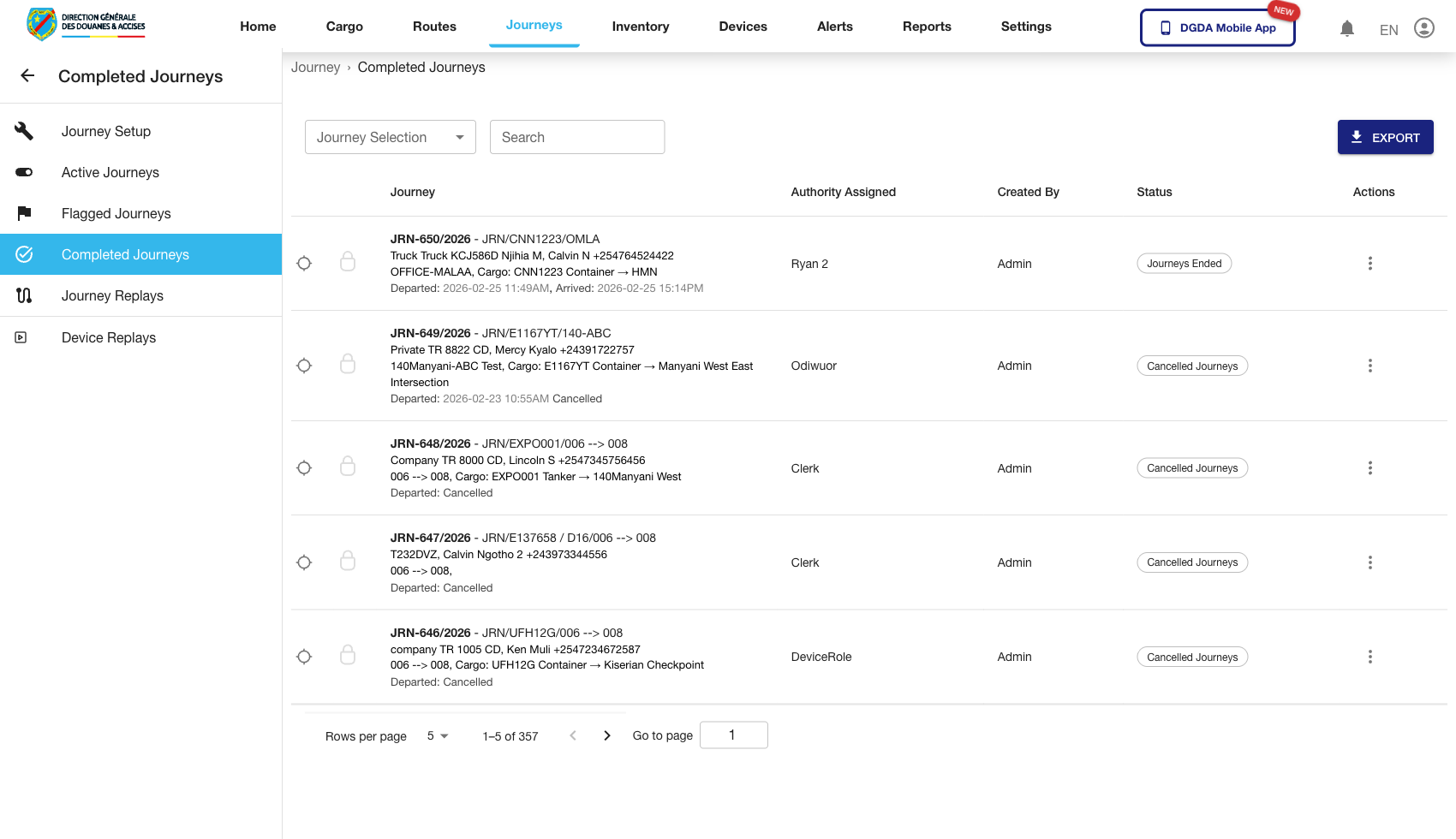 Route / Context:
 /journey/completed.
Navigation Path: Journeys then Completed.
Purpose: Audit completed journey execution and closure details.
Expected UI State: Completed rows with closure timestamps/outcome context.
Validation Checklist: Historical rows are present, sort/filter works, details are reachable from row actions.
Troubleshooting: If completed list is unexpectedly empty, confirm date range defaults and archival query behavior.
3.3 Active Journey Before Click (66-journey-active-before-click.png)
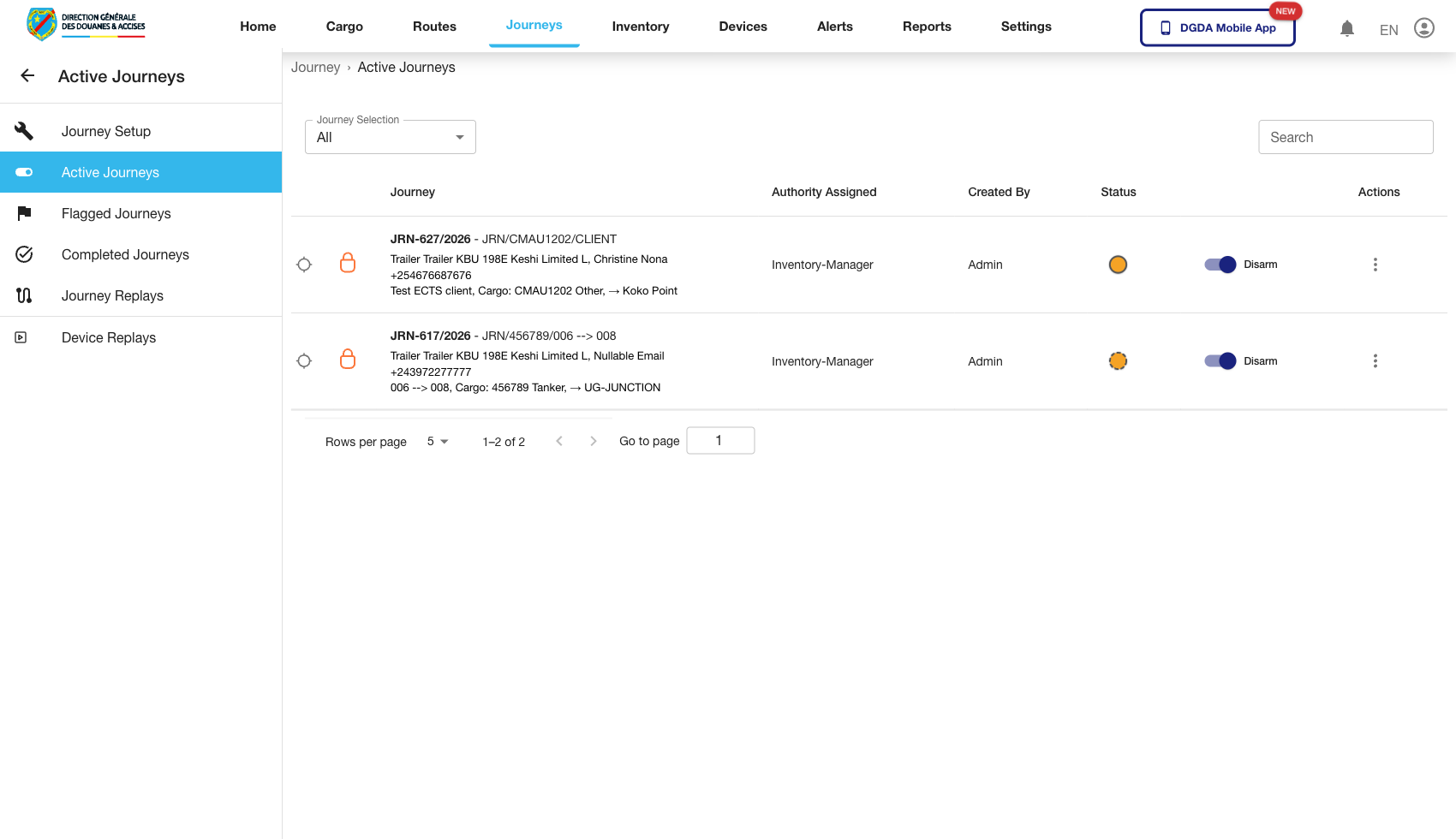 Route / Context:
 /journey/active pre-action state.
Navigation Path: Open Active journeys and focus first row action area.
Purpose: Baseline view before drilling into a specific journey.
Expected UI State: Row action trigger is visible and selectable.
Validation Checklist: Selected row highlight/hover behavior appears, action affordance is not disabled.
Troubleshooting: If no row action is visible, verify role permissions and responsive layout breakpoints.
3.4 Active Journey Click Result (67-journey-clicked-detail.png)
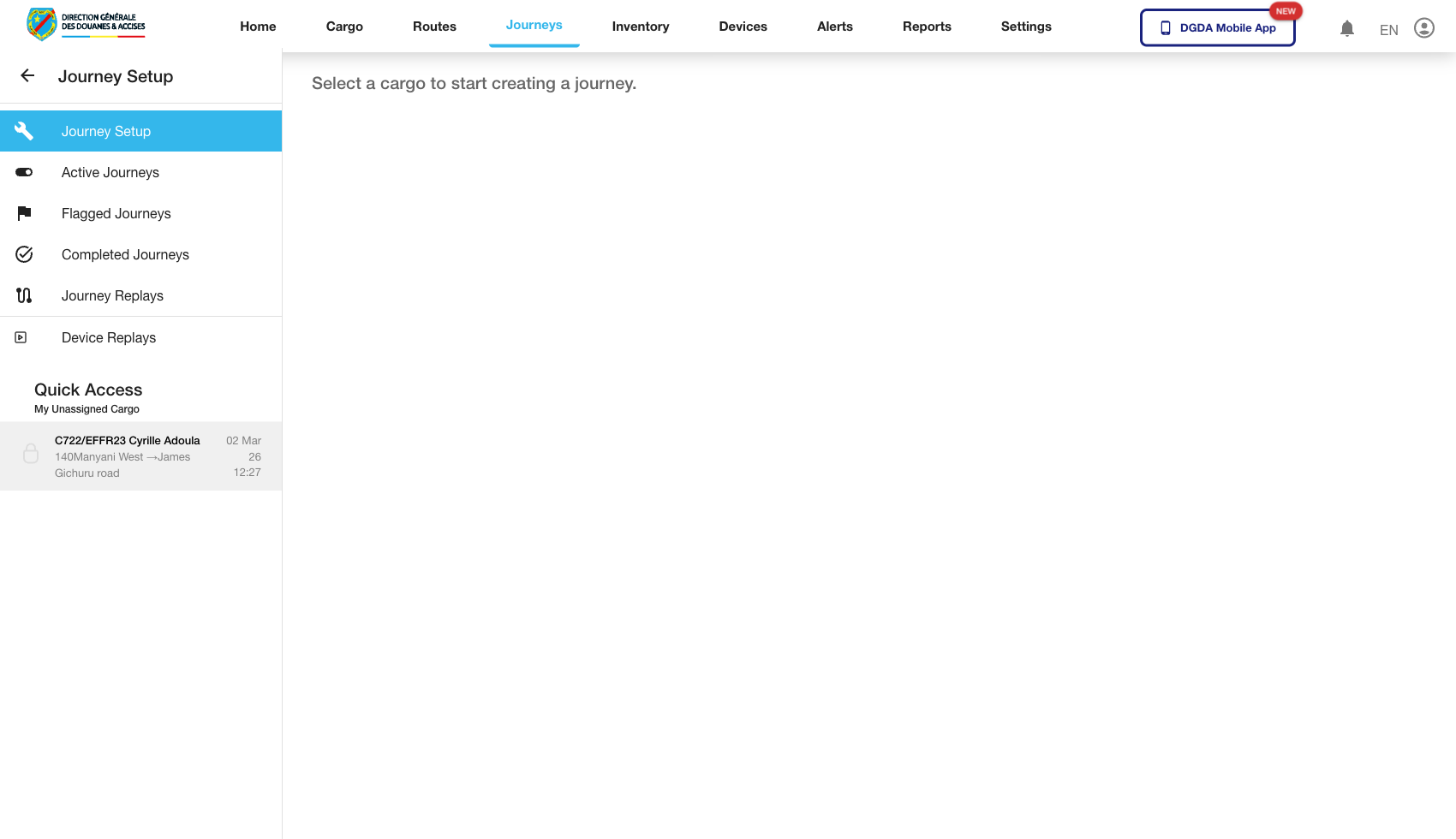 Route / Context: Result of row-action click from active list.
Navigation Path: Trigger row action on
Route / Context: Result of row-action click from active list.
Navigation Path: Trigger row action on /journey/active and follow transition.
Purpose: Validate where the active journey click path leads in current build.
Expected UI State: Transition lands in detail/create-like context as captured in this run.
Validation Checklist: Transition is deterministic for selected action, route is consistent across rows.
Troubleshooting: If route is unexpected (for example undefined path), log as navigation defect and avoid documenting as standard operator flow.
3.5 Completed Journey Before Click (68-journey-completed-before-click.png)
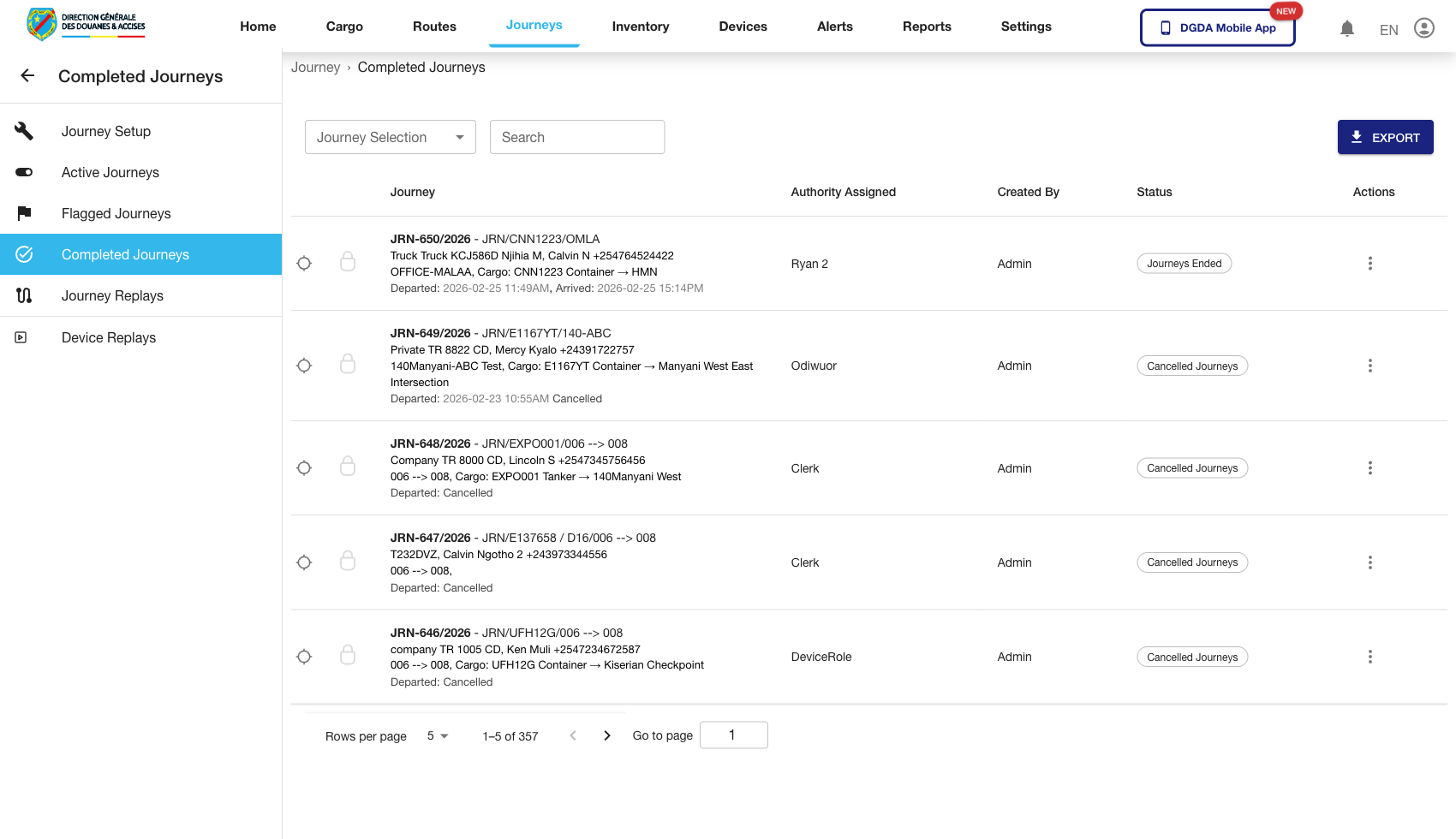 Route / Context:
 /journey/completed pre-action state.
Navigation Path: Open completed list and prepare row interaction.
Purpose: Establish baseline before row action menu invocation.
Expected UI State: Completed row is visible with actionable control.
Validation Checklist: Row focus state is clear and action trigger is clickable.
Troubleshooting: If row action is hidden, check column visibility and table action render conditions.
3.6 Completed Journey Row Clicked (69-journey-completed-clicked.png)
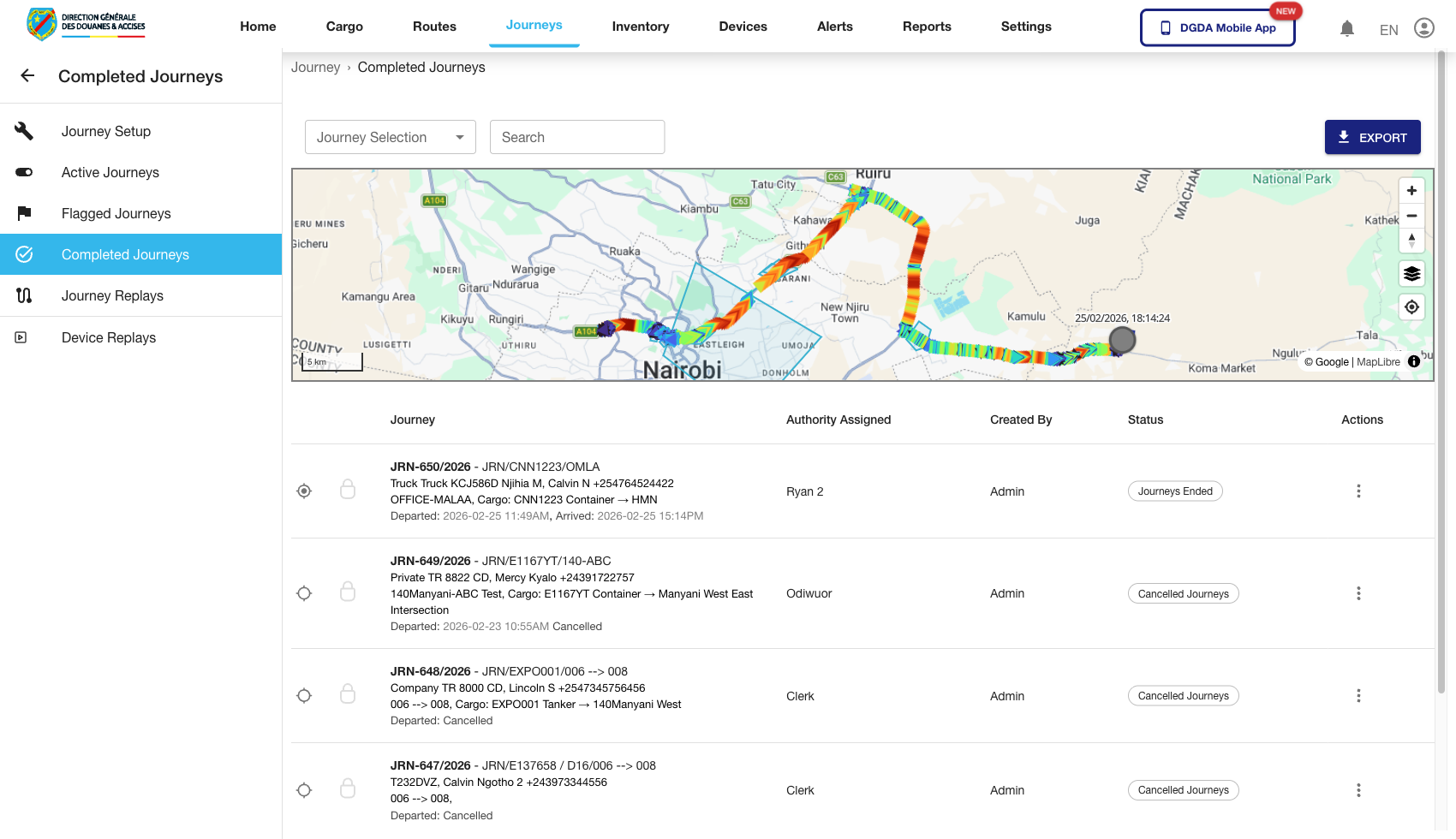 Route / Context:
 /journey/completed selected-row state.
Navigation Path: Click row action on target completed journey.
Purpose: Confirm row action interaction is captured correctly.
Expected UI State: Selected row or focused action element indicates interaction state.
Validation Checklist: No page crash after click, next action (menu open) is available.
Troubleshooting: If click does nothing, inspect disabled-state logic and event binding on row controls.
3.7 Completed Journey Action Menu (70-journey-row-view.png)
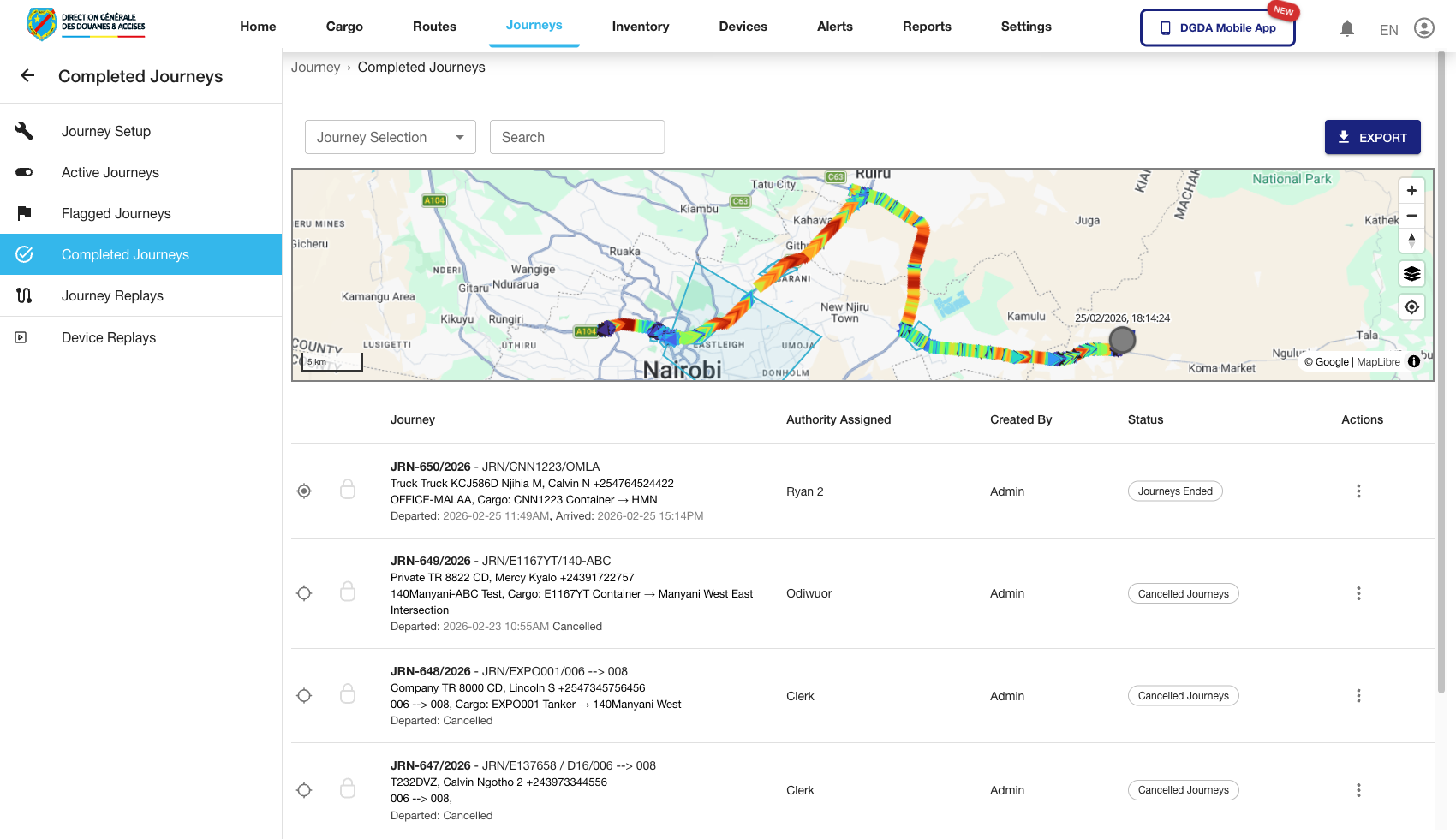 Route / Context:
 /journey/completed contextual row menu open.
Navigation Path: Row click then open action menu.
Purpose: Validate visibility of permitted row actions (View, Edit, etc. by role).
Expected UI State: Popover/menu appears aligned to row action anchor and options are selectable.
Validation Checklist: Menu options respond, selecting an option transitions to expected target route.
Troubleshooting: If menu closes instantly or clips, inspect z-index/overflow container behavior in table wrapper.
3.8 Create Journey (38-journey-create-journey.png)
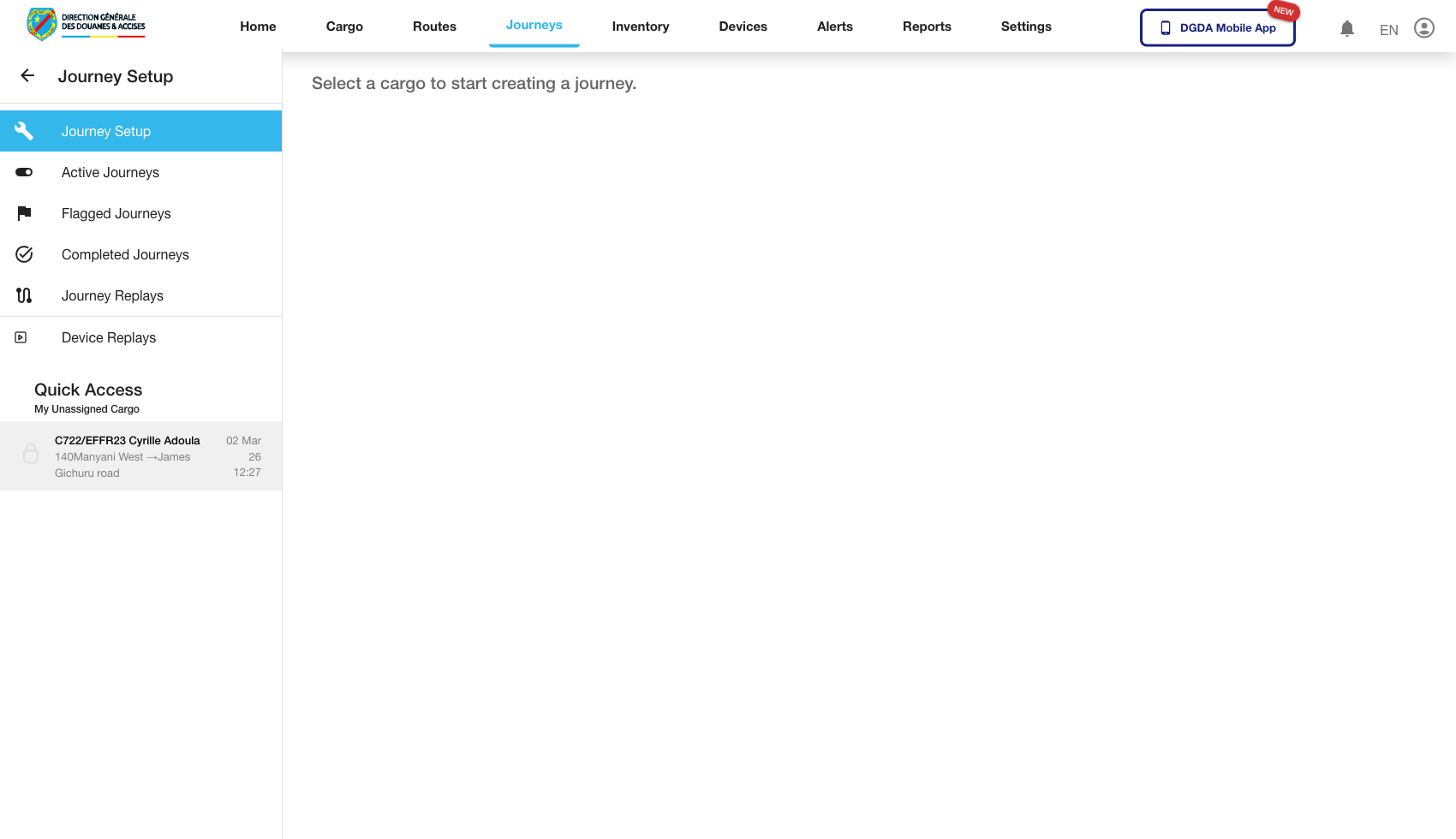 Route / Context:
 /journey/create-journey.
Navigation Path: Journeys then Create Journey.
Purpose: Create or configure journey definitions.
Expected UI State: Form inputs for schedule, checkpoints, linked cargo, and dispatch metadata.
Validation Checklist: Required inputs enforce validation, submission produces success feedback.
Troubleshooting: If dependent dropdowns are empty, verify prerequisite master data (routes/checkpoints/cargo).
4. Routes Module
4.1 Routes List (20-routes-list.png)
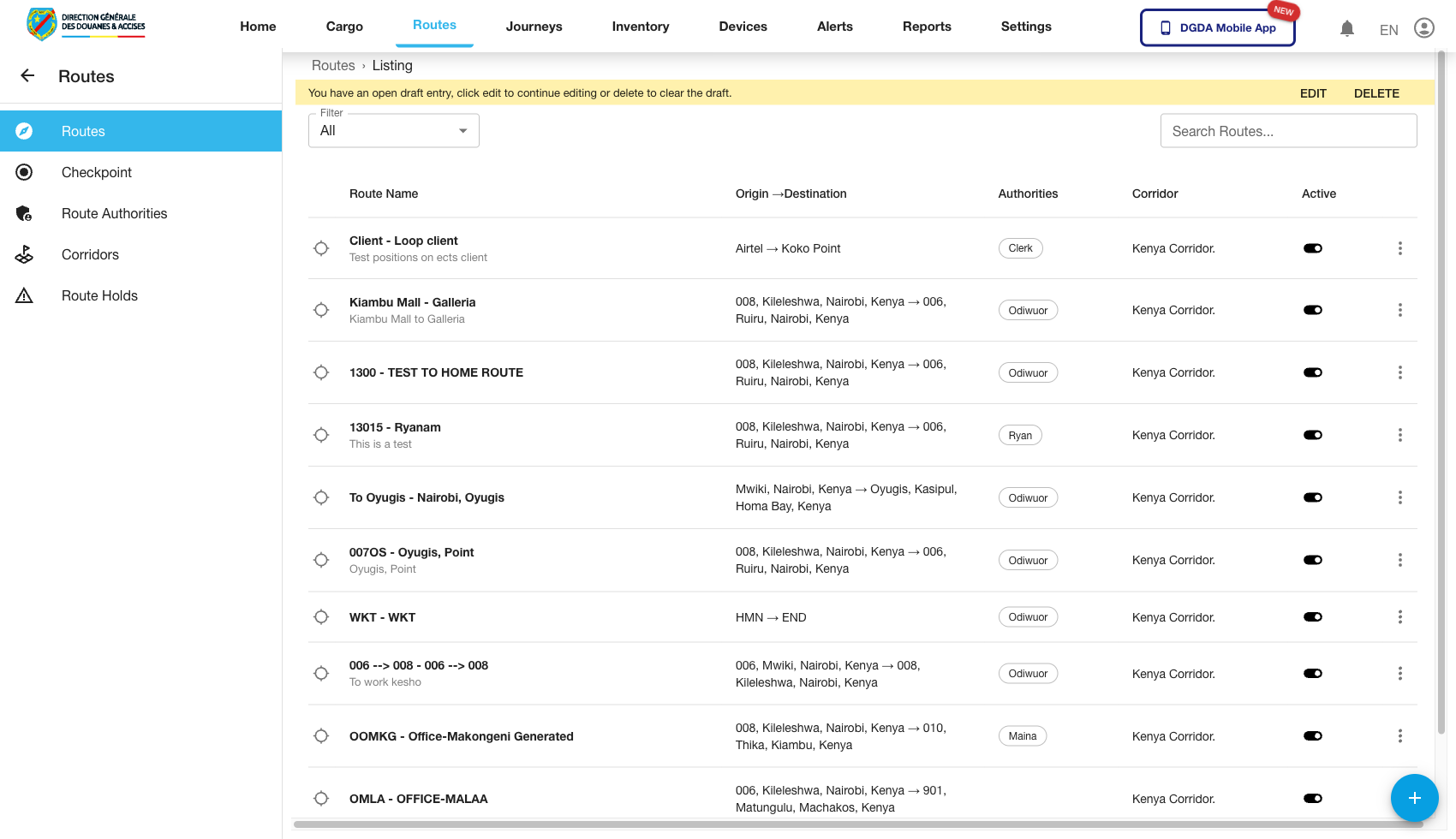 Route / Context:
 /routes/list.
Navigation Path: Top nav Routes then Route List.
Purpose: Central view of configured routes.
Expected UI State: Route table with route identifiers, state columns, and action controls.
Validation Checklist: Search/filter works, row open action routes correctly, pagination loads subsequent records.
Troubleshooting: If list fetch fails, check route-list API status and auth token propagation.
4.2 Checkpoints (21-routes-checkpoints.png)
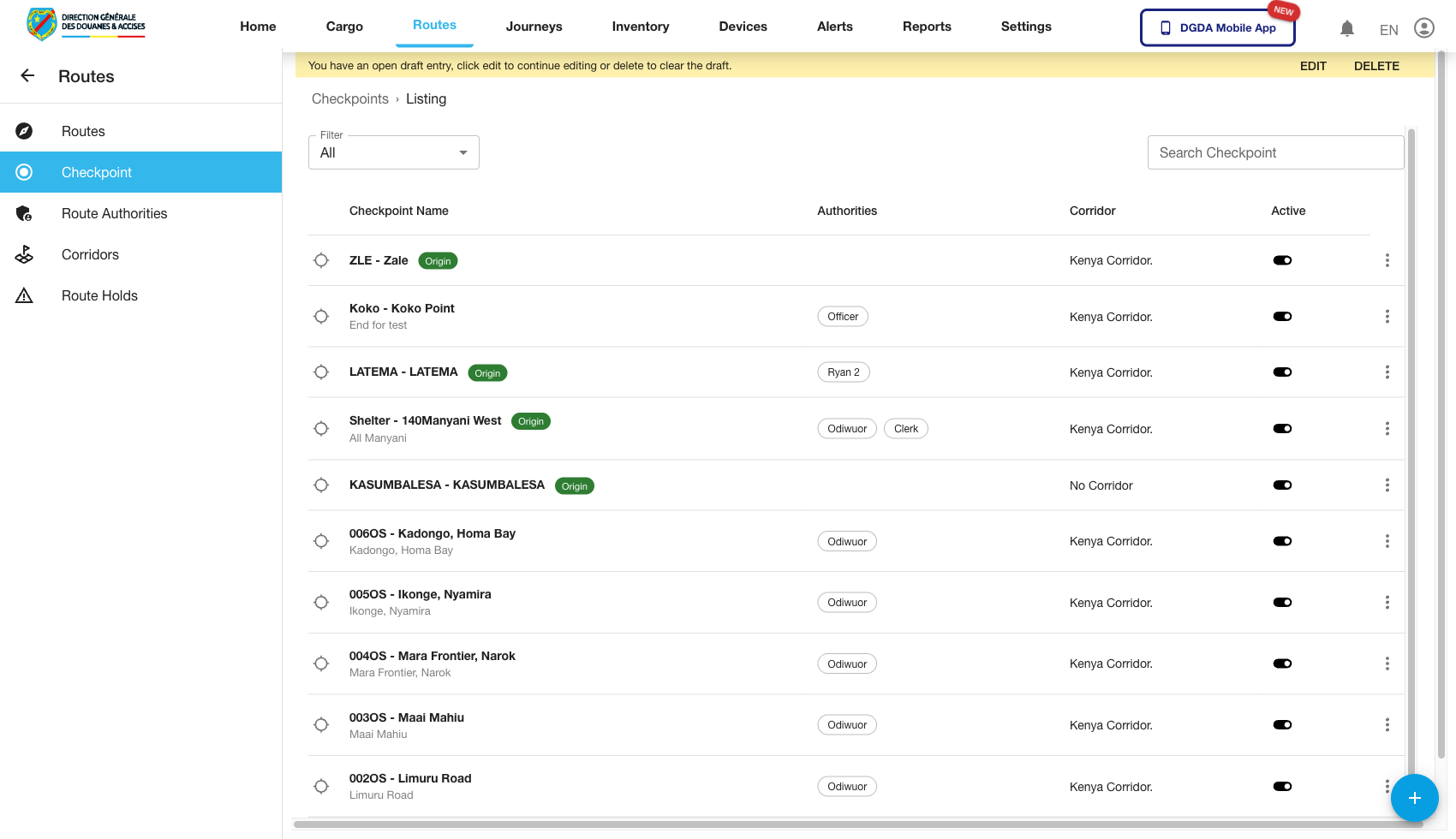 Route / Context:
 /routes/checkpoints.
Navigation Path: Routes then Checkpoints.
Purpose: Manage checkpoint entities used in route definitions.
Expected UI State: Checkpoint list with location metadata and actions.
Validation Checklist: Add/edit checkpoint dialogs open, saved changes appear in list.
Troubleshooting: If location fields fail validation, confirm expected coordinate/address format.
4.3 Route Authorities (22-routes-authorities.png)
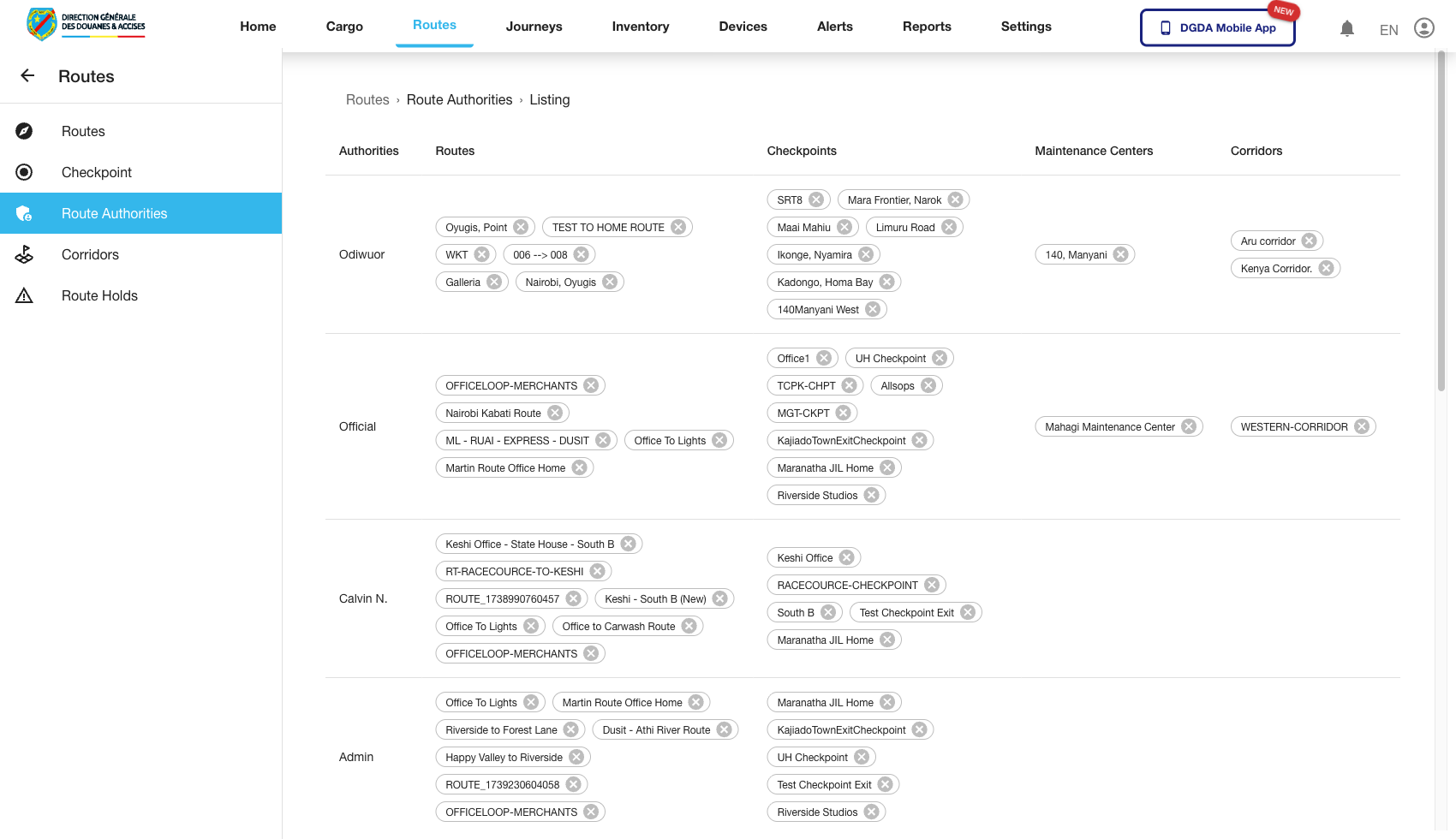 Route / Context:
 /routes/route-authorities.
Navigation Path: Routes then Route Authorities.
Purpose: Map responsible authorities to routes.
Expected UI State: Authority mapping records with route association columns.
Validation Checklist: Authority changes persist after save, role restrictions enforce correctly.
Troubleshooting: If updates revert after refresh, inspect backend write success and optimistic UI rollback path.
4.4 Route Holds (24-routes-holds.png)
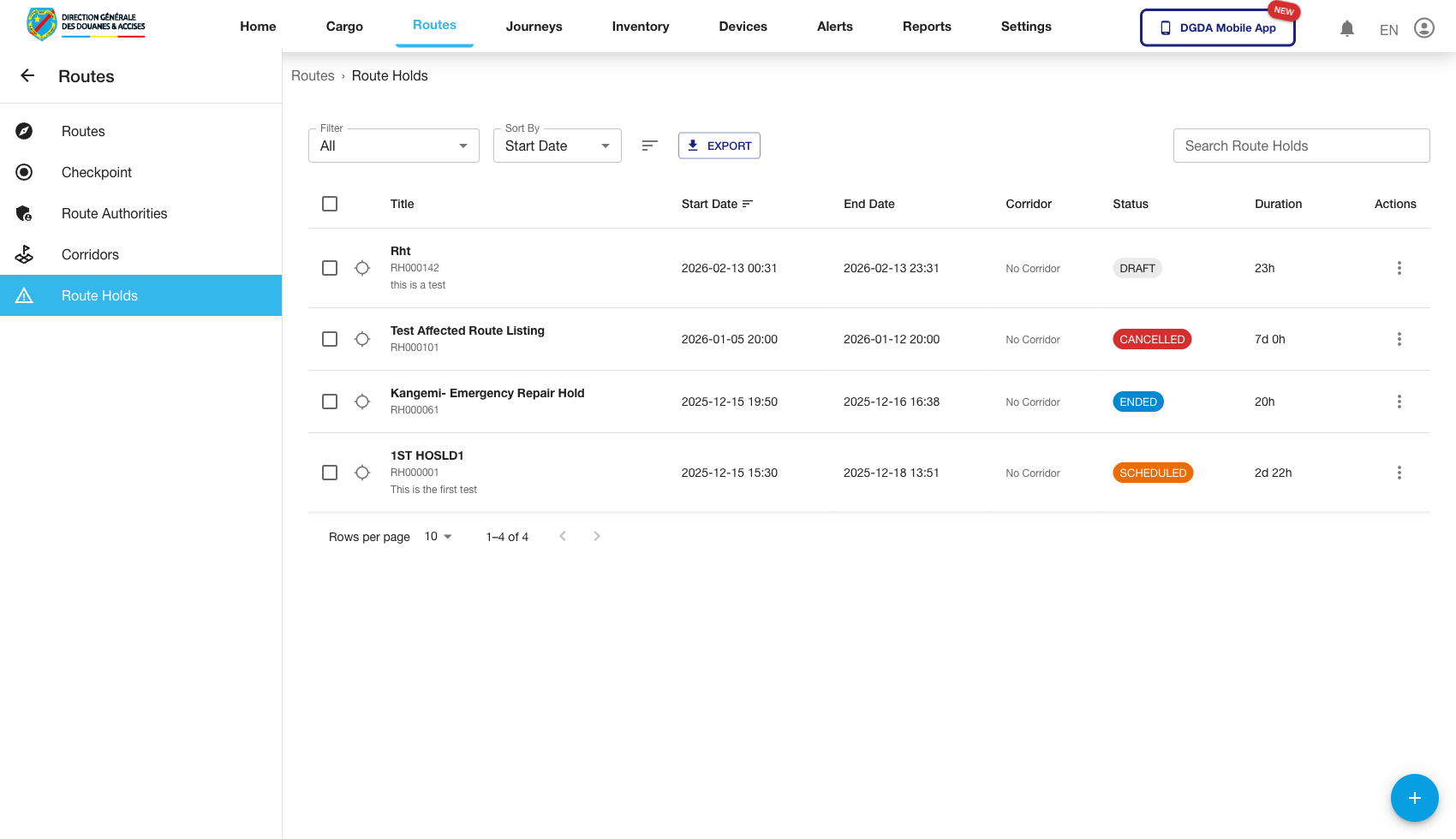 Route / Context:
 /routes/route-holds.
Navigation Path: Routes then Route Holds.
Purpose: Maintain route restrictions and temporary hold states.
Expected UI State: Hold records with status/effective period and actions.
Validation Checklist: New hold creation appears immediately, status changes reflect in table.
Troubleshooting: If hold dates are wrong, check timezone handling between UI and backend.
4.5 Corridors (40-routes-corridors.png)
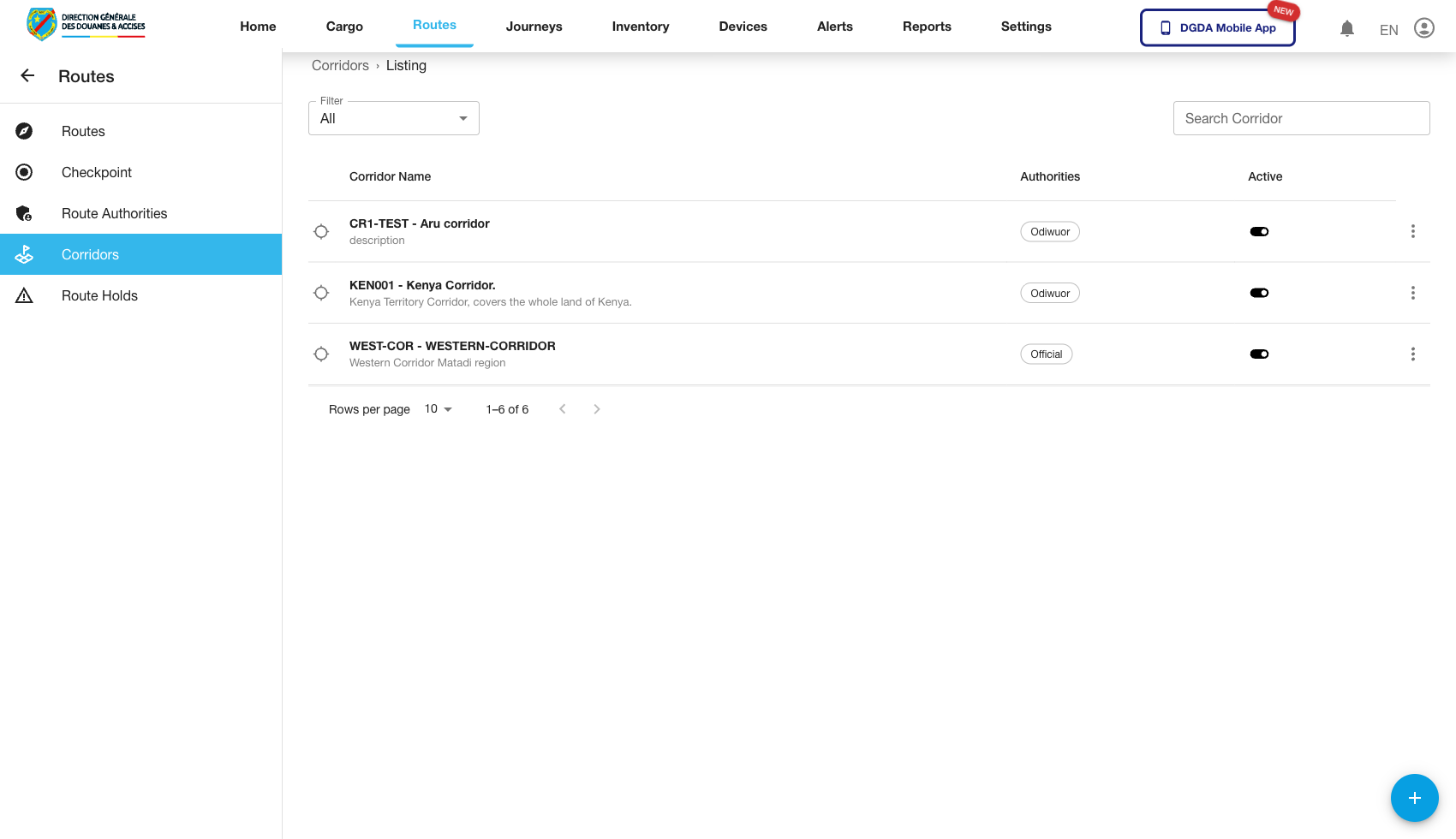 Route / Context:
 /routes/corridors.
Navigation Path: Routes then Corridors.
Purpose: Configure corridor abstractions used by route planning.
Expected UI State: Corridor entries with identifiers and configuration controls.
Validation Checklist: Corridor create/edit actions persist and appear in list refresh.
Troubleshooting: If corridor-to-route linkage fails, verify relation constraints in API payload.
4.6 Add Route (39-routes-add-route.png)
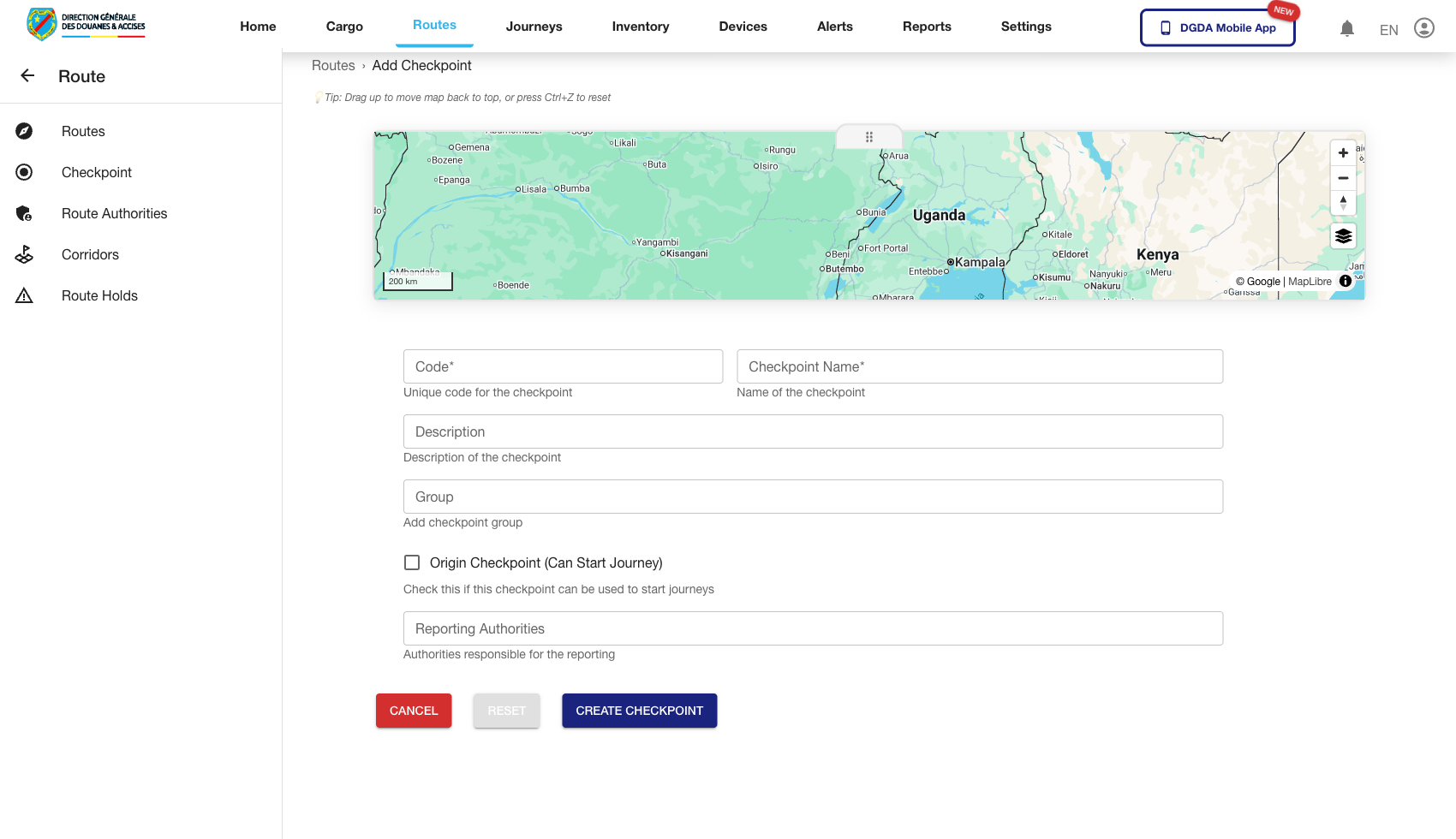 Route / Context:
 /routes/add-route.
Navigation Path: Routes then Add Route.
Purpose: Create new route definitions.
Expected UI State: Route form with mandatory metadata and checkpoint selection controls.
Validation Checklist: Required fields block invalid submit, valid submit returns to list or success state.
Troubleshooting: If checkpoint selectors are empty, verify checkpoints master data exists.
5. Inventory Module
5.1 Inventory List (25-inventory-list.png)
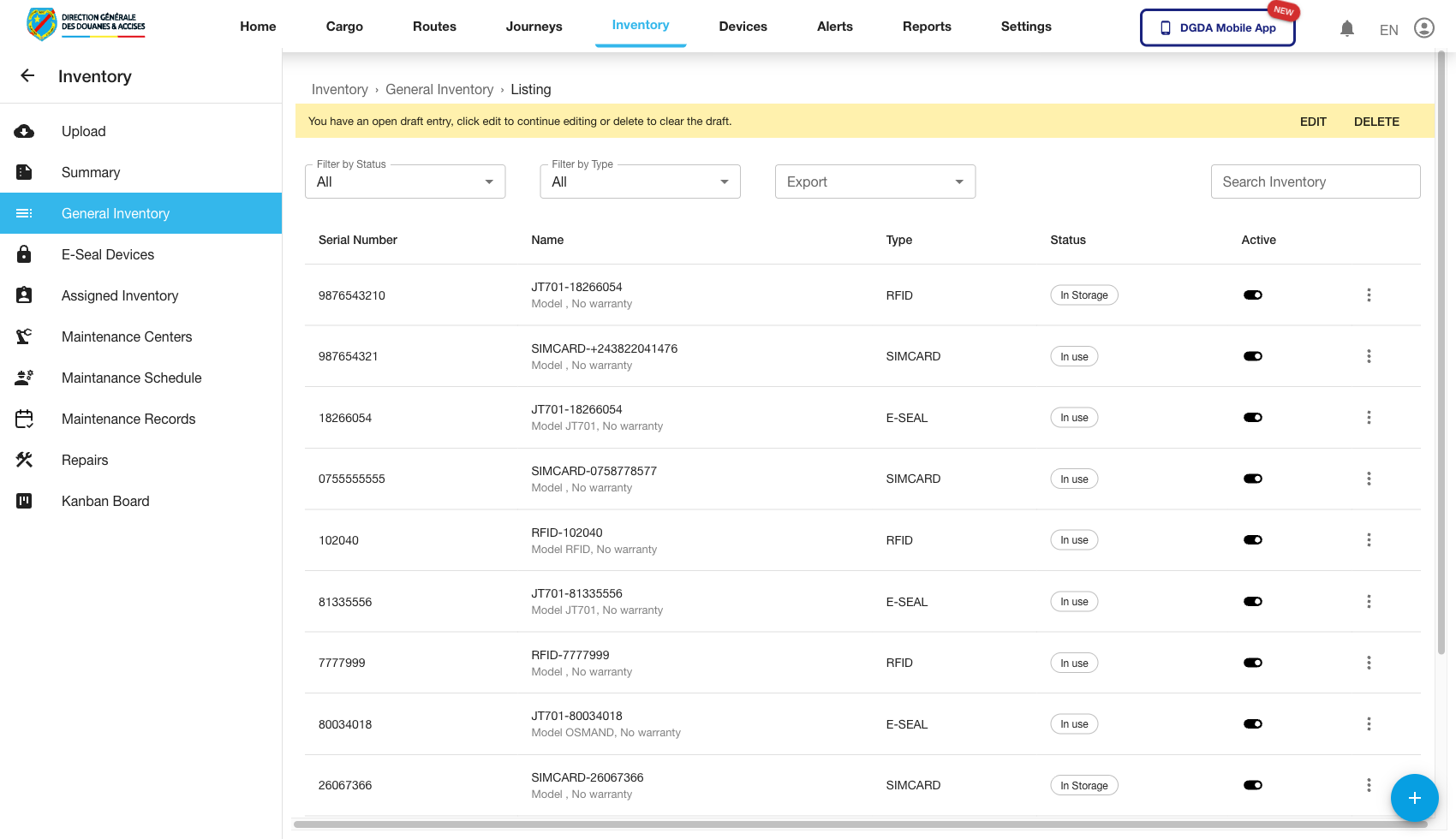 Route / Context:
 /inventories/inventory.
Navigation Path: Top nav Inventory then Inventory.
Purpose: Operational inventory table for item-level management.
Expected UI State: Item rows with identifiers, state columns, and row action controls.
Validation Checklist: Table loads, row view/edit opens, search and pagination operate correctly.
Troubleshooting: If actions fail, confirm user role includes inventory management permissions.
5.2 Inventory Summary (26-inventory-summary.png)
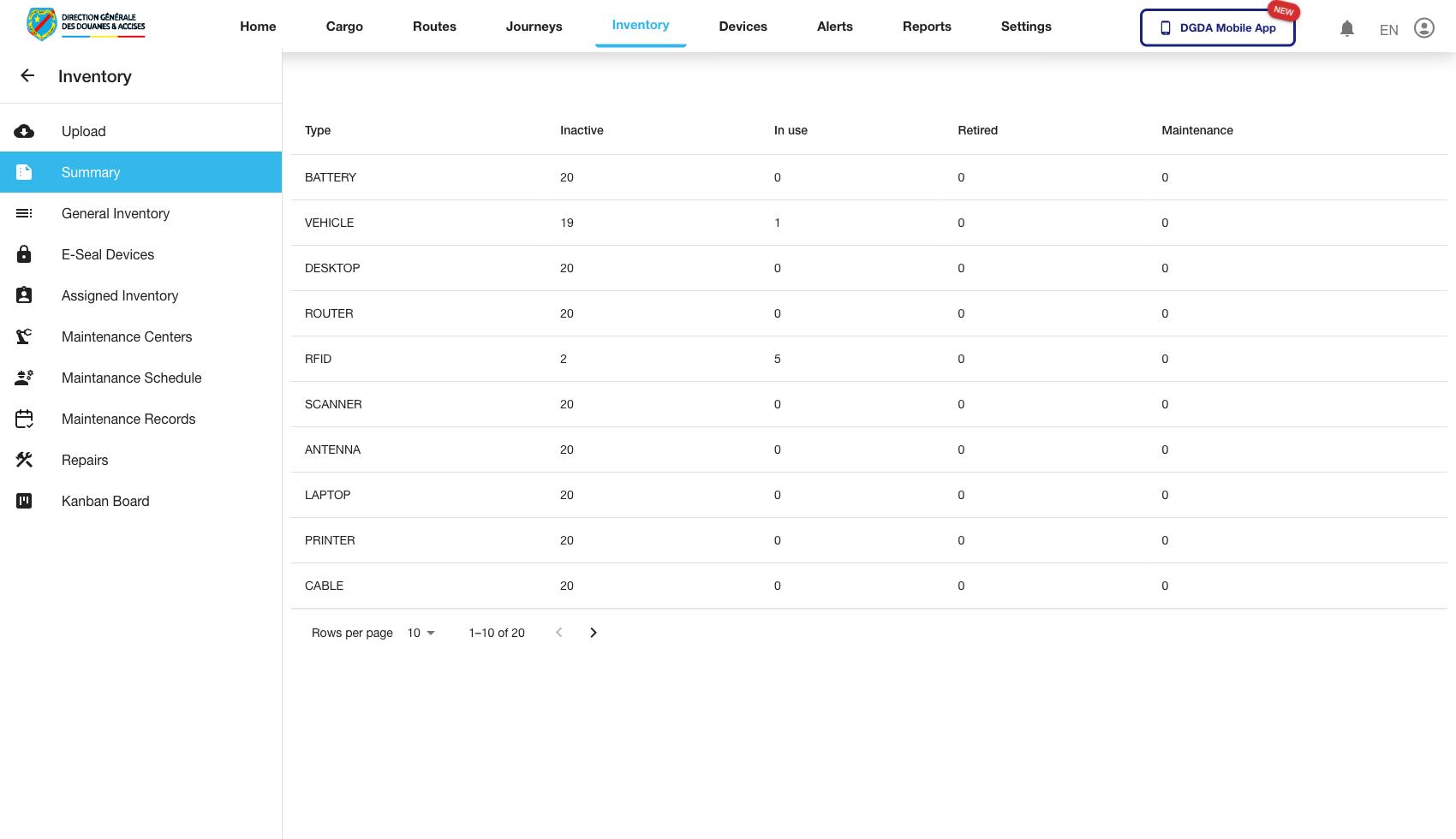 Route / Context:
 /inventories/inventory-summary.
Navigation Path: Inventory then Inventory Summary.
Purpose: Aggregate stock and state overview for quick health checks.
Expected UI State: Summary cards/charts and high-level counts appear.
Validation Checklist: Aggregate totals align with list-level records at same filter/time range.
Troubleshooting: If totals diverge significantly, investigate backend aggregation queries and cache timing.
5.3 Assigned Inventory (27-inventory-assigned.png)
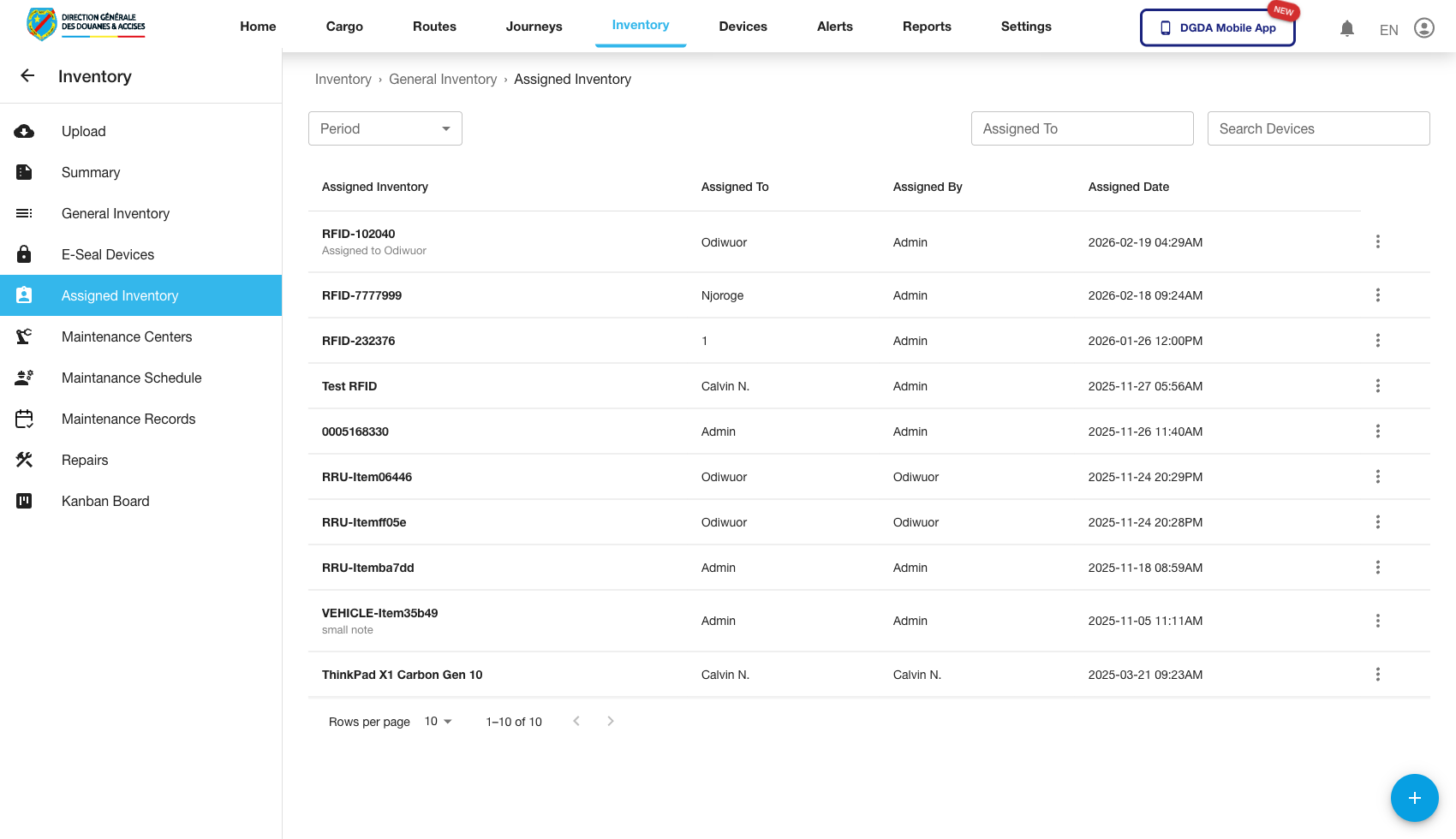 Route / Context:
 /inventories/assigned-inventory.
Navigation Path: Inventory then Assigned Inventory.
Purpose: Track inventory currently mapped to active workflows.
Expected UI State: Assigned subset with relation columns to cargo/journey where applicable.
Validation Checklist: Assignment state is consistent with workflow context and row details.
Troubleshooting: If assignment flags are inconsistent, inspect assignment sync job/API endpoint.
5.4 Add Inventory (41-inventory-add-inventory.png)
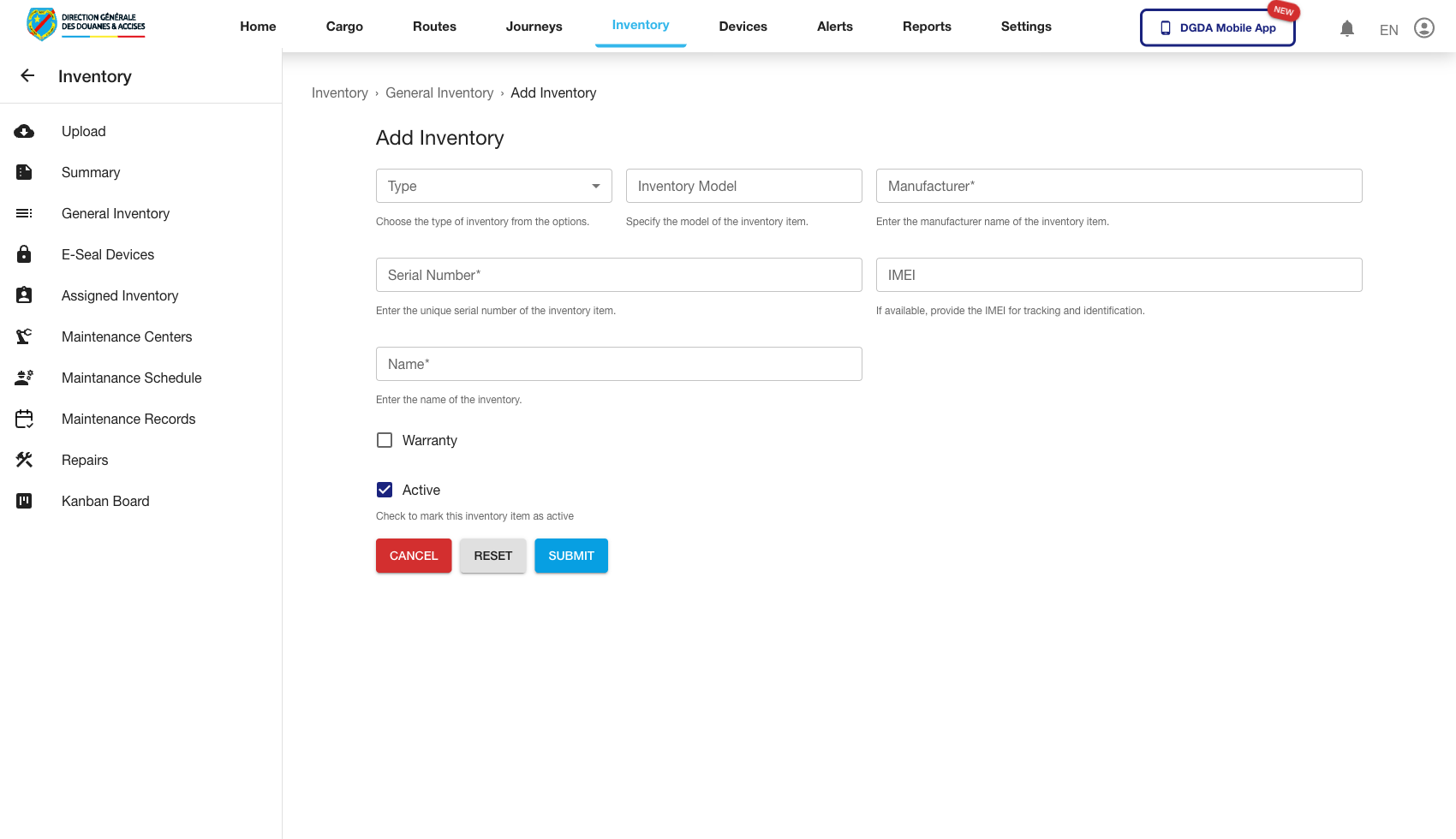 Route / Context:
 /inventories/add-inventory.
Navigation Path: Inventory then Add Inventory.
Purpose: Create new inventory record with required metadata.
Expected UI State: Form sections for identity, type/category, and optional assignment metadata.
Validation Checklist: Field validations trigger, successful submit returns visible confirmation.
Troubleshooting: If submit succeeds but record is missing, verify post-create list filter defaults.
6. Alerts Module
6.1 Open Alerts (28-alerts-open.png)
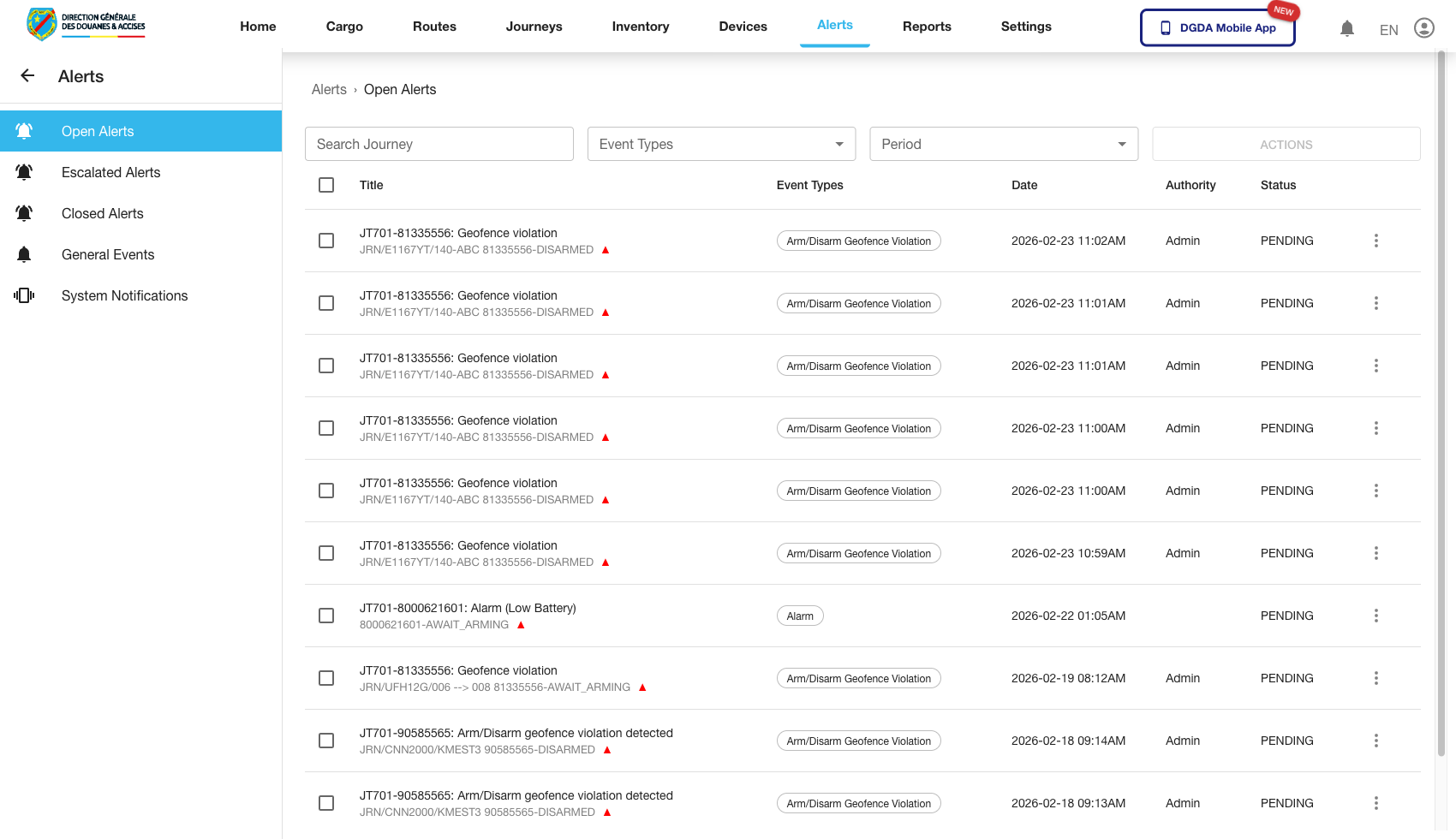 Route / Context:
 /alerts/open-alerts.
Navigation Path: Top nav Alerts then Open Alerts.
Purpose: Primary incident queue for unresolved alerts.
Expected UI State: Alert rows include severity, timestamp, source, and status/action fields.
Validation Checklist: New alerts appear in near real time, row actions open resolution workflow.
Troubleshooting: If queue is stale, inspect alert ingestion pipeline and frontend refresh interval.
6.2 Escalated Alerts (29-alerts-escalated.png)
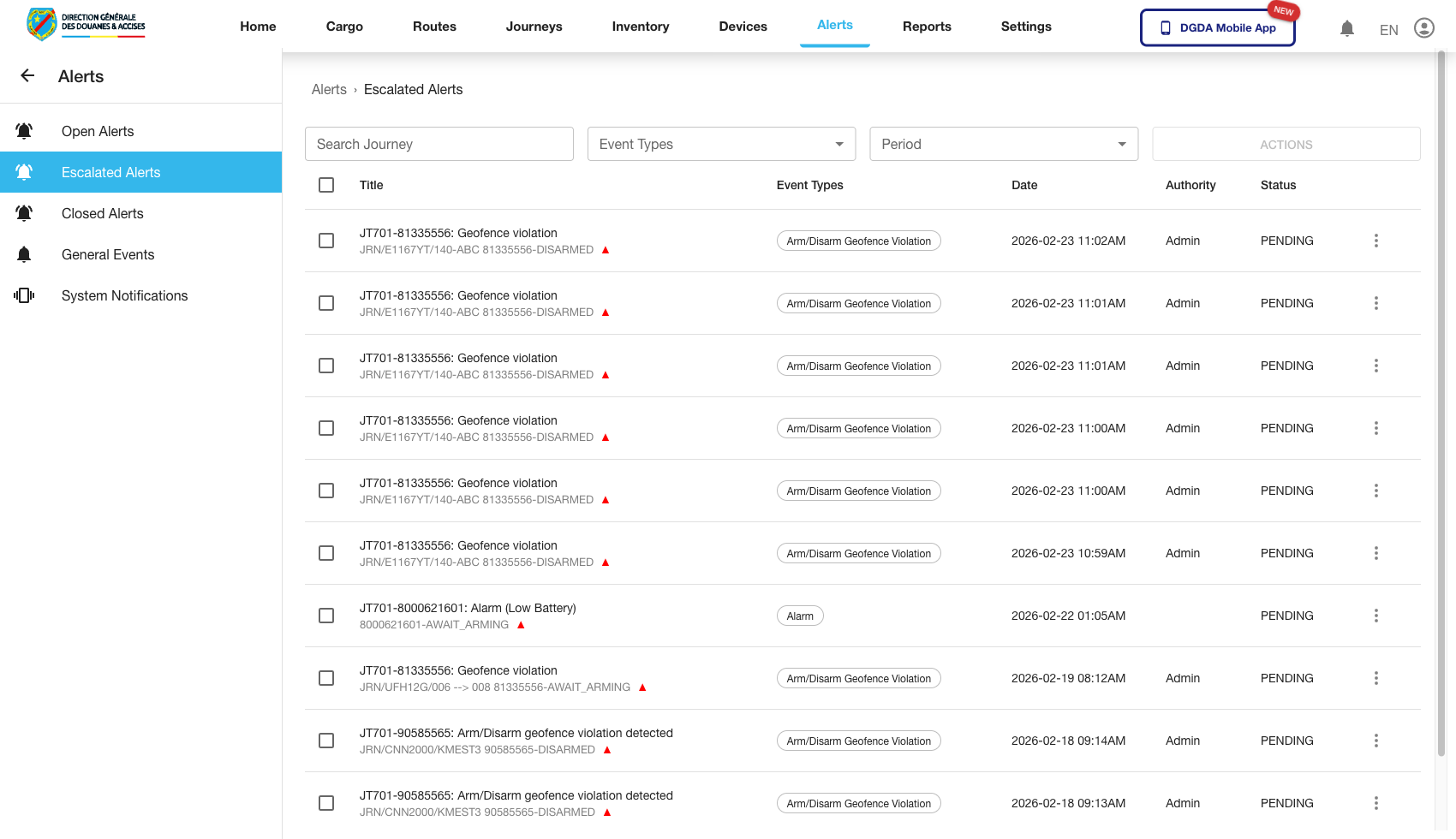 Route / Context:
 /alerts/escalated-alerts.
Navigation Path: Alerts then Escalated Alerts.
Purpose: Focus on high-priority incidents requiring rapid response.
Expected UI State: Escalated subset separated from standard queue.
Validation Checklist: Escalation metadata is visible, reassignment/resolve actions are available.
Troubleshooting: If escalated tab is empty despite known incidents, verify escalation rules engine output.
6.3 Closed Alerts (44-alerts-closed.png)
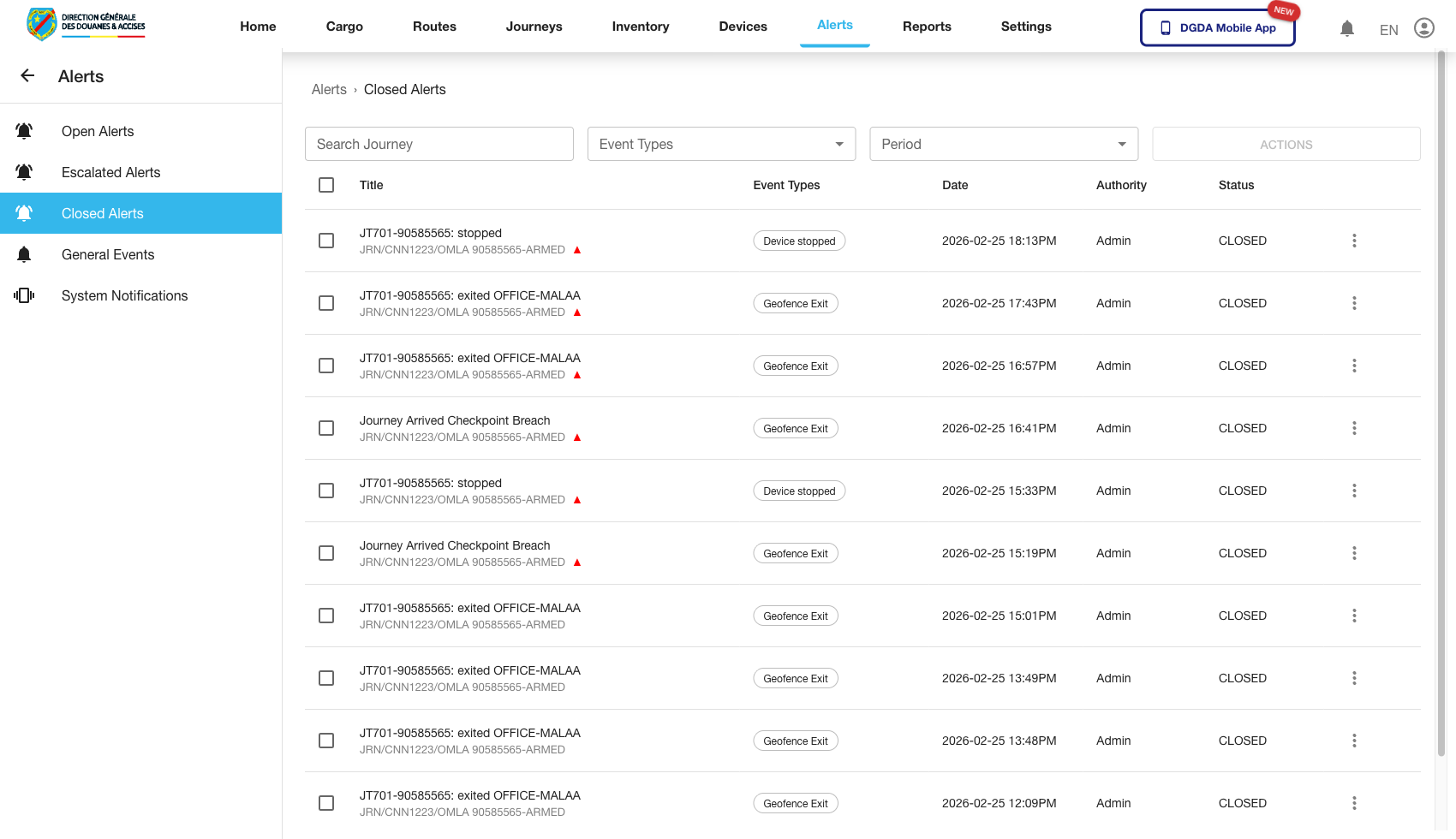 Route / Context:
 /alerts/closed-alerts.
Navigation Path: Alerts then Closed Alerts.
Purpose: Historical incident archive for audit and post-mortem review.
Expected UI State: Closed records with closure time and resolution context.
Validation Checklist: Recently closed incidents appear, close reason fields are present where required.
Troubleshooting: If closed incidents vanish, verify retention policy and table date-range defaults.
6.4 System Notifications (30-alerts-system-notifications.png)
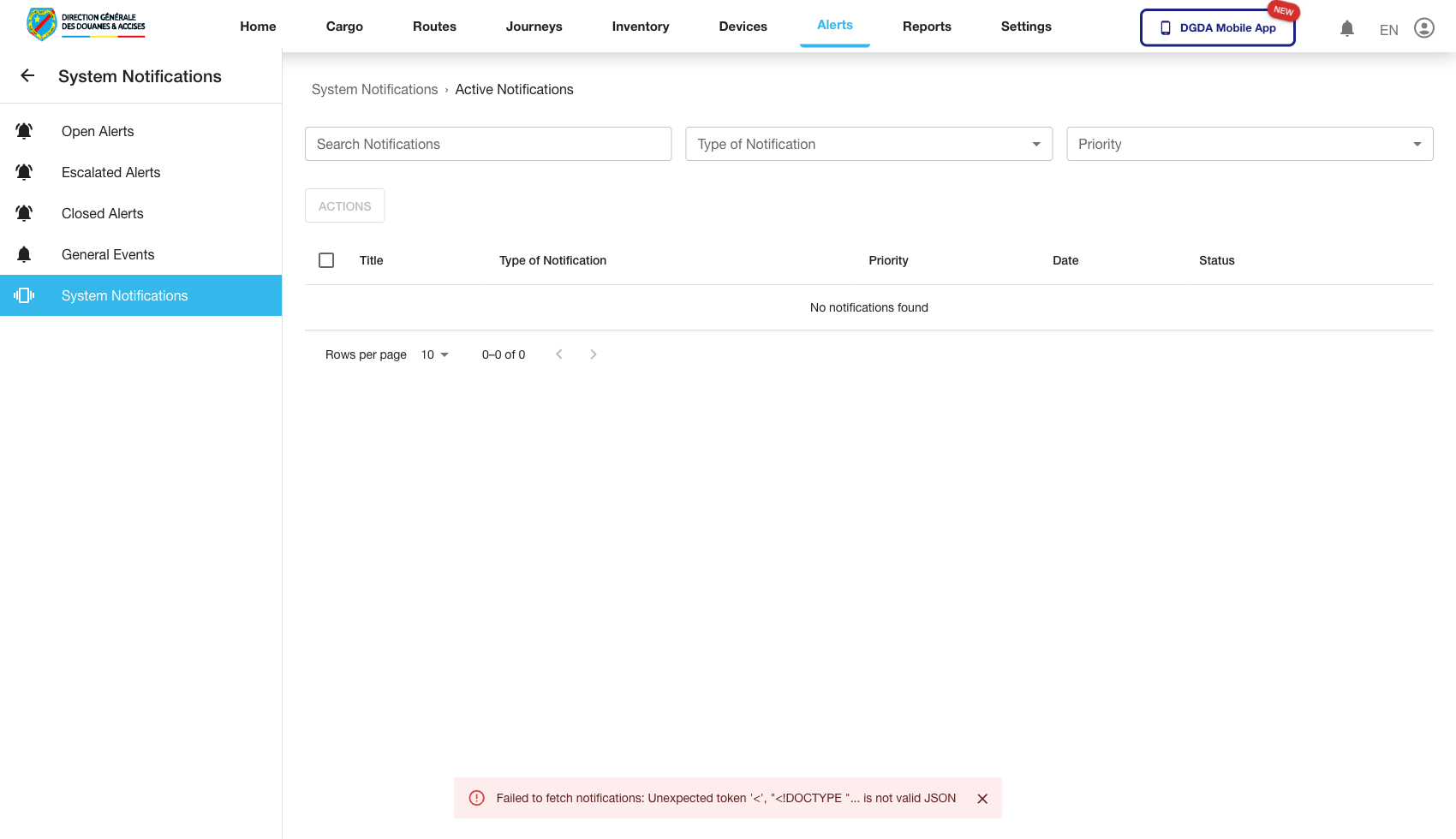 Route / Context:
 /alerts/system-notifications.
Navigation Path: Alerts then System Notifications.
Purpose: Non-incident operational notices.
Expected UI State: Notification list distinct from incident alerts.
Validation Checklist: Notices render with timestamp/context and are not mixed with incident queues.
Troubleshooting: If notifications appear in wrong tab, verify frontend filter mapping for notification type.
7. Reports Module (Extended Timeout Capture)
7.1 Reports Index (71-reports-index-longwait.png)
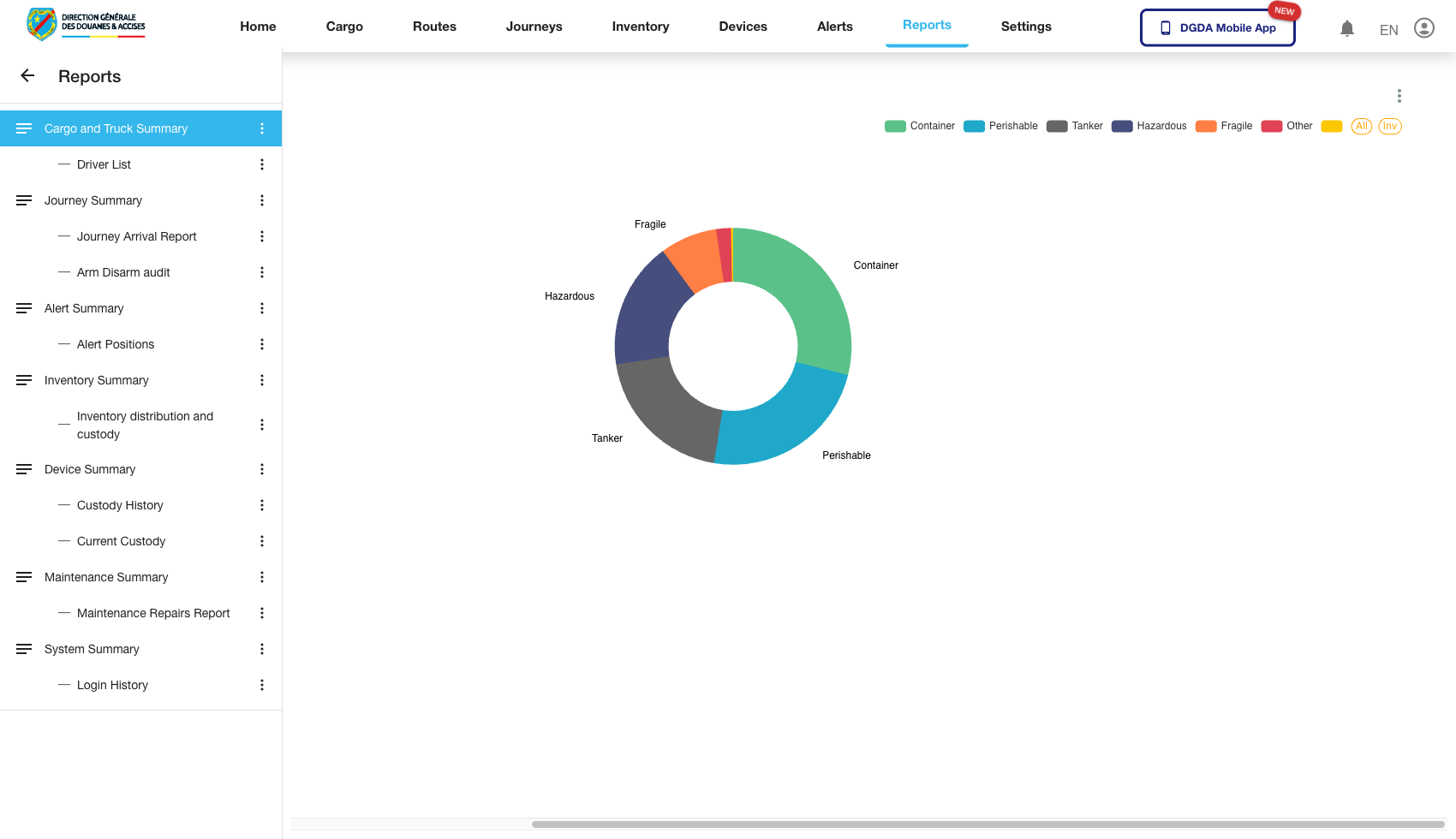 Route / Context:
 /reports.
Navigation Path: Top nav Reports.
Purpose: Entry point for embedded report catalog.
Expected UI State: Report cards/list appears after asynchronous loading.
Validation Checklist: Wait at least 15 seconds, confirm report tiles populate, click target report opens detail route.
Troubleshooting: If tiles do not render, inspect report-service availability and cross-origin/network blocks.
7.2 Report Detail Embed (72-report-detail-longwait.png)
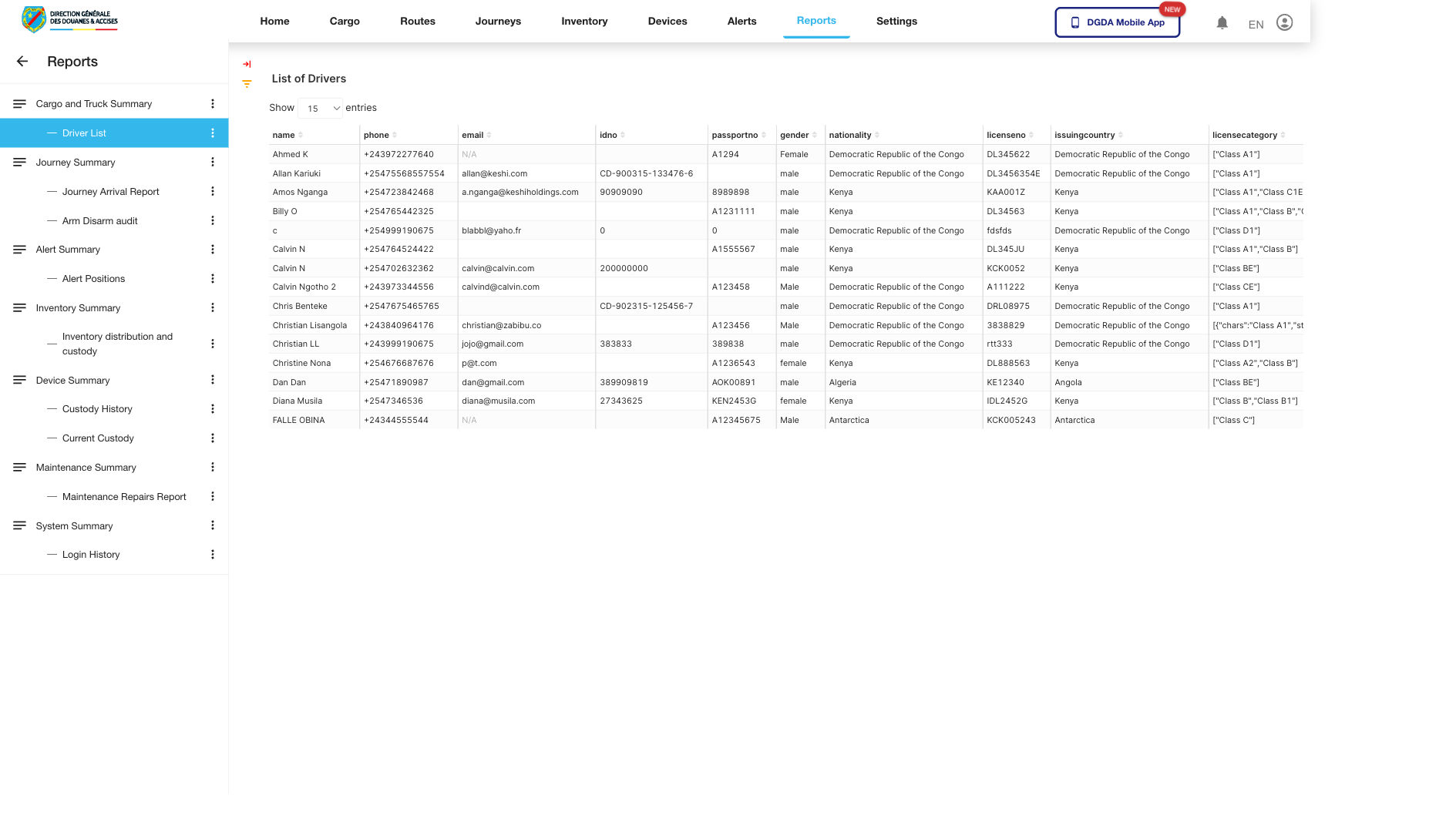 Route / Context:
 /reports/superset/18 embedded Superset dashboard.
Navigation Path: Open a report from index and wait for iframe embed.
Purpose: Validate full report rendering after delayed external load.
Expected UI State: Embedded dashboard frame appears with filter controls/charts.
Validation Checklist: Wait up to 70 seconds, confirm iframe content is interactive, filters update visuals.
Troubleshooting: If iframe remains blank, verify Superset embed URL, CORS/frame-ancestor settings, and SSO token exchange.
8. Settings and Users
8.1 Users List (62-settings-users.png)
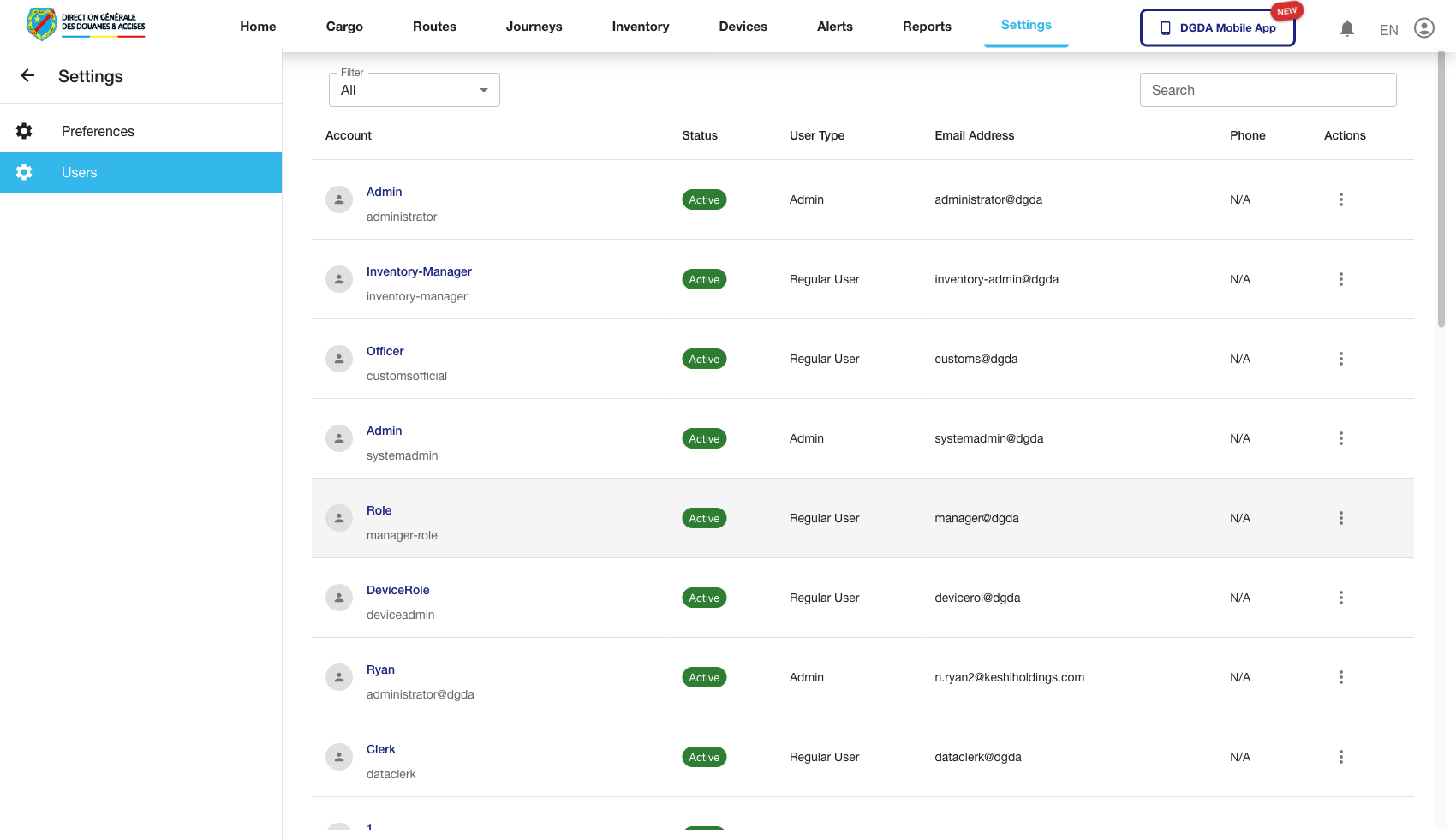 Route / Context:
 /settings/users.
Navigation Path: Top nav Settings then Users.
Purpose: User administration index.
Expected UI State: User rows with identity, role, status, and action controls.
Validation Checklist: Search/filter works, row actions are visible, pagination loads additional users.
Troubleshooting: If admin controls are missing, verify RBAC for current account.
8.2 Add User (63-settings-add-user.png)
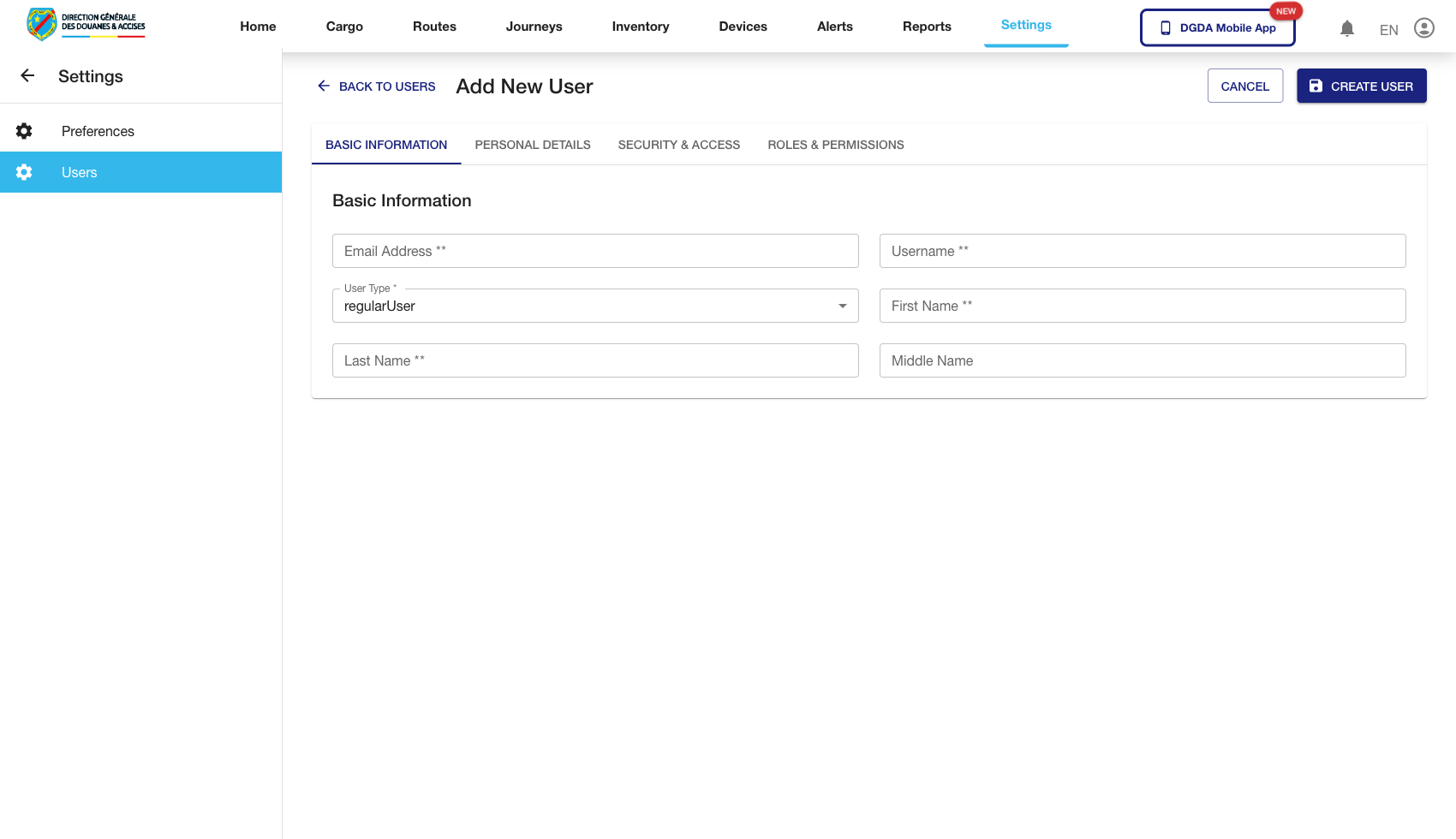 Route / Context:
 /settings/users/add-user.
Navigation Path: From Users list choose Add User.
Purpose: Onboard new portal users.
Expected UI State: Form fields for identity/contact/role and create action.
Validation Checklist: Mandatory fields enforce validation, role assignment persists on save.
Troubleshooting: If saved user cannot log in, verify role mapping and identity-provider synchronization.
8.3 Users List Before Detail Click (73-settings-users-before-click.png)
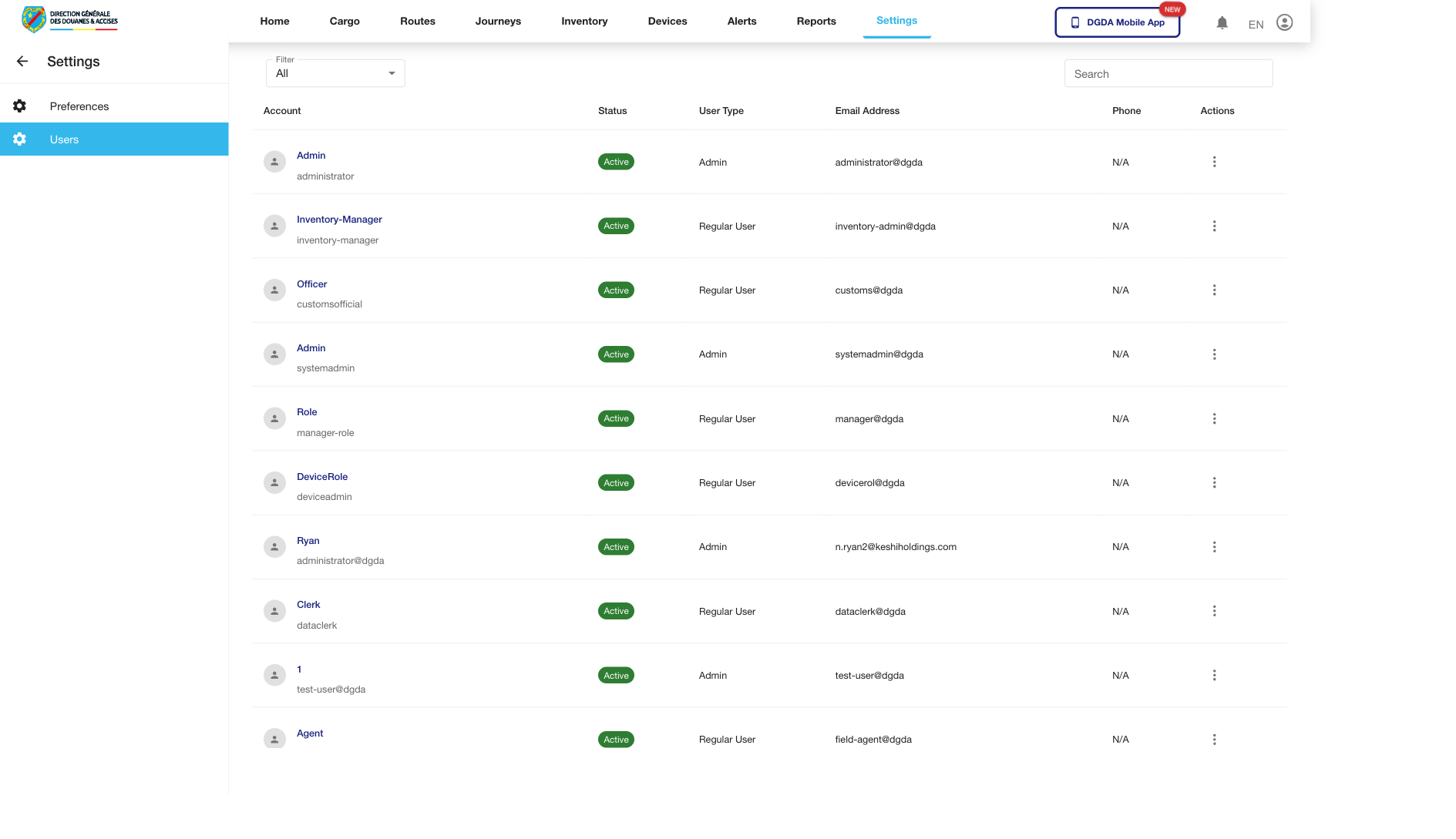 Route / Context:
 /settings/users pre-row-click state.
Navigation Path: Open Users page and target a user row.
Purpose: Baseline capture before opening detailed user profile.
Expected UI State: Selectable rows with clear click target.
Validation Checklist: Clicking row/control transitions to detail page.
Troubleshooting: If click does not route, inspect router link binding on user row action.
8.4 User Detail (74-settings-user-clicked.png)
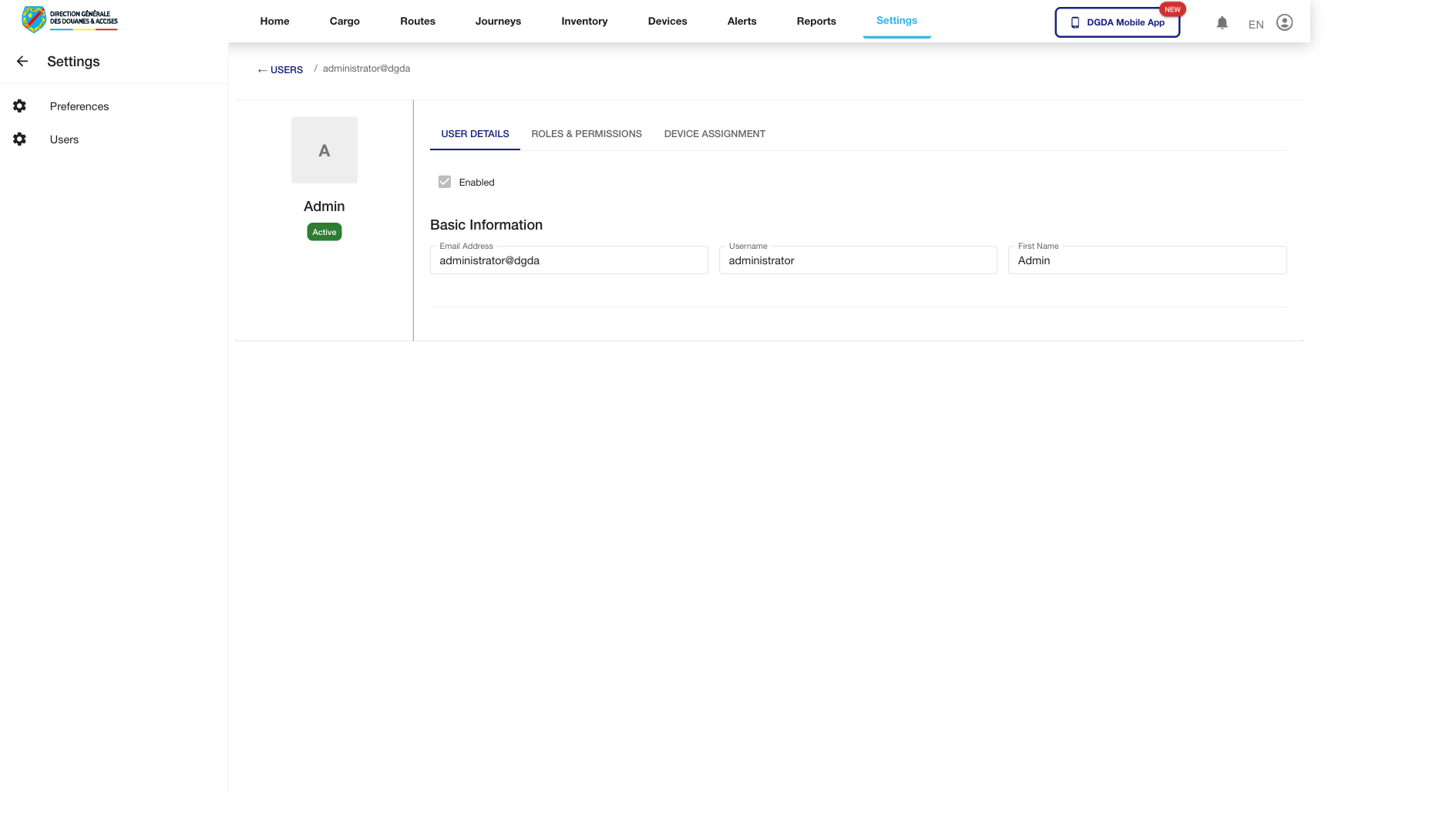 Route / Context:
 /settings/userdetail/36116.
Navigation Path: Click user row from Users list.
Purpose: View and manage full user profile and permissions context.
Expected UI State: Detail view with profile fields, status, and editable controls.
Validation Checklist: Update action succeeds, returning to list reflects new values.
Troubleshooting: If updates fail silently, inspect API permission response and frontend form error handling.
8.5 Preferences (64-settings-preferences.png)
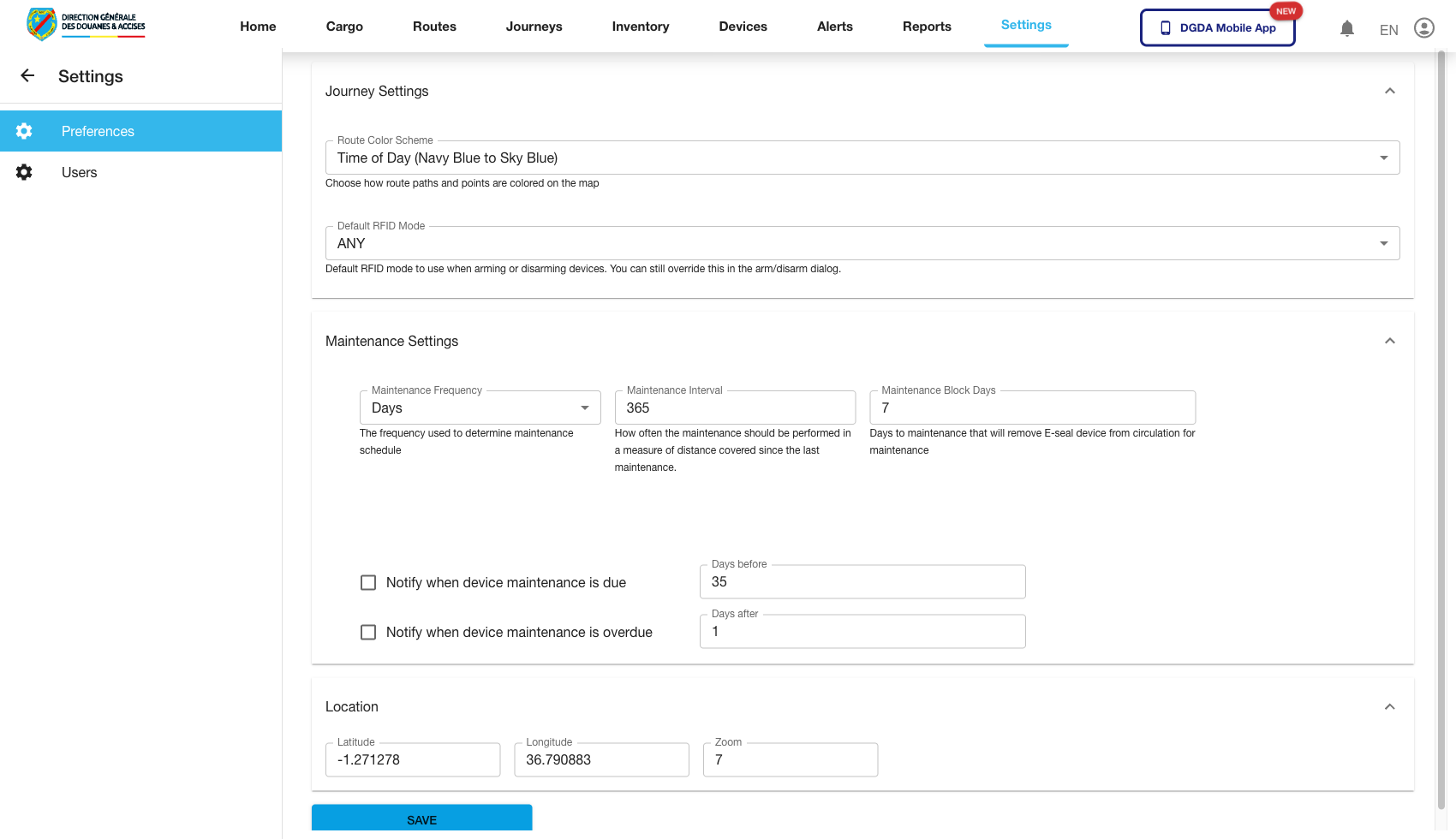 Route / Context:
 /settings/preferences.
Navigation Path: Settings then Preferences.
Purpose: Configure tenant/operator-level application behavior.
Expected UI State: Preference controls grouped by settings domain.
Validation Checklist: Saving preferences persists across refresh and new sessions where expected.
Troubleshooting: If settings revert, validate persistence layer and environment override precedence.
8.6 Devices Settings Dashboard (65-settings-devices-dashboard.png)
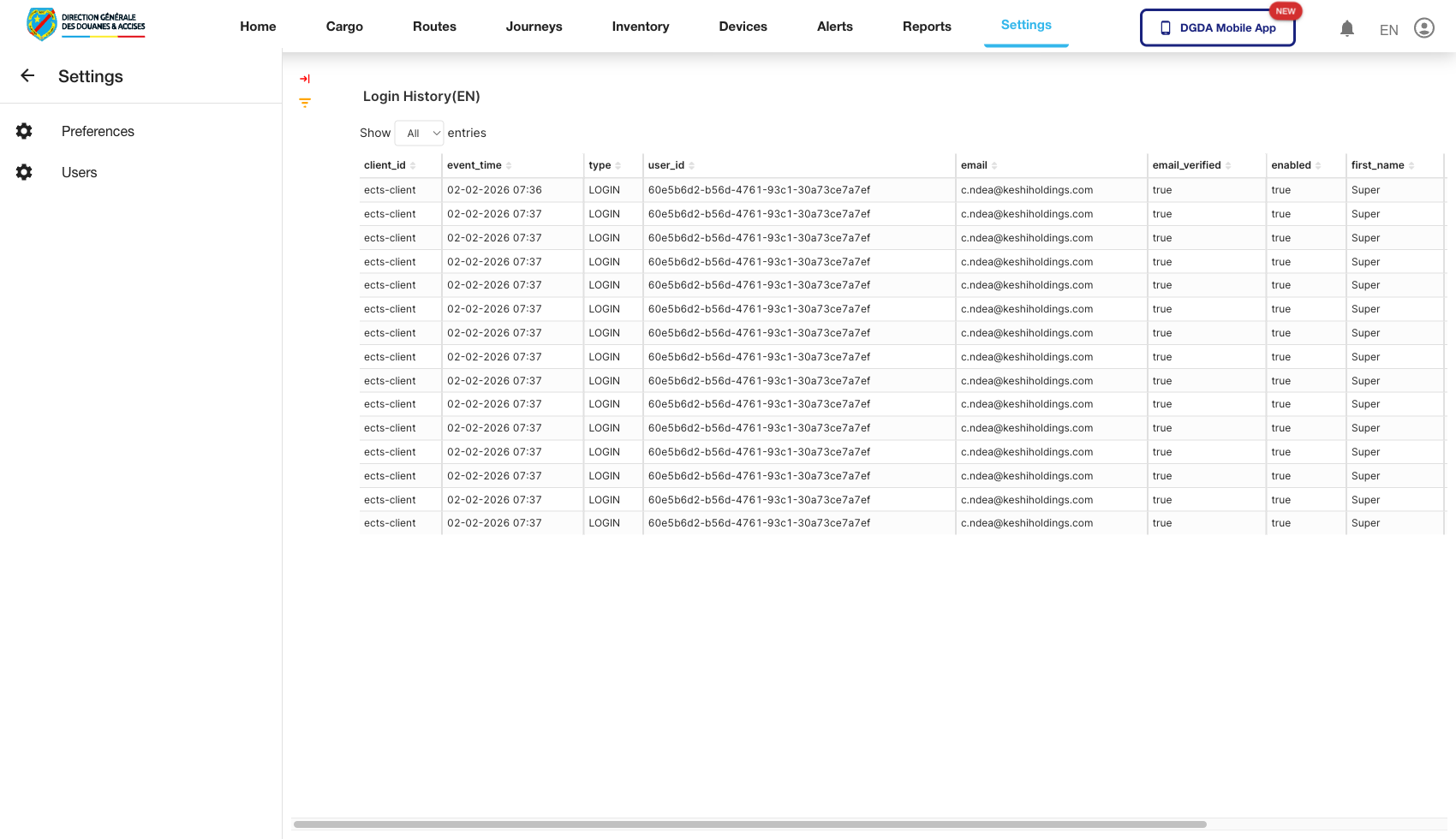 Route / Context:
 /settings/devices.
Navigation Path: Settings then Devices.
Purpose: Global settings relevant to device management features.
Expected UI State: Device settings blocks/cards and update controls.
Validation Checklist: Changes apply without runtime errors and affect downstream device pages appropriately.
Troubleshooting: If settings form crashes, verify defaults returned by backend and null-safe frontend rendering.
9. Devices Module (All Covered Pages)
9.1 Device Summary (46-device-summary.png)
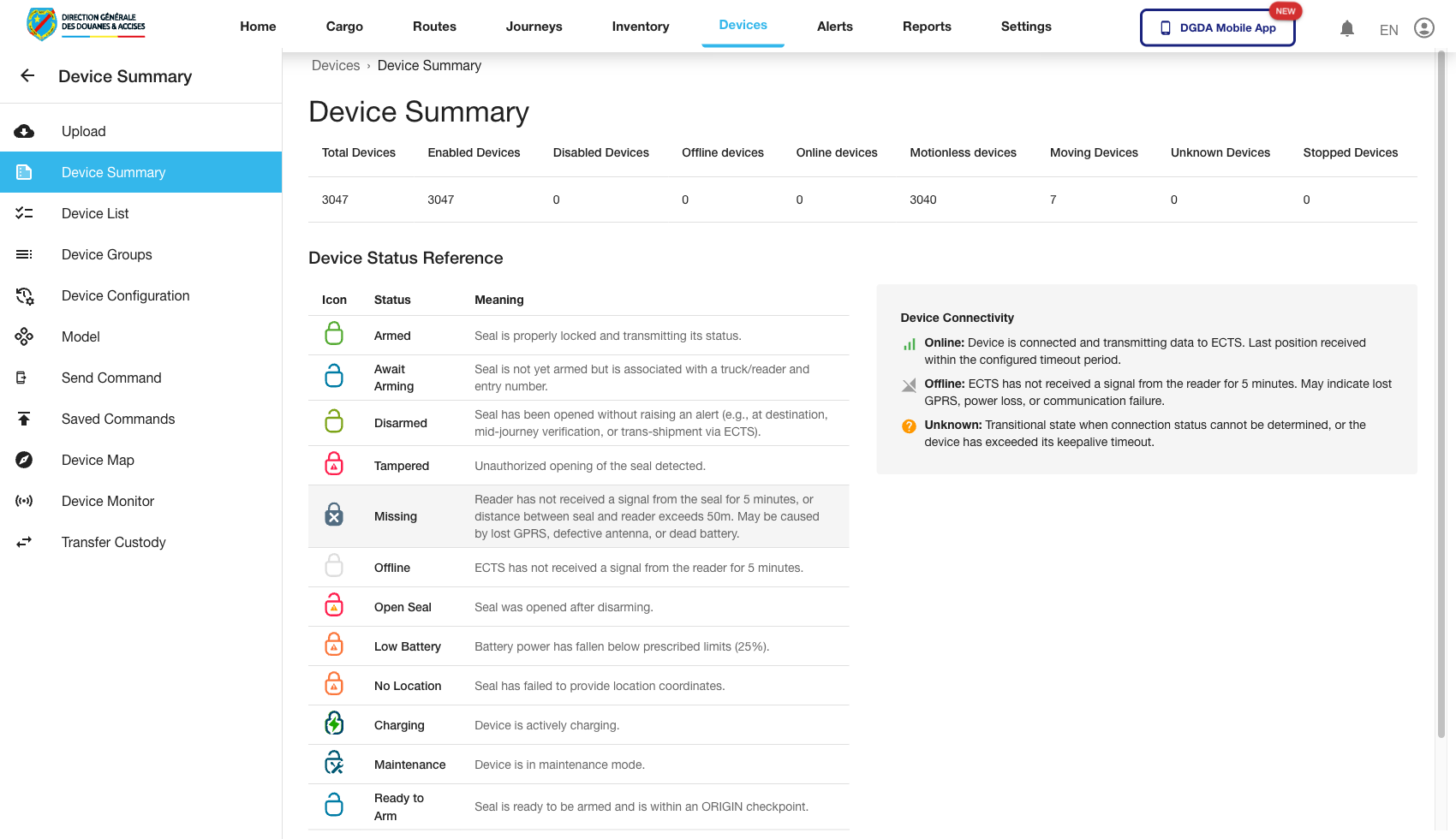 Route / Context:
 /device/device-summary.
Navigation Path: Top nav Devices then Device Summary.
Purpose: Fleet-level health and distribution overview.
Expected UI State: Summary metrics/cards/charts render with current counts.
Validation Checklist: Counts update after page refresh and align with list-level totals.
Troubleshooting: If metrics are zero while devices exist, verify summary aggregation endpoint.
9.2 Device List (47-device-list.png)
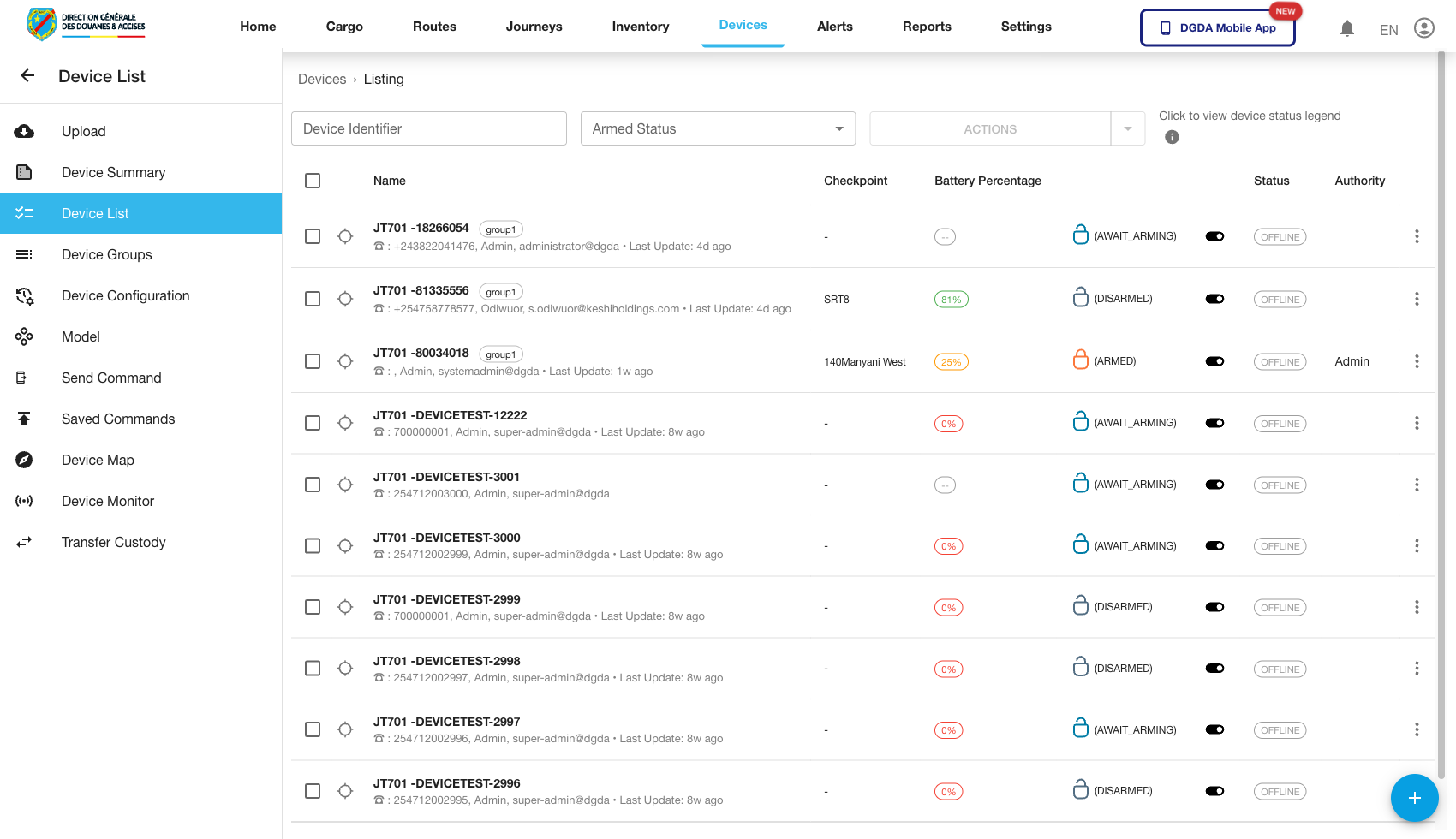 Route / Context:
 /device/device-list.
Navigation Path: Devices then Device List.
Purpose: Detailed per-device register.
Expected UI State: Device table with IDs, state, model/group references, action controls.
Validation Checklist: Search by device identifier works, row actions open expected dialogs/pages.
Troubleshooting: If actions fail for some rows, inspect row-level permission and record state constraints.
9.3 Device Group (48-device-group.png)
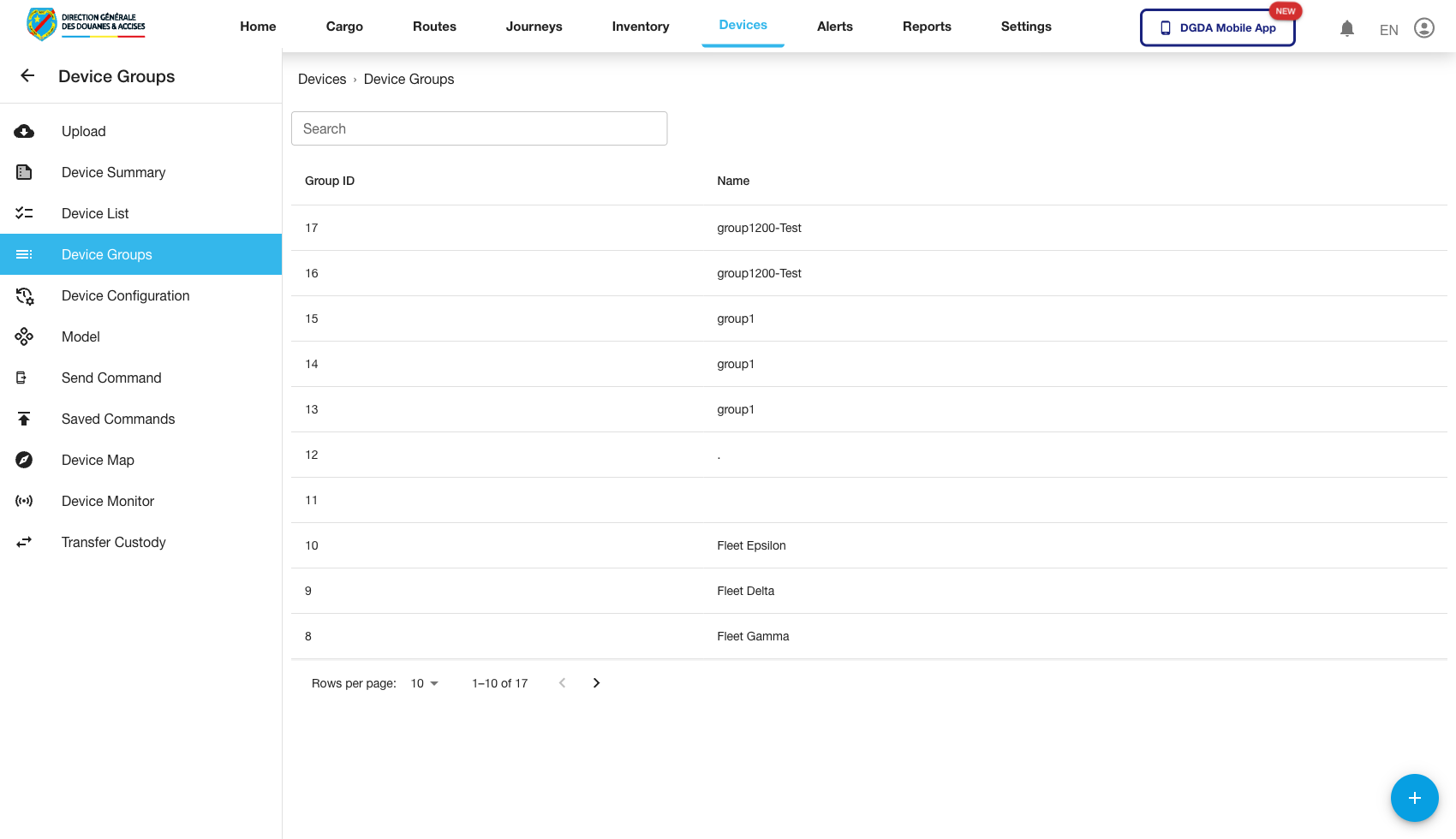 Route / Context:
 /device/device-group.
Navigation Path: Devices then Device Group.
Purpose: Manage group containers for policy/command targeting.
Expected UI State: Group list with member counts and edit/view actions.
Validation Checklist: Group changes persist and membership updates reflect in related pages.
Troubleshooting: If membership counts lag, force refresh and check backend group-member sync.
9.4 Add Device (49-device-add-device.png)
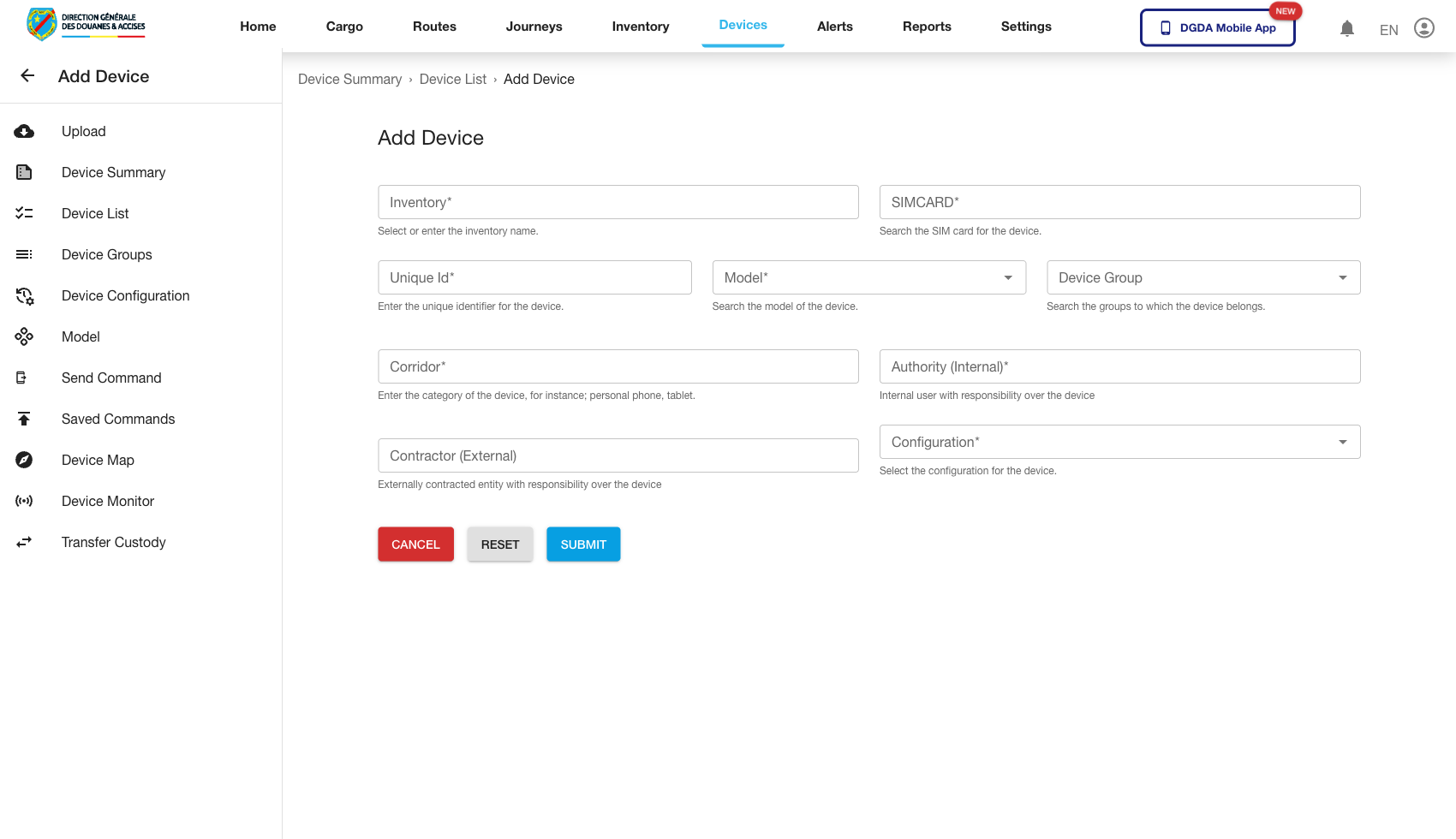 Route / Context:
 /device/add-device.
Navigation Path: Devices then Add Device.
Purpose: Register a new hardware device in the system.
Expected UI State: Provisioning form with identity/model/group-related inputs.
Validation Checklist: Required fields enforce input, successful creation returns confirmation.
Troubleshooting: If creation fails due to uniqueness, verify device identifier collision handling.
9.5 Configure Devices (50-device-configure-devices.png)
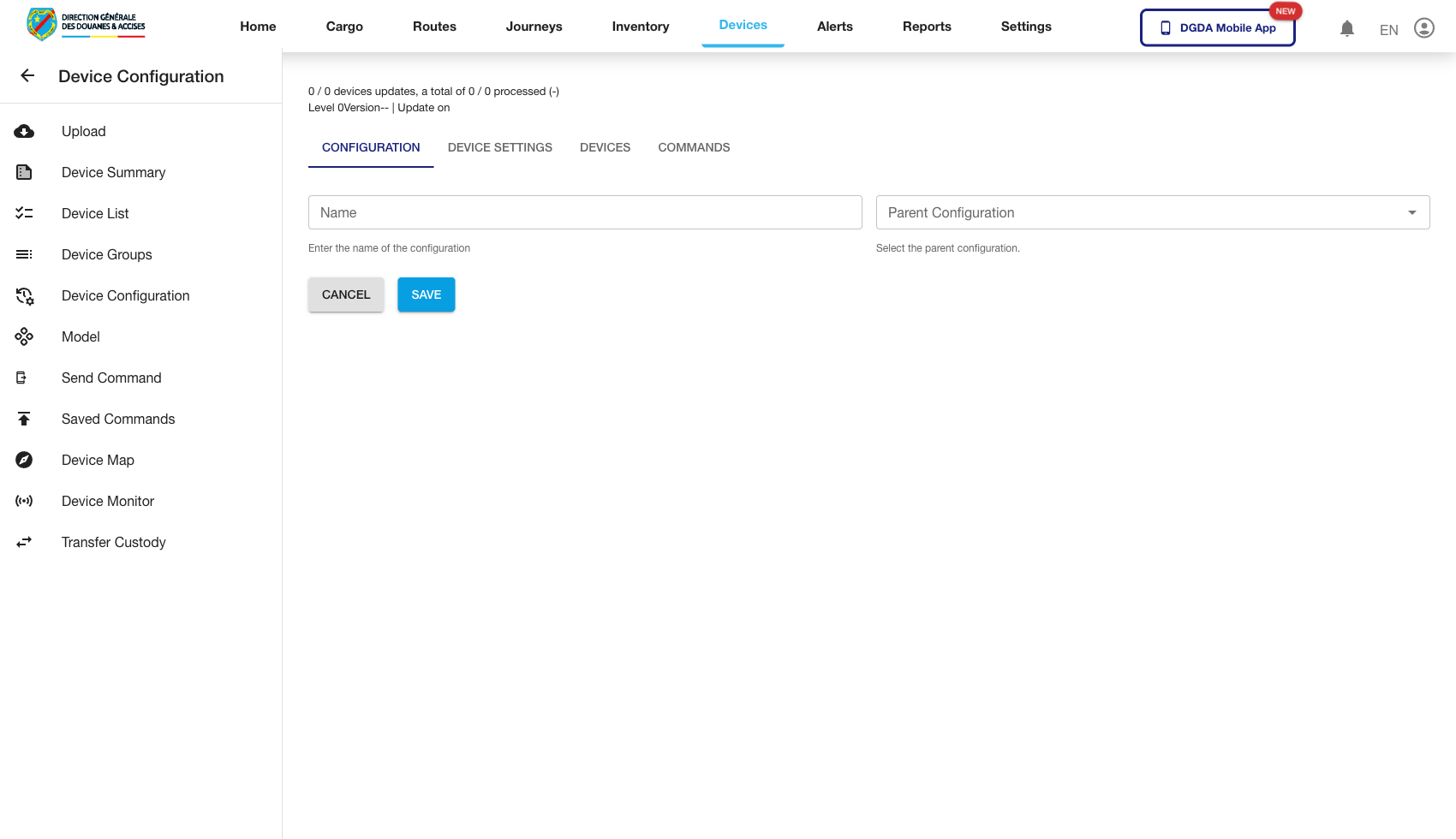 Route / Context:
 /device/configure-devices.
Navigation Path: Devices then Configure Devices.
Purpose: Apply configuration profiles to selected devices/groups.
Expected UI State: Selector controls for targets and configuration options.
Validation Checklist: Save/apply action succeeds and new configuration appears in device state.
Troubleshooting: If apply action times out, inspect command/config dispatch queue health.
9.6 Add Device Model (51-device-add-device-model.png)
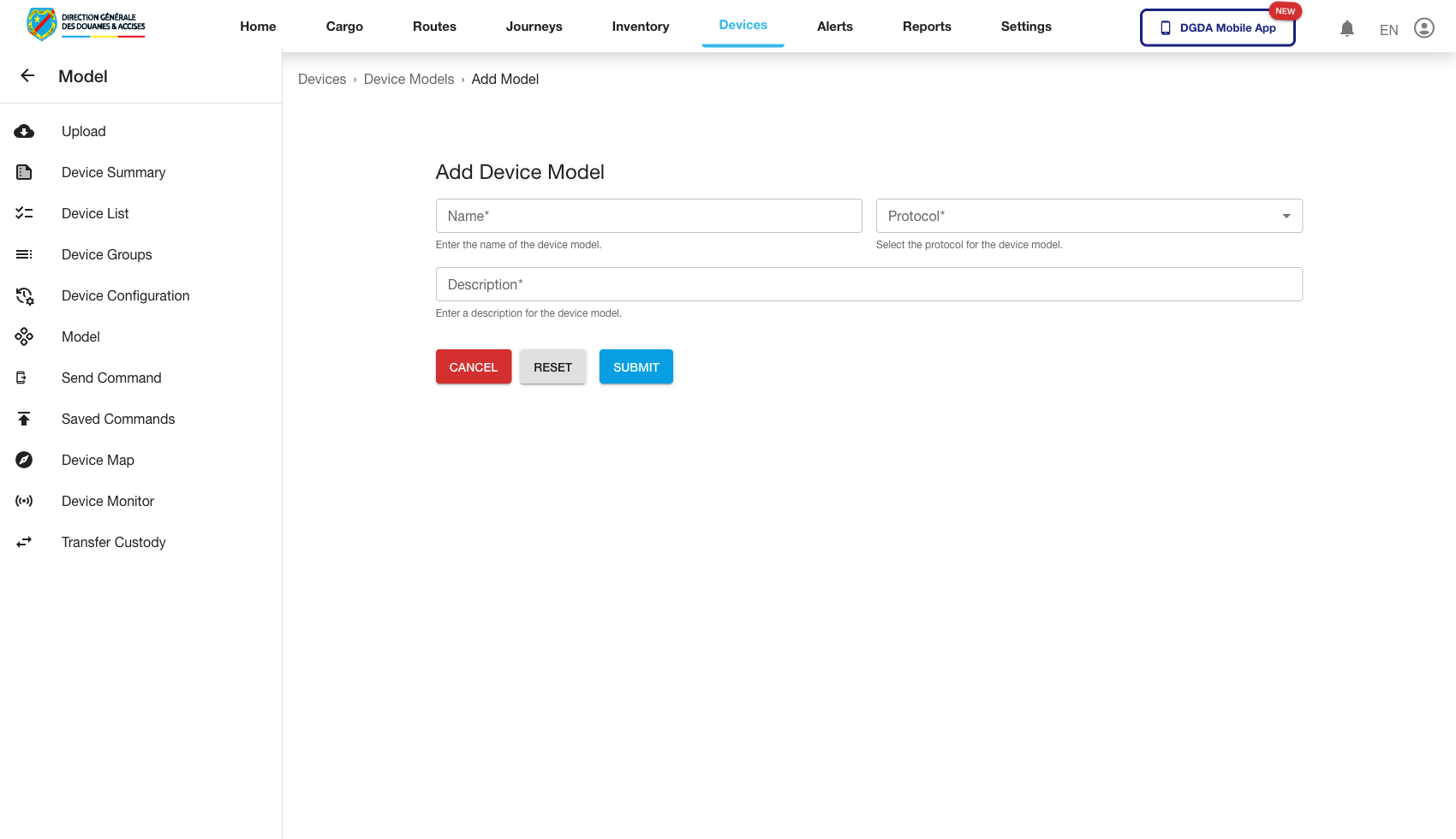 Route / Context:
 /device/add-device-model.
Navigation Path: Devices then Add Device Model.
Purpose: Define new device model metadata.
Expected UI State: Form fields for model name/type/capabilities.
Validation Checklist: Model save succeeds and model appears in model list.
Troubleshooting: If model is created but not selectable elsewhere, verify reference data refresh.
9.7 Device Models (52-device-models.png)
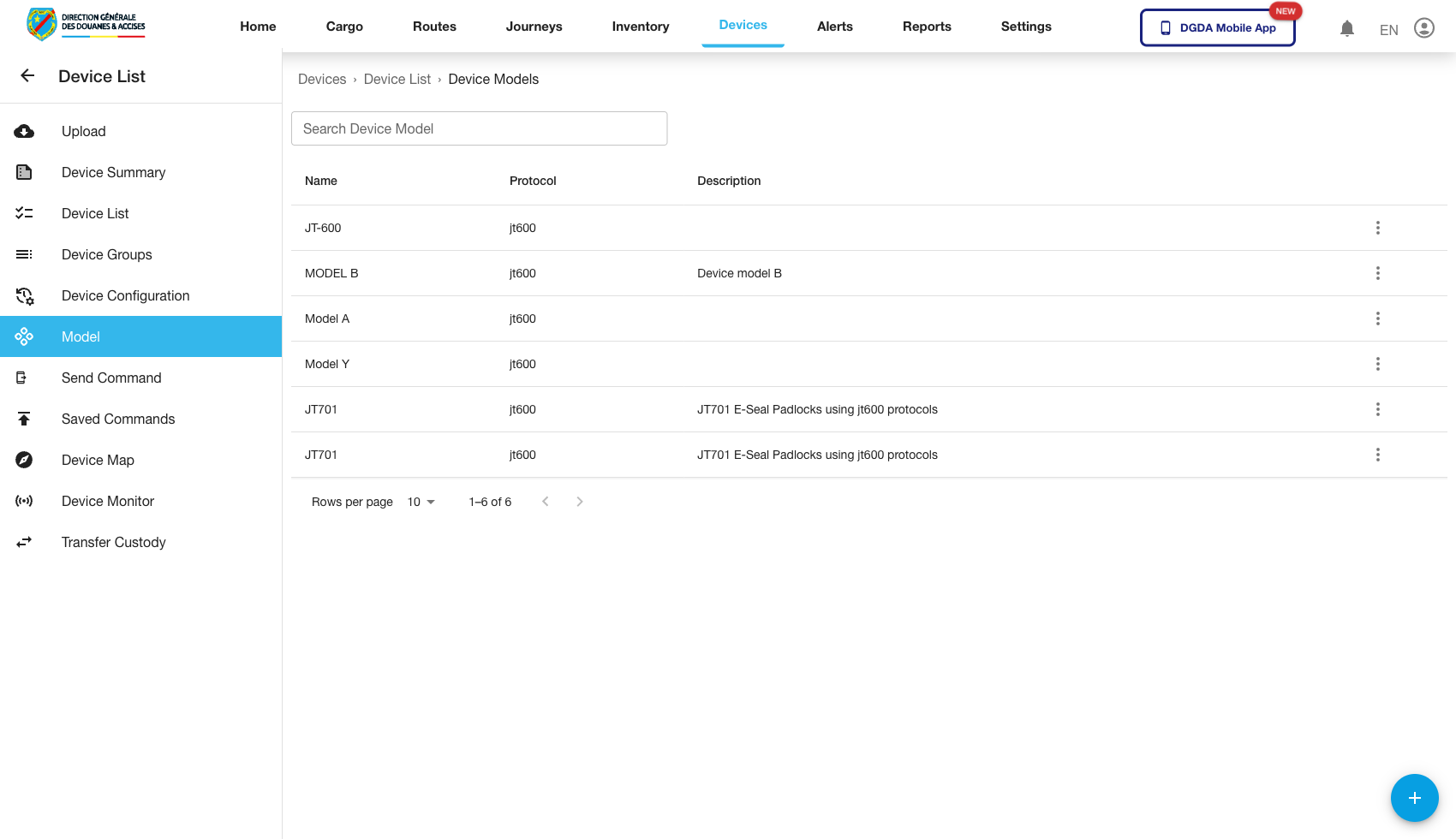 Route / Context:
 /device/device-models.
Navigation Path: Devices then Device Models.
Purpose: Manage existing device model catalog.
Expected UI State: Model table with edit/view actions.
Validation Checklist: Changes to model attributes persist and are used in add-device forms.
Troubleshooting: If model edits do not propagate, inspect cached model lookup in frontend.
9.8 Add Device Group (53-device-add-device-group.png)
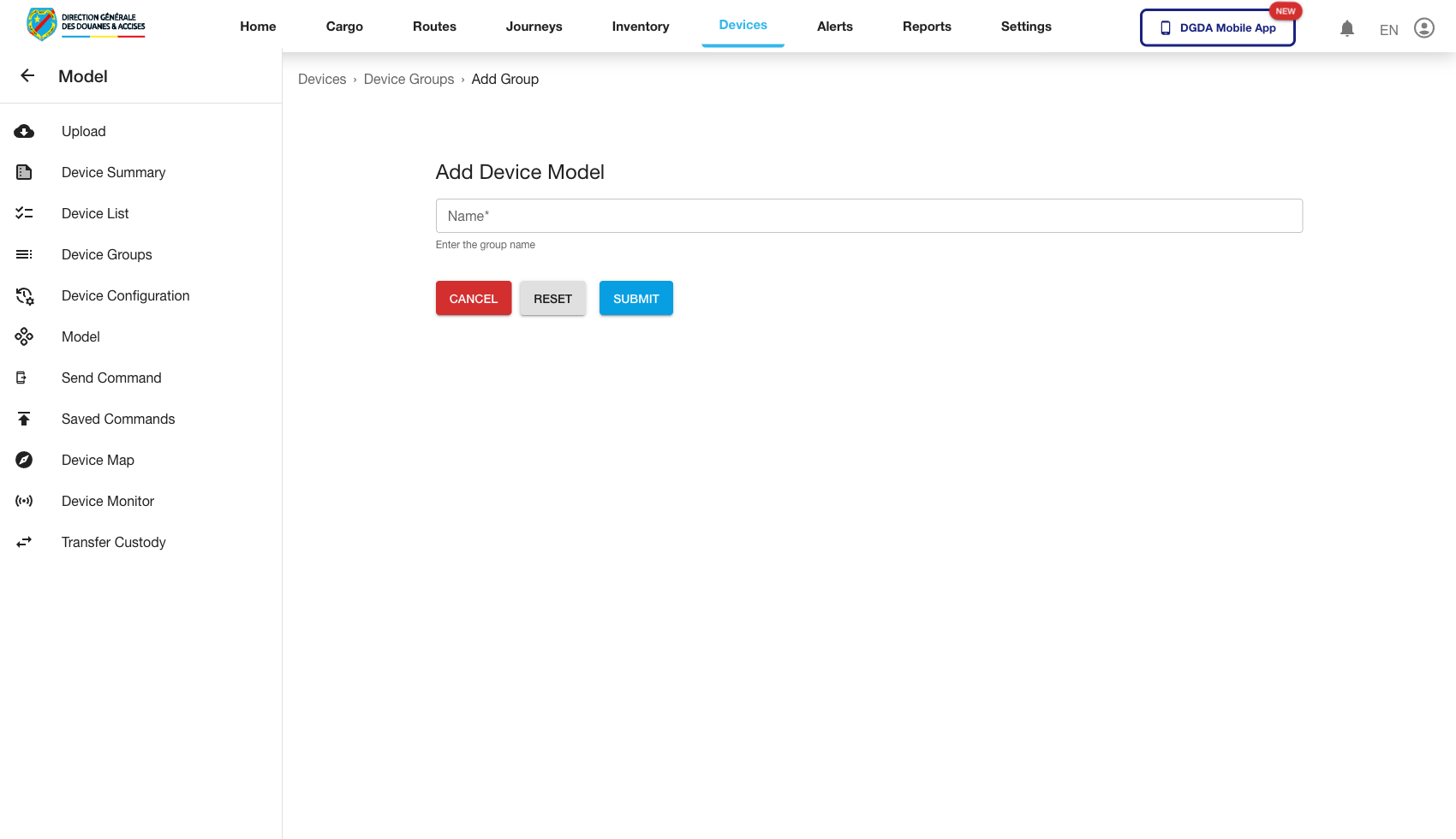 Route / Context:
 /device/add-device-group.
Navigation Path: Devices then Add Device Group.
Purpose: Create a named grouping of devices for operations.
Expected UI State: Group form with name/description/member logic as available.
Validation Checklist: New group appears in group list and target selectors.
Troubleshooting: If group appears only after hard refresh, check state invalidation after create.
9.9 Device Configurations (54-device-configurations.png)
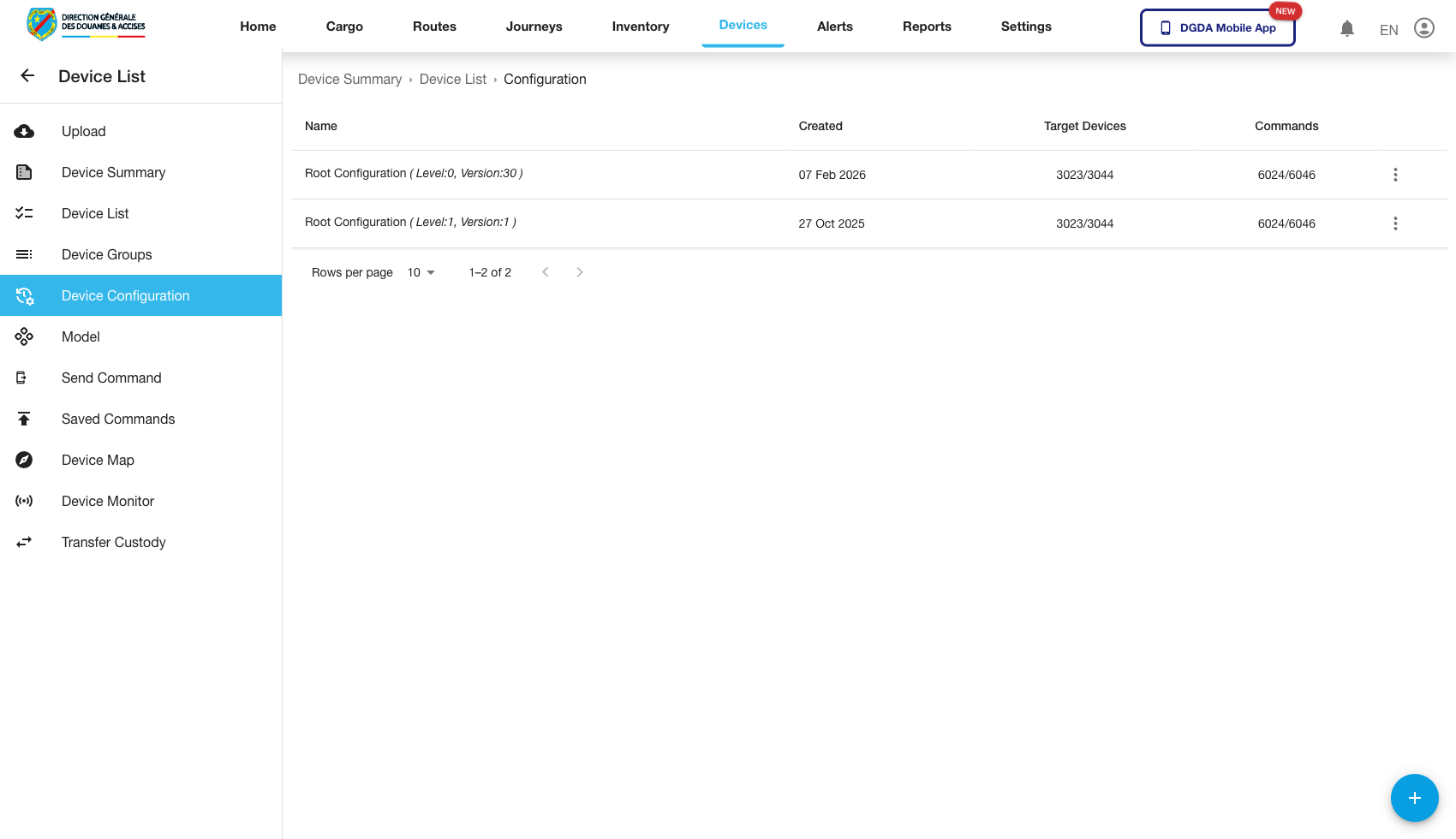 Route / Context:
 /device/device-configurations.
Navigation Path: Devices then Device Configurations.
Purpose: Manage reusable configuration profiles.
Expected UI State: Configuration list with create/edit/apply options.
Validation Checklist: Updated profile versions are visible and selectable.
Troubleshooting: If edits overwrite unexpectedly, verify optimistic lock/version control behavior.
9.10 Import Devices (55-device-import-devices.png)
 Route / Context:
 /device/import-devices.
Navigation Path: Devices then Import Devices.
Purpose: Bulk onboard devices through file import.
Expected UI State: Upload/template controls and import action button.
Validation Checklist: File type/format validation triggers, import summary/errors are displayed.
Troubleshooting: If import stalls, verify upload size limits and backend parsing logs.
9.11 Send Command (56-device-send-command.png)
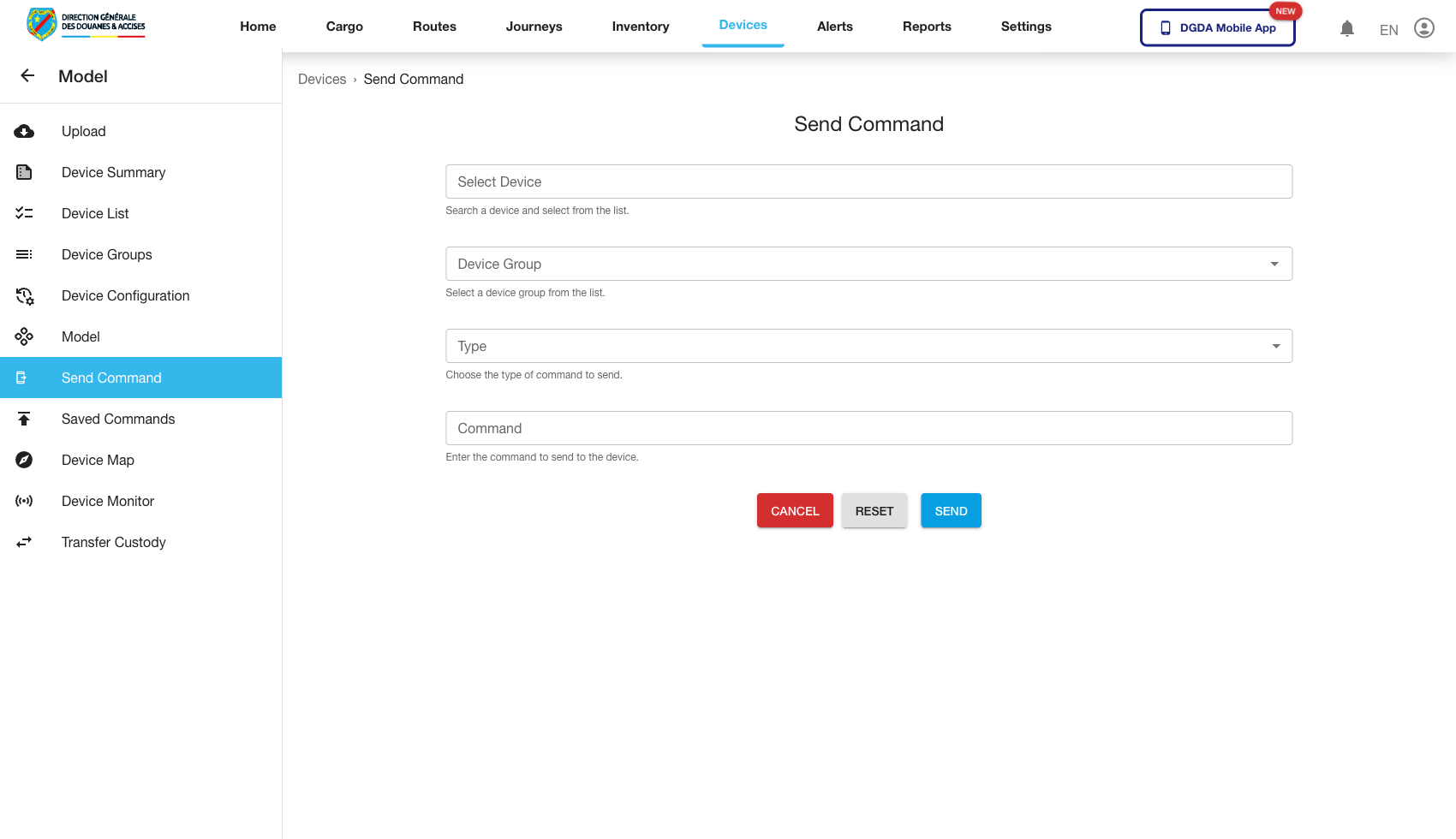 Route / Context:
 /device/send-command.
Navigation Path: Devices then Send Command.
Purpose: Issue command payload to one or more devices.
Expected UI State: Command form with target selectors and execution trigger.
Validation Checklist: Command submission confirms dispatch and appears in command history.
Troubleshooting: If command never executes, check downstream message broker/device connectivity.
9.12 Commands History (57-device-commands.png)
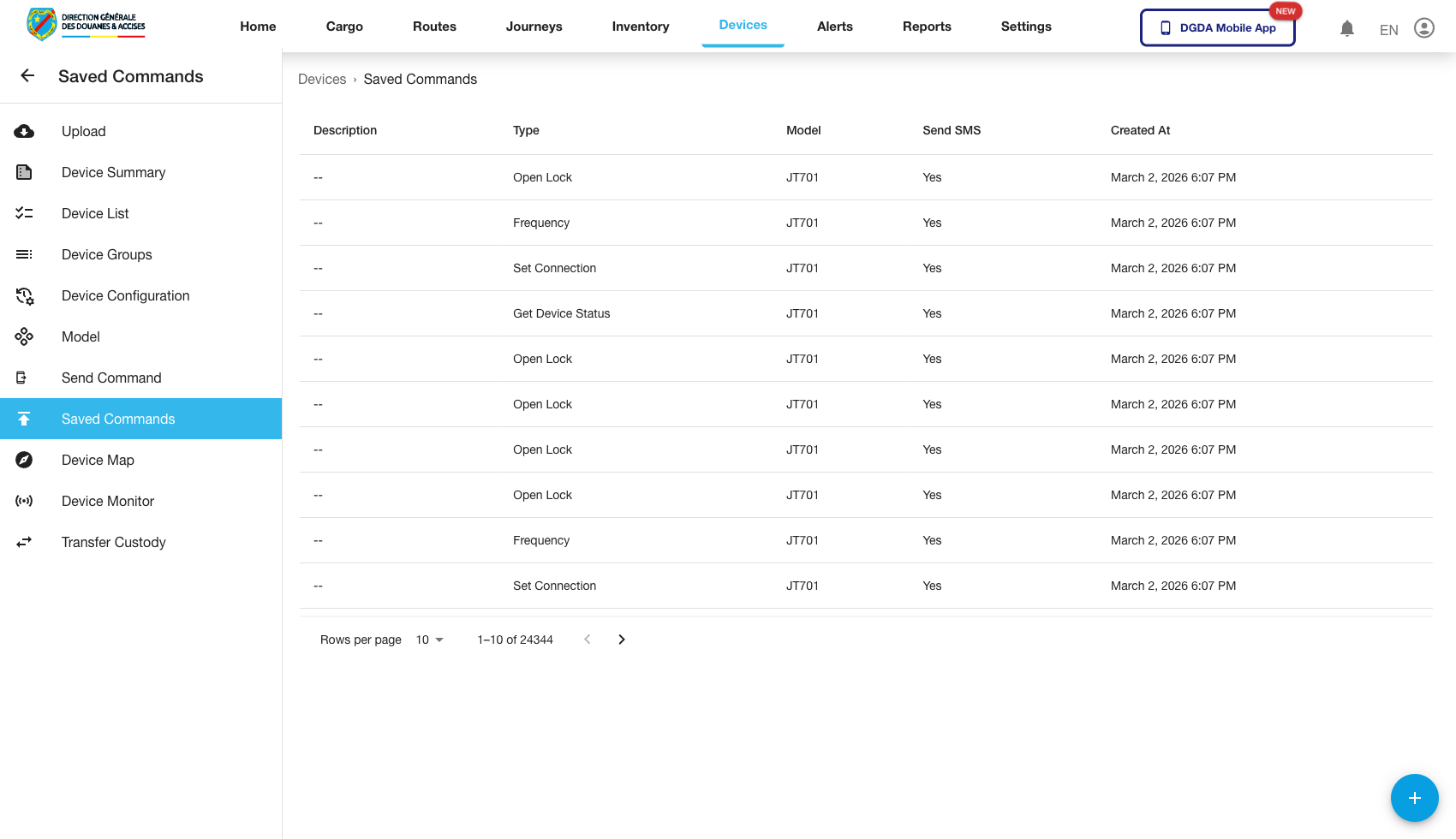 Route / Context:
 /device/commands.
Navigation Path: Devices then Commands.
Purpose: Audit previously sent commands and outcomes.
Expected UI State: History rows with timestamps, target devices, and result statuses.
Validation Checklist: Recent sent command appears with status transition.
Troubleshooting: If statuses remain pending indefinitely, inspect command result callback pipeline.
9.13 Device Map (58-device-map.png)
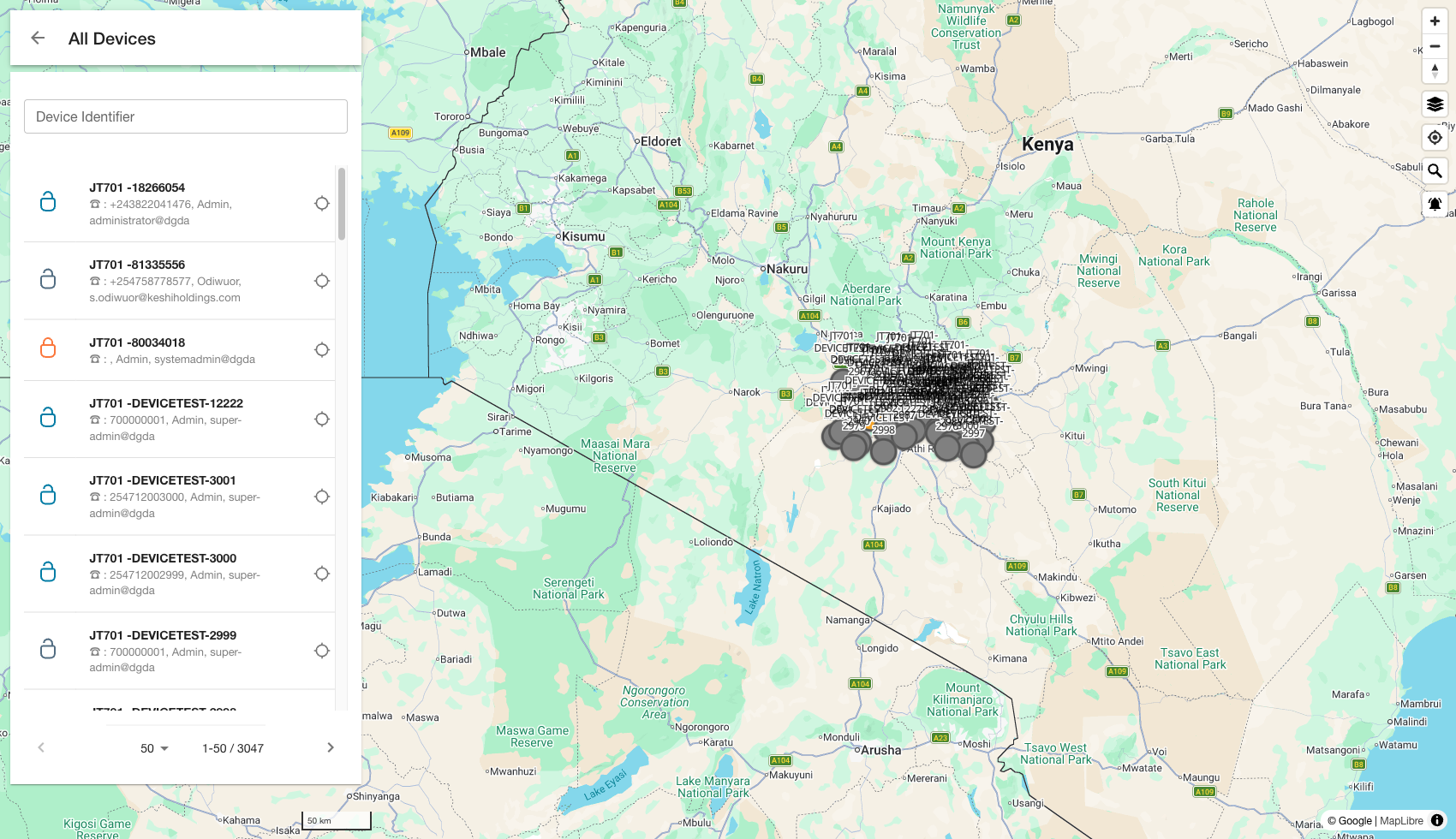 Route / Context:
 /device/device-map.
Navigation Path: Devices then Device Map.
Purpose: Geospatial view of devices.
Expected UI State: Map tiles and device markers render; map controls are interactive.
Validation Checklist: Marker count is plausible, pan/zoom works, selecting marker reveals device context.
Troubleshooting: If markers are missing, verify location telemetry availability and map API access.
9.14 Device Monitor (59-device-monitor.png)
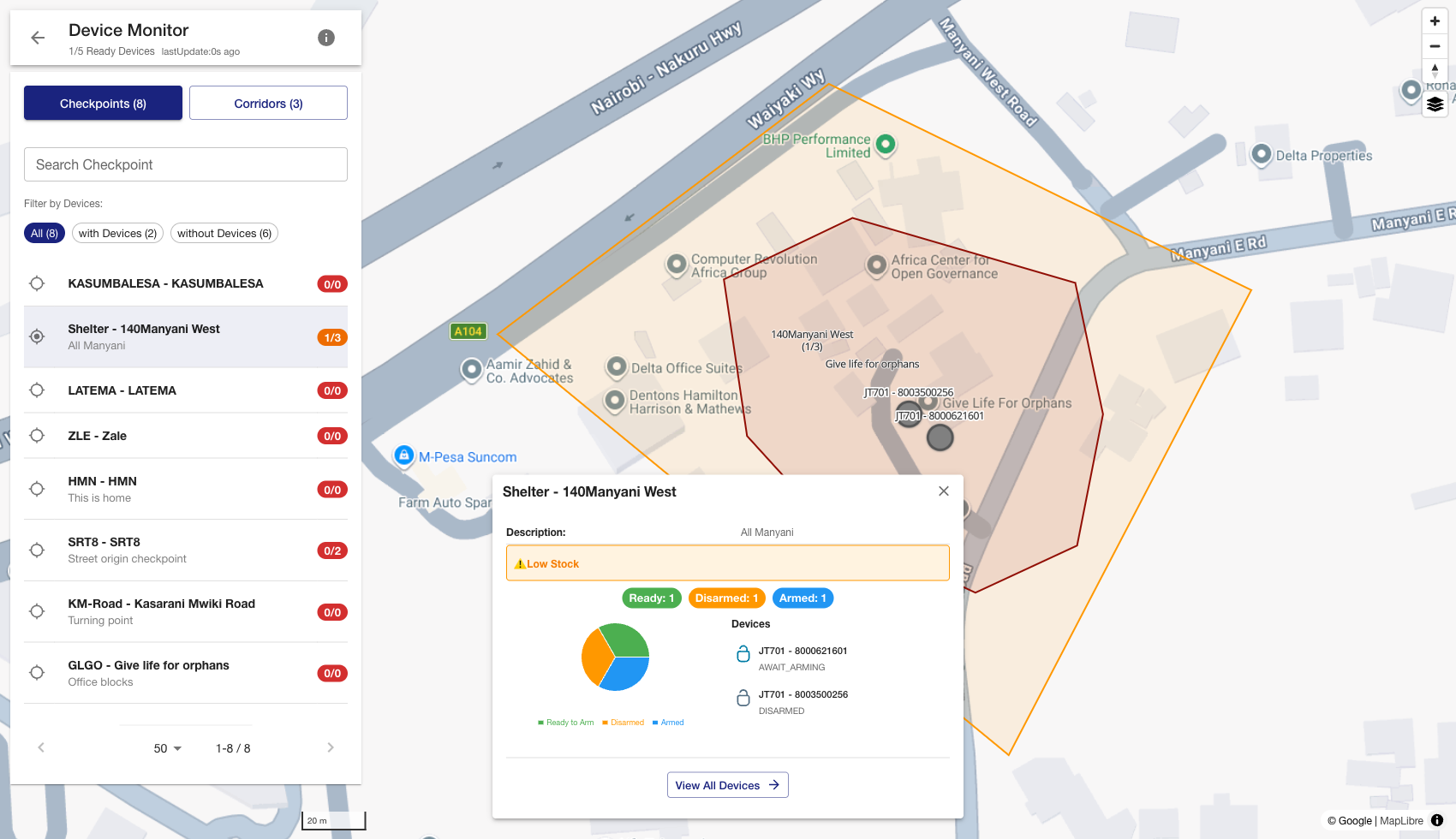 Route / Context:
 /device/device-monitor.
Navigation Path: Devices then Device Monitor.
Purpose: Live/near-live telemetry and health tracking.
Expected UI State: Monitoring widgets, status indicators, and refresh mechanisms.
Validation Checklist: Health indicators change with real events, stale data warnings appear when feed pauses.
Troubleshooting: If monitor is static, check telemetry ingest and websocket/polling transport.
9.15 Transfer Custody (60-device-transfer-custody.png)
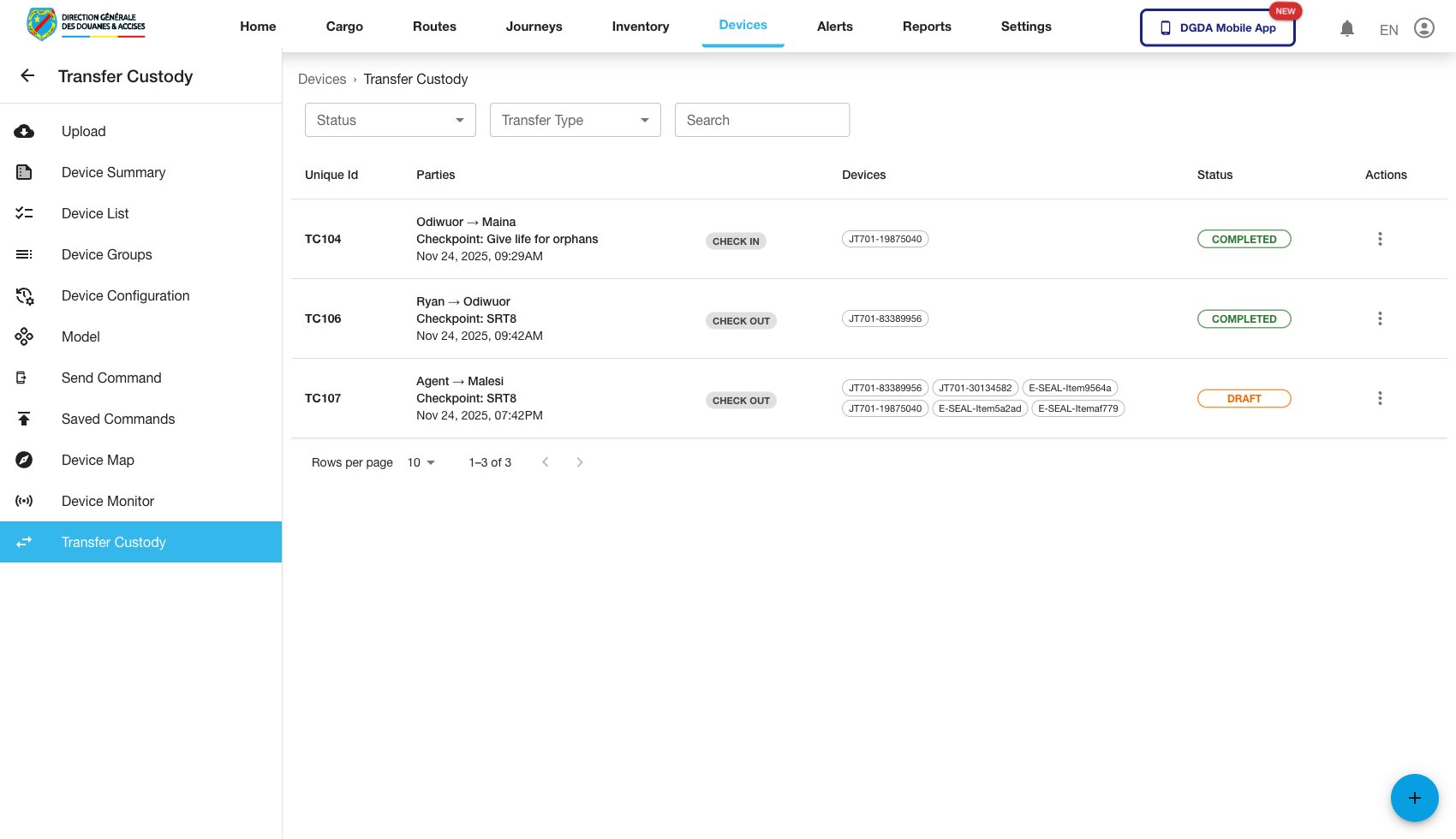 Route / Context:
 /device/transfer-custody.
Navigation Path: Devices then Transfer Custody.
Purpose: Review custody transfer records and ownership lineage.
Expected UI State: Transfer list with source/destination, timestamp, and state columns.
Validation Checklist: New transfers appear and are searchable by device or party.
Troubleshooting: If recent transfer is missing, verify transaction commit and list filter timeframe.
9.16 Add Transfer Custody (61-device-add-transfer-custody.png)
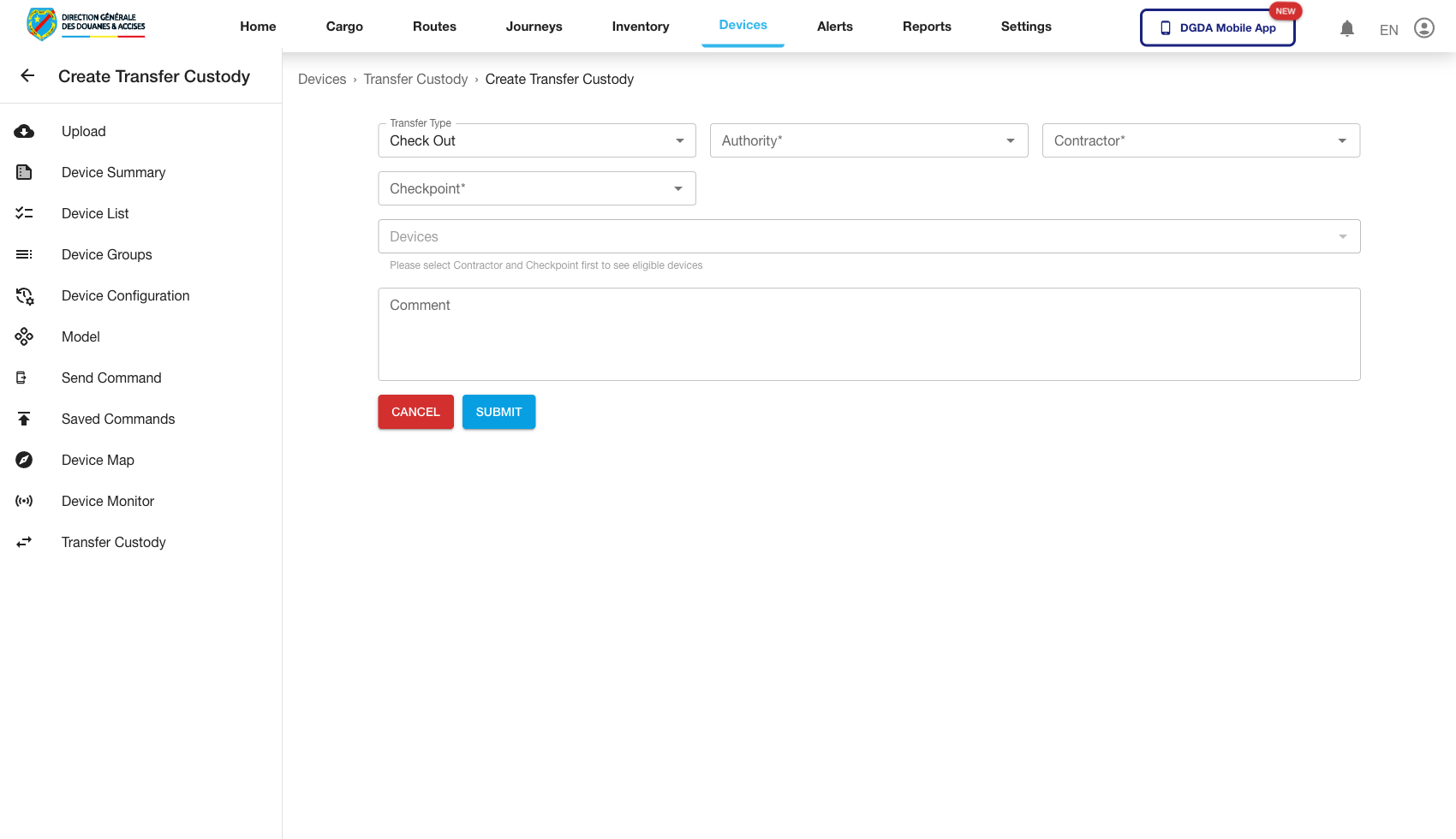 Route / Context:
 /device/add-transfer-custody.
Navigation Path: Devices then Add Transfer Custody.
Purpose: Create a new device custody transfer event.
Expected UI State: Form with source, destination, device selection, and submit controls.
Validation Checklist: Mandatory fields validate, successful submit returns confirmation and appears in transfer list.
Troubleshooting: If save fails for valid input, inspect authorization and business-rule constraints for custody transitions.
10. Known Route Exceptions
10.1 Route Devices Exception
Route: /routes/route-devices
Observed State: Frontend runtime error (undefined/read issue) during live capture.
Impact: Not safe for operator SOP or training as-is.
Interim Guidance: Exclude from documented workflows until frontend defect is fixed and re-validated.
10.2 Settings Server Exception
Route: /settings/server
Observed State: Frontend runtime error (speedUnit undefined/read) during live capture.
Impact: Not safe for operator SOP or training as-is.
Interim Guidance: Exclude from documented workflows until frontend defect is fixed and re-validated.